Using Zixi Documentation
Before we get into the Quick Starts for ZEN Master and Broadcaster, here are a few tips on getting around in this documentation site and getting answers to your questions.
Site Navigation
Zixi documentation is divided into several major sections that appear in the site navigation on the left:
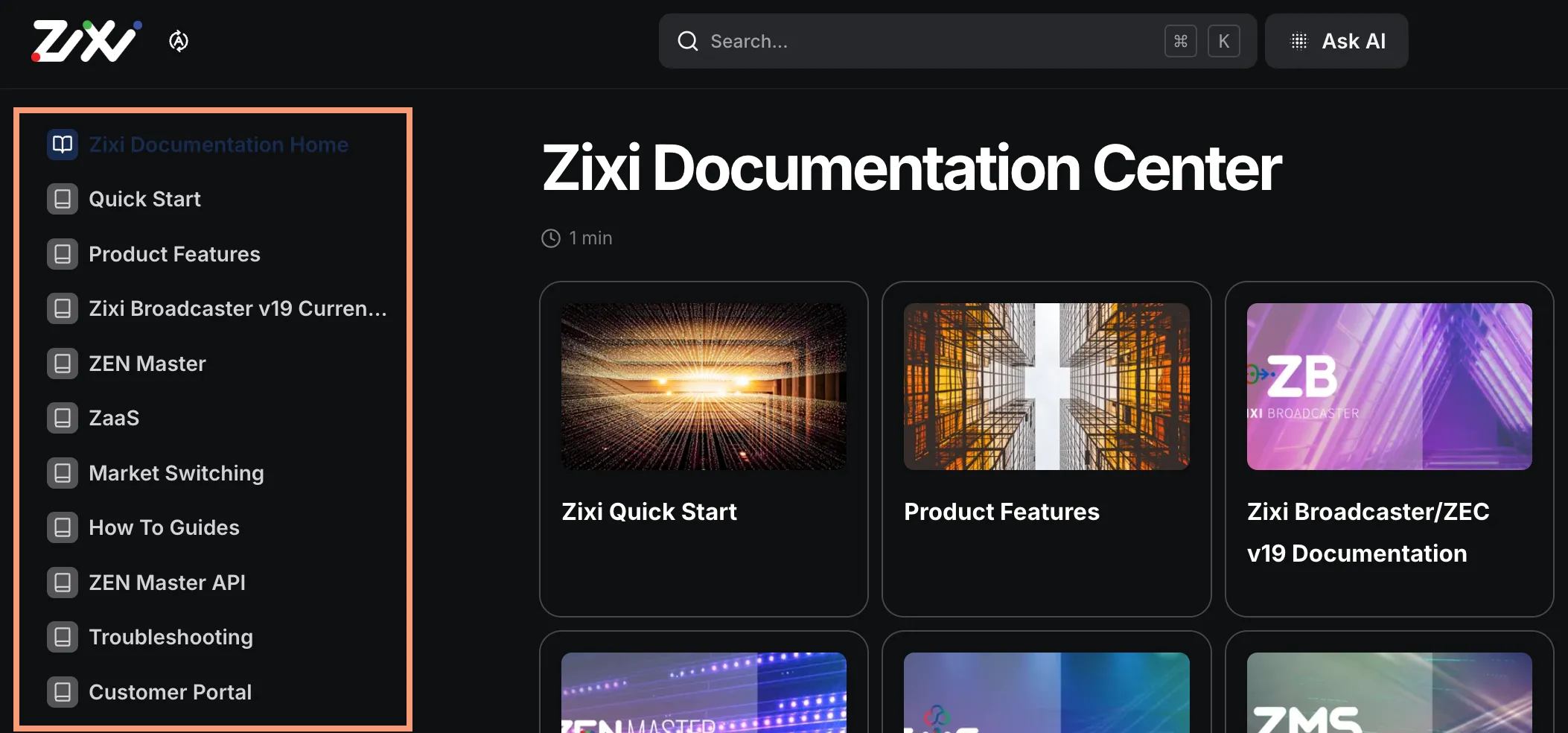
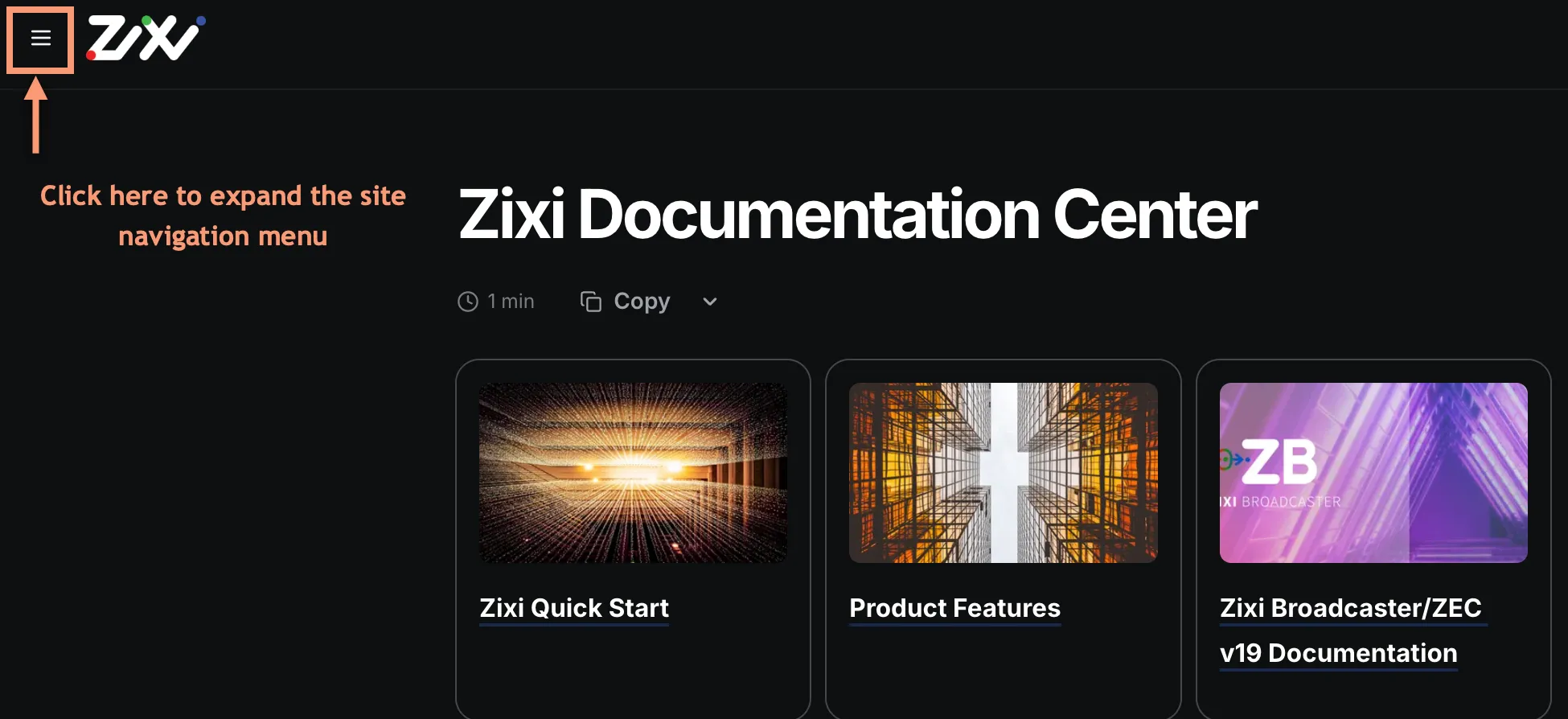
Note that on narrower displays, the site navigation may not appear automatically, but you can still access by clicking the icon in the upper-left corner:
The Major Sections
Here is a brief description of what you'll find in the major sections:
- Zixi Documentation Home - the home page, but also release notes for Broadcaster and ZEN Master, as well as a page that shows recent additions and updates to the documentation
- Quick Start - the section you are in now, which also includes instructions for getting started quickly with ZEN Master and Broadcaster
- Product Features - high-level overviews of some key Zixi features, such as Redundancy, Error Correction, working with TAMS, and so forth
- Broadcaster vXX Current Version - documentation for the current version of Broadcaster and ZEC (when you go to that section, you will also find links to documentation for previous but still supported versions)
- ZEN Master - documentation for ZEN Master
- ZaaS - a one-page explanation of Zixi-as-a-Service, which is ZEN Master used with Broadcasters that Zixi sets up and maintains in the cloud for you
- Market Switching - covers Zixi's tools for inserting SCTE messages into streams for purposes such as creating pre-rolls or ad breaks, providing regionalized content to different receivers, and switching to different content in situations where content is blacked out in particular areas for regulatory or contractual reasons.
- How To Guides - Guides for cross-product things like security, related apps like VLC, OBS, and Wirecast, Zixi's OnAir Pro mobile app, etc.
- ZEN Master API - Not the API Reference, which is found on the Customer Portal, but guides to some common basic API tasks, as well as configuring API Keys, setting up the API in Postman, and such
- Troubleshooting - despite Zixi's elaborate array of tools to ensure that your video streams get to their destinations intact and on time, things happen. This section contains troubleshooting guides to help you fix or mitigate issues when they arise
- Customer Portal - a guide to the portal where you can download Zixi software, get licenses, find additional documentation, and more
Navigating the Sections
When you click on any of the main sections, the section navigation will open up below the links to the main sections:
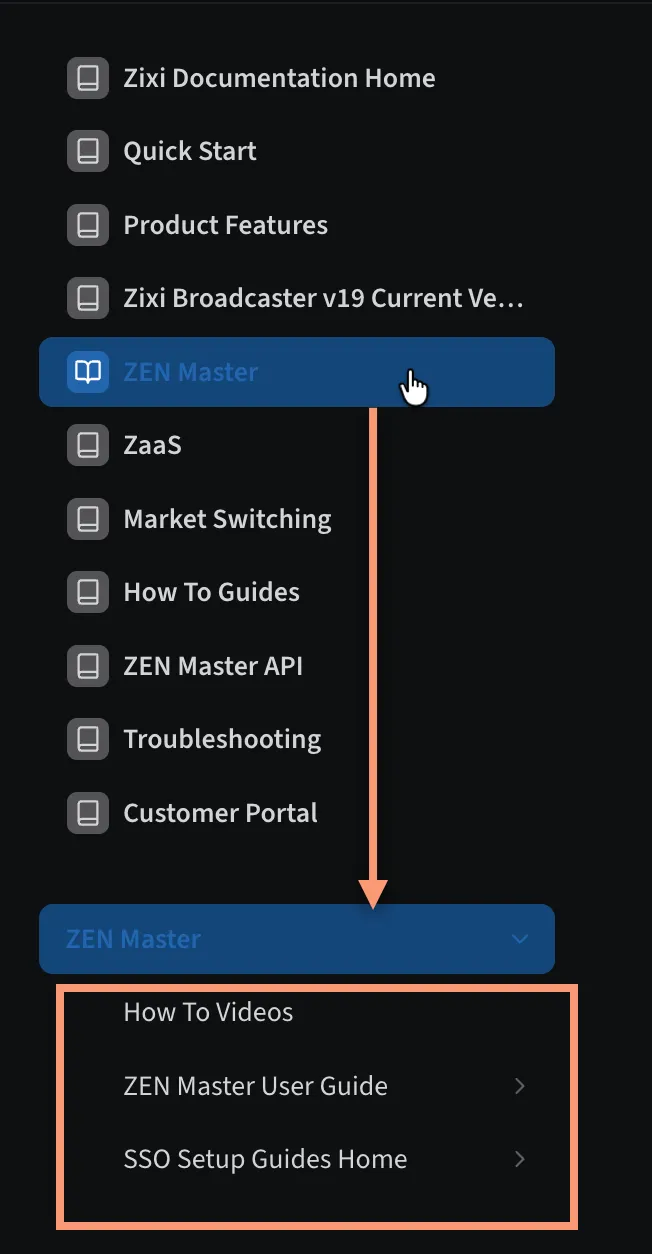
When you click on one of the subsections of the main section, it will expand to reveal links to the documents and subsections it contains:
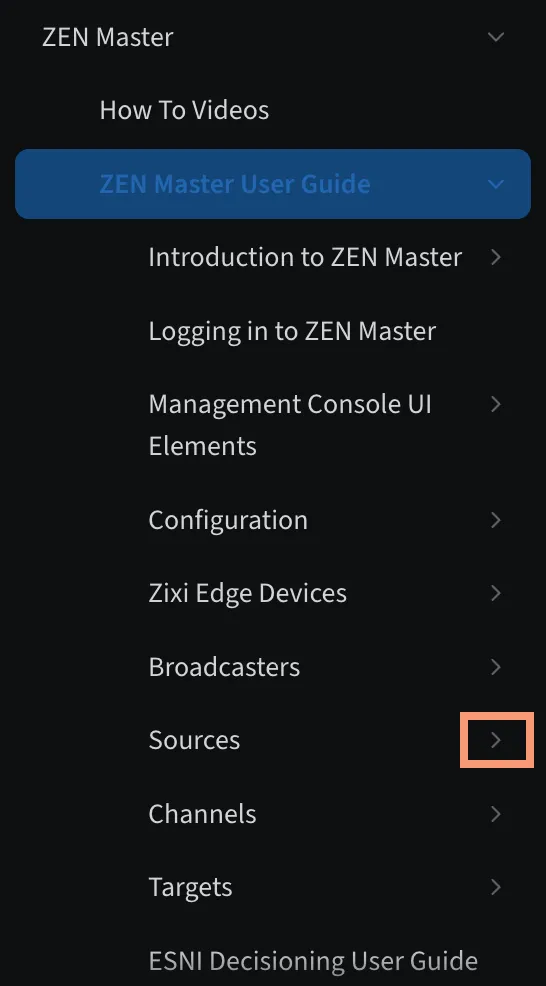
Note that an arrow to the right of a link (as shown in the image above) indicates that there are additional documents and/or subsections contained in it. These will open up when you click the link.
Searching and Asking AI
At the top of every page is a search bar, and beside it a button to Ask AI:

Search, like most search engines, will return a list relevant documents, with brief text highlighting where the search terms appear:
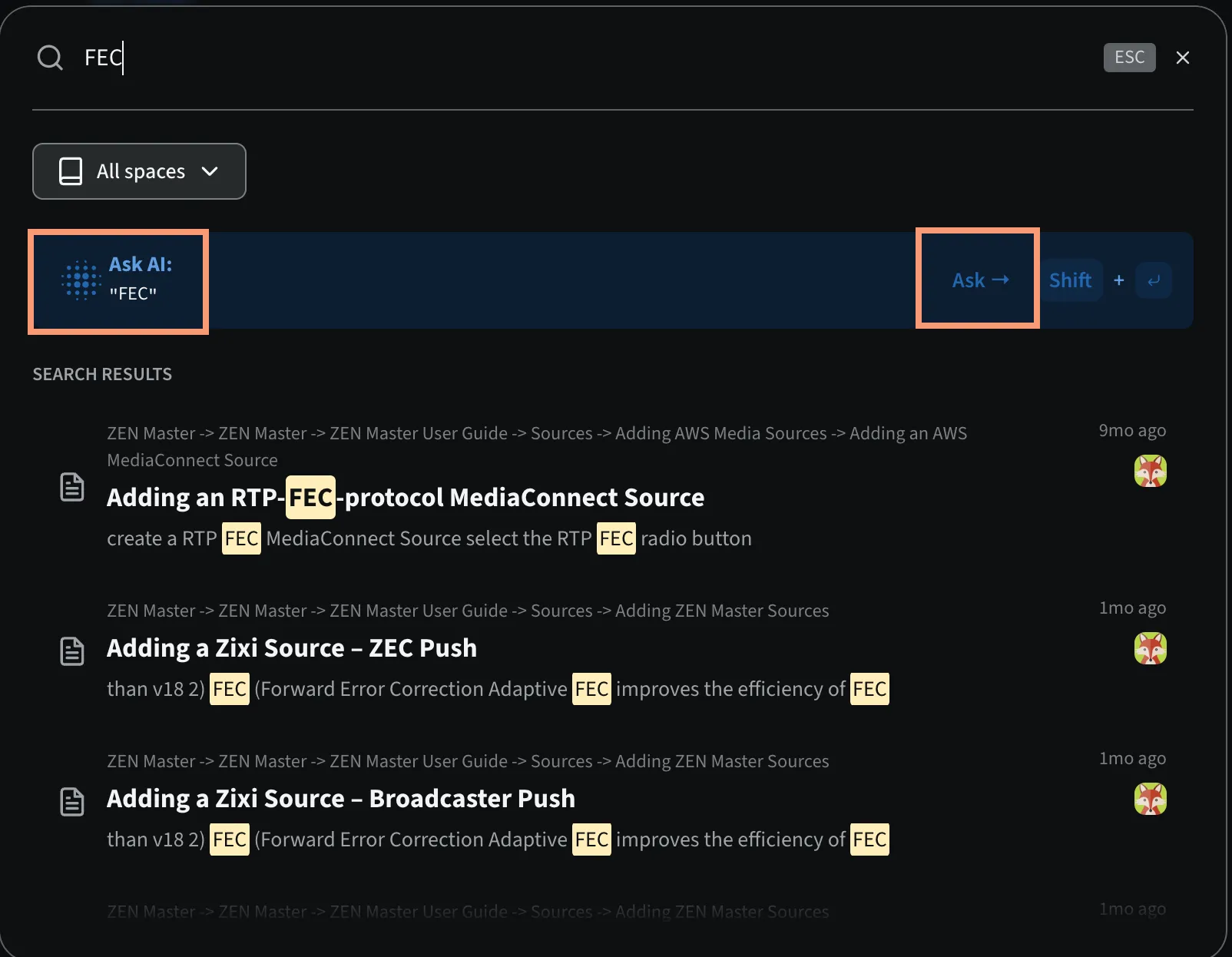
Note that if you would rather see the AI response, you can click Ask AI in the search results.
Ask AI, on the other hand, provides a summary of the topic you searched on based on what it found within all the documents:
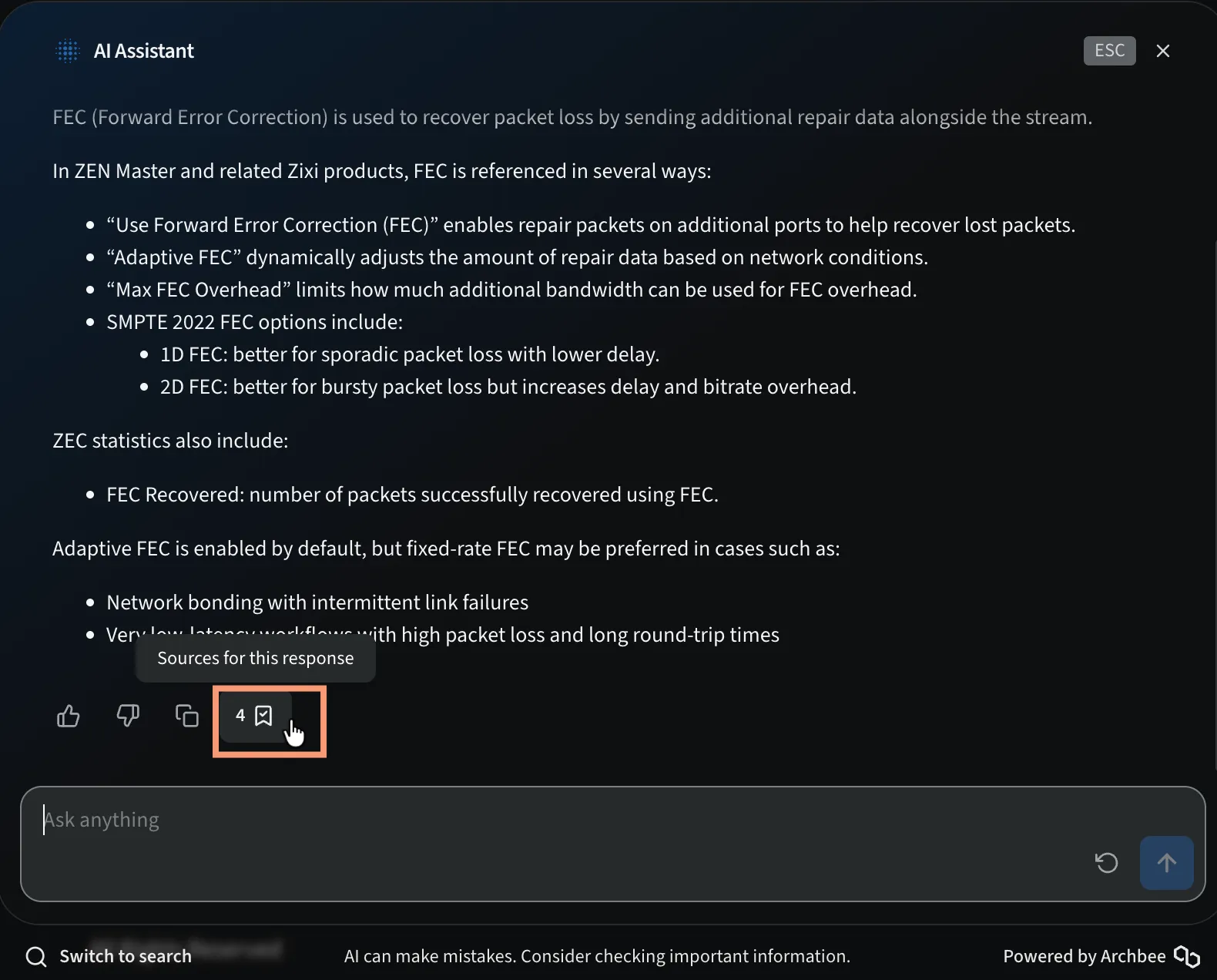
Note that you can click the icon highlighted in the image above to see a list of the documents that AI used to generate its summary.
Which Should I Use?
If you are already fairly familiar with Zixi's documentation and simply want to get back to a document you know to check on a detail, search can be very effective. On the other hand, if you are looking for answer to a question, we recommend trying Ask AI instead. Here's why:
Zixi provides many features that can be used across a variety of Broadcaster Inputs, Adaptive Groups, and Outputs, or ZEN Master Sources, Channels, and Targets. If you go to a document on adding a specific item, you will find a brief explanation of all the available fields. However, if you are trying to understand what the feature does, and in what cases you would want to use it, there are often higher-level documents with deeper explanations of features and how they work together. The AI summaries are often more effective in leading you to the high-level explanations.
Also remember that AI responses are generally more useful when you ask questions, providing context for what you are trying to figure out, rather than just providing search terms. For example (referring to the images above), instead of prompting AI with "FEC", try asking something like "What is FEC, and how does it work with other mechanisms to fix errors in transmitting video streams? Do I just need one, or do they work together?"