Step 2: Creating a File Input on ZEC/Broadcaster
ZEC enables you to input streams into the Zixi system from various types of input sources (e.g. TS File, UDP, RTMP, ASI etc.). Once an Input has been created on the ZEC, you can configure ZEC to send the source to your Zixi Broadcaster for processing and transmission.
For this tutorial we will create an Input in ZEC for a TS file. You can use the file that you downloaded in Prerequisites . You will then be able to configure the ZEC to transmit this file to the Broadcaster.
To create a File Input on the Feeder:
In the ZEC UI, in the Main Navigation, click Inputs. The Inputs page opens
On the Inputs page, click the +New Input button in the Menu bar.

The New Input window is displayed:
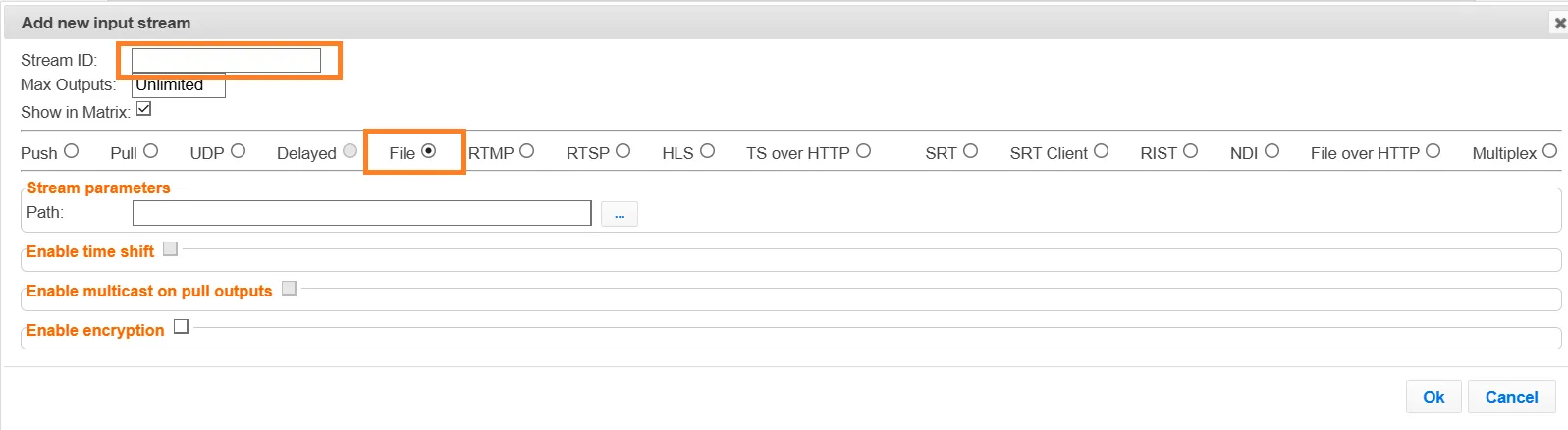
In the Stream ID field, enter a unique name to identify this Input on your Zixi Feeder, e.g. SampleTSFile01.
In the Input Source section, select the File radio button.
In the Path field, enter the full path to the sample TS file "clock.ts" on the local machine OR click on the "…" button and navigate to the desired file.
If you cannot locate the file ensure it has been placed into the "files" folder in the install directory.
Click OK. The “Input added” message appears on the top of the screen. The new Input is added to the Feeder and now appears in the list of streams available on the Inputs screen. After a few seconds the Input Status should be Online (green).
