Step 3: Creating a Push Output in ZEC/Broadcaster
Once you have configured an Input on the ZEC/Broadcaster, you can create an Output to send the Source to your Zixi Broadcaster/ZEC. This can be done either as a Push or Pull interaction. It can also be done in various formats (e.g. UDP, HTTP or Zixi Protocol). To use ZEC your Input has to be either Zixi push/pull OR your Output has to be Zixi push/pull. You can then select any format for the opposite input or output.
For this tutorial we will create a "Push to Broadcaster" Output, which uses Zixi Protocol to push the Source to your Broadcaster.
To create a "Push to Broadcaster" Output on the ZEC/Broadcaster:
In the ZEC/Broadcaster UI, in the Main Navigation, Click Outputs. The Outputs page opens.
On the Outputs page, click the +New Output button in the Menu bar.

The New Output window is displayed:
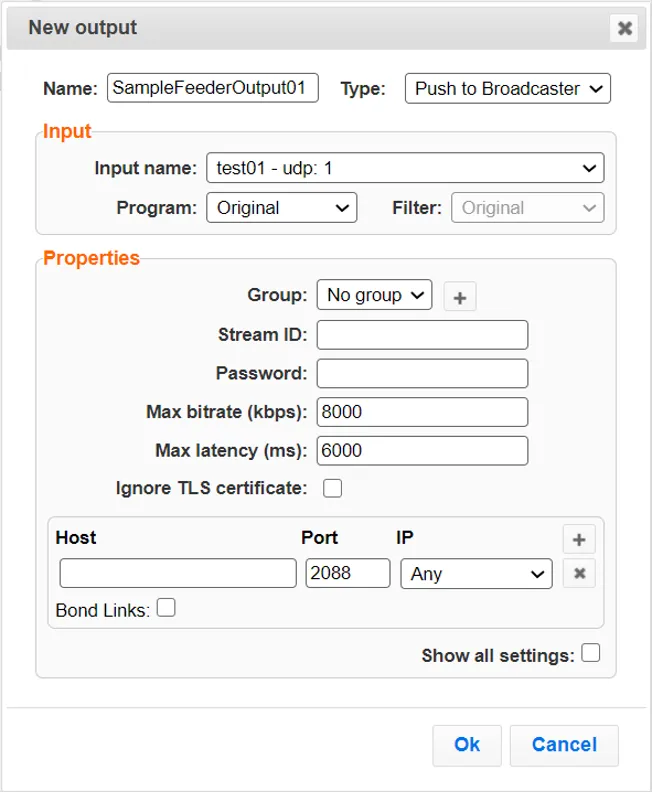
In the Output Name field, enter a unique name to refer to this Output on the ZEC/Broadcaster, e.g. SampleFeederOutput01.
In the Type section, select Push radio selection button.
In the Input Stream field, select from the dropdown list the Input that you created using the sample TS file. e.g. SampleTSFileInput01 (The input is listed as follows "{Input Name} – File:/{file name}.ts").
In the Stream ID field, enter a unique name that will be used to identify this stream throughout the Zixi ecosystem. e.g. SampleTSStream01.
If you are sending this stream to ZEN Master - the configuration details, including the Stream ID, Host and Port, will be provided once you create a new source in ZEN Master.
Make a note of the precise Stream ID (case sensitive) that you assigned. You will enter this Stream ID when you configure the Broadcaster to receive this stream in Step 4.
In the Host field, enter the hostname or IP address of your Zixi Broadcaster.
Verify that the Port field is set as 2088 (default for push) and that the IP field is set as Any (default).
To learn about additional configuration options see Adding Push Outputs in the Zixi User Guide.
Click OK.
The “Output added” message appears on the top of the screen. The new Output is added to the ZEC/Broadcaster and now appears in the list of streams available on the Outputs screen. The Status should be Connected (green).
