Step 6: Creating a Pull Input on ZEC/Broadcaster
ZEC/Broadcaster can receive streams from a variety of different sources such as Zixi Broadcasters, TS files etc. ZEC/Broadcaster can then transmit the stream to downstream targets such as Zixi enabled IRDs. While configuring an Input in ZEC/Broadcaster you can customize the stream configuration.
For this tutorial we will configure ZEC/Broadcaster to Pull your sample stream from your Zixi Broadcaster using Zixi Protocol using the default configuration.
To Add a Pull Input to your Zixi ZEC/Broadcaster :
In the ZEC/Broadcaster UI, in the Main Navigation, click Inputs. The Inputs page opens.
On the Outputs page, click the +New Input button in the Menu bar.

The Stream details screen is displayed.
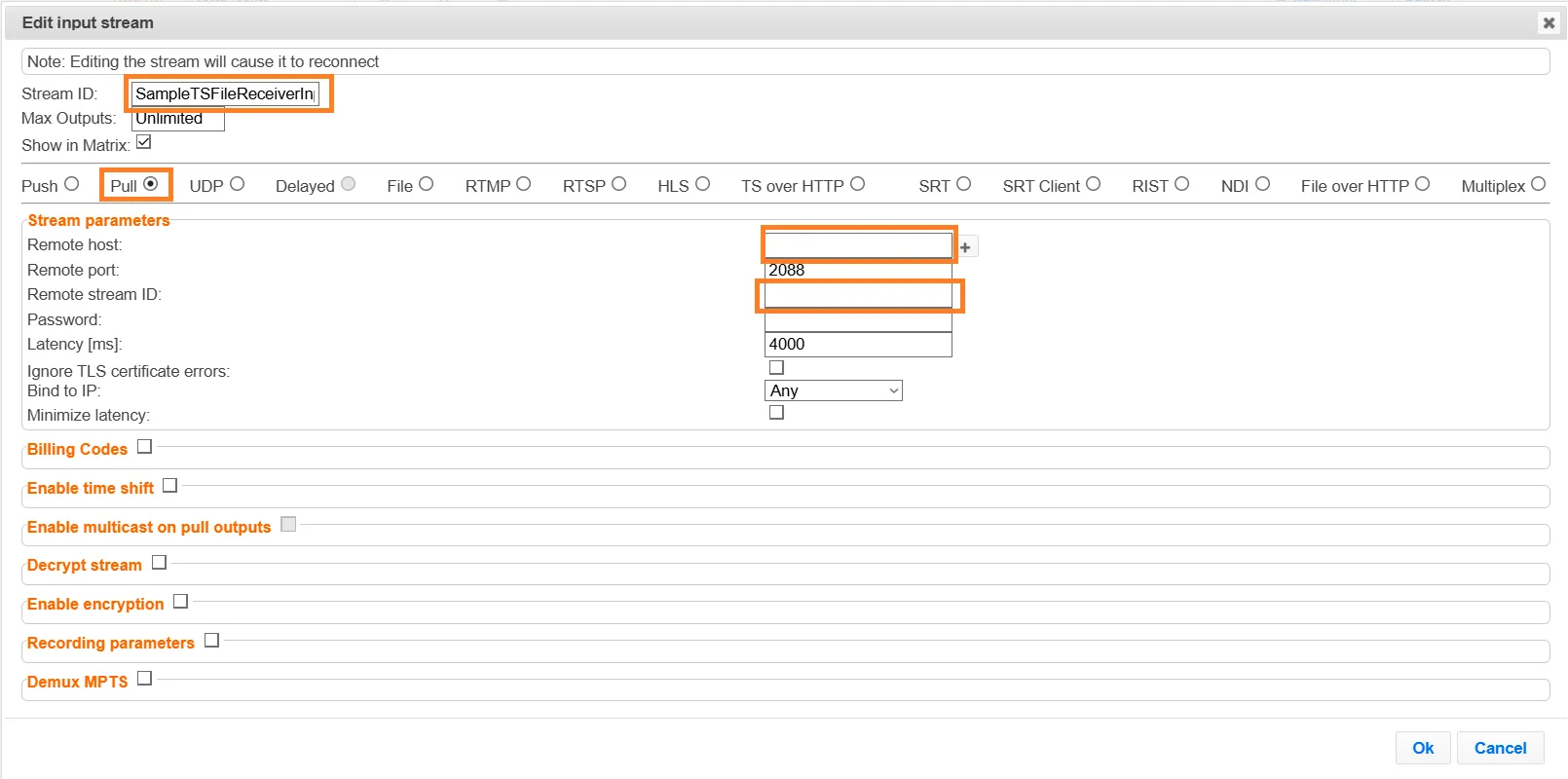
In the Stream ID field, enter a unique identifier for this stream in ZEC/Broadcaster, e.g. SampleTSFileReceiverInput01.
In the Input type section, verify that Pull is selected for the Input stream (default).
In the Remote Host field, enter the hostname or IP address of the Broadcaster from which the stream is being “pulled”.
Verify that the Port field is set as 2077 (default for pull).
In the Remote Stream ID field, enter the precise Stream ID (case sensitive) that you assigned to the Output that you created on the Broadcaster in Step 5, e.g. SampleTSStream01.
To learn about additional configuration options, see Adding Pull Streams in the Zixi ZEC/Broadcaster UG.
Click OK. The “Input added” message appears on the top of the screen. The Pull Stream is added to the ZEC/Broadcaster and is now displayed in the list of Input streams available. The Status should be Online (green).

In the Zixi Broadcaster UI, on the Outputs page, the Status of this Output should now be Connected (green).
