Camera Screen
The application's Camera screen shows the device camera view and presents several controls for shooting video.
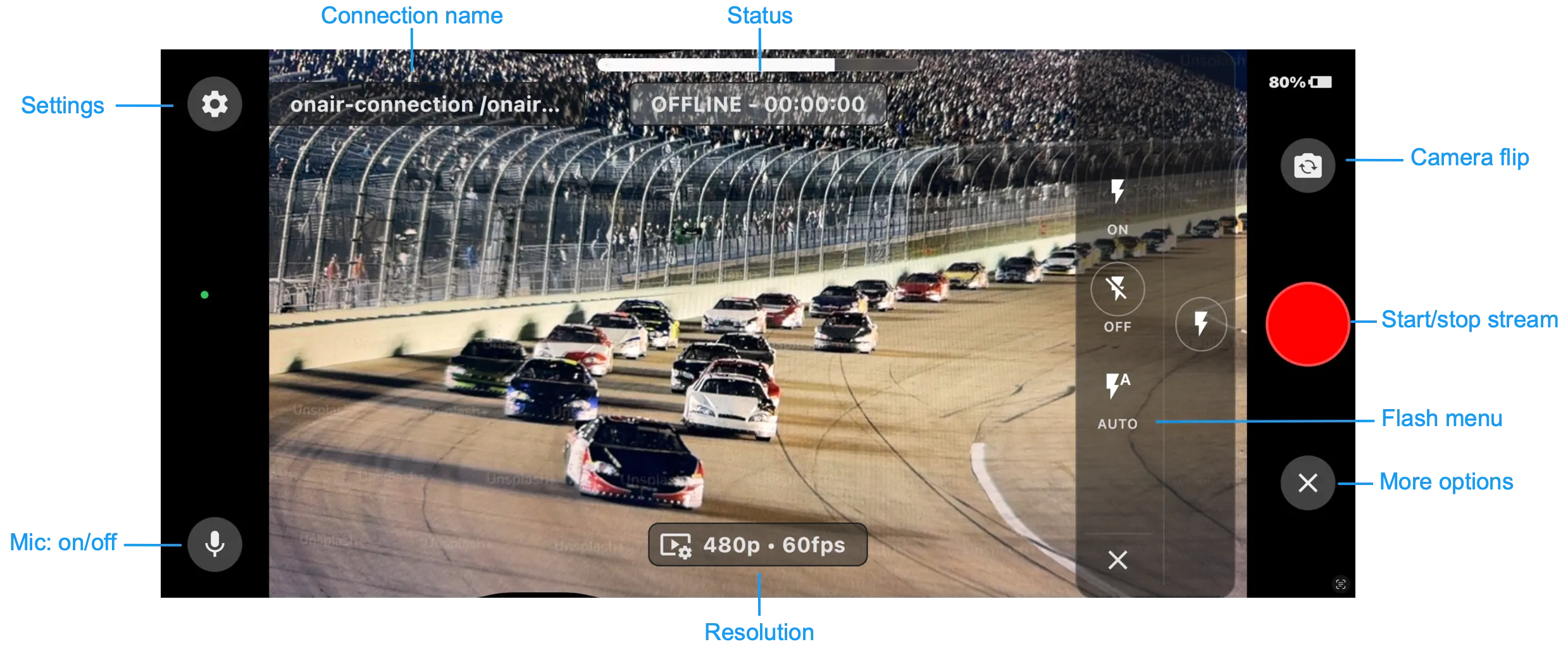
Icon | Description |
|---|---|
Mic: on/off | Tap the microphone button to toggle it on and off. |
Settings | Tap the settings icon to configure:
For details, see On Air Pro SettingsOn Air Pro Settings. |
Connection name | The current Connection name followed by the Stream ID. |
Status | The status bar shows when the video stream is online or offline. It also shows how long the stream has been active. |
Camera flip | Tap the camera flip button to switch between the front and back cameras. |
Start/stop stream | When in ‘Offline’ mode, tap the red circle to begin streaming. A red square will appear in the circle. Tap the red square to stop streaming. |
More options | Tap the "More options" (meatball) menu to see additional options. Tap the flash icon to show lighting options:
|
Resolution | The resolution bar shows the selected Quality settings, including the selected resolution and frame rate. The settings are configured in Video Settings (see On Air Pro SettingsOn Air Pro Settings). |