Using Terraform with OCI
Terraform is a tool created by HashiCorp that lets you define, provision, and manage cloud infrastructure using code. Instead of writing manual deployment steps, you define the desired end state of your infrastructure, and Terraform determines how to build it.
Terraform with Oracle Cloud Infrastructure (OCI) means using Infrastructure as Code to create and manage Oracle Cloud resources like VCNs, subnets, compute instances, databases, IAM, load balancers, and OKE clusters.
While this guide focuses on OCI, you can apply the same approach to any cloud provider Terraform supports.
To learn more about Terraform, see HashiCorp's documentation: Automate Infrastructure on Any Cloud.
Content
- Create a Terraform-enabled Broadcaster Cluster
- (Optional) Create a Broadcaster Placeholder
- Complete Prerequisites
- Create OCI Objects
- Customize Terraform Variables
- Run Terraform Script
Create a Terraform-enabled Broadcaster Cluster
First, use ZEN Master to create a Zixi Broadcaster Cluster that is enabled for Terraform scripts. The Cluster ID and name will be passed in the Terraform script.
In a web browser, navigate to https://{youraccount}.zen.zixi.com
When you sign in, you should see the Zixi ZEN Master dashboard.
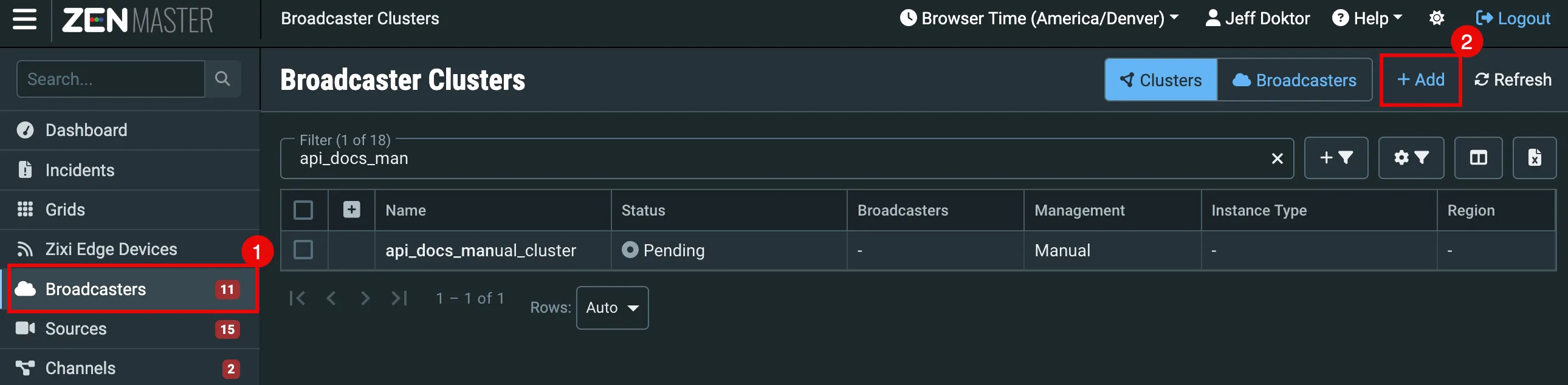
In the left navigation, select Broadcasters.
Click +Add to create a new Broadcaster Cluster.
In the Create New Broadcaster Cluster dialog, provide a Cluster Name and one or more Tags.
For Management Type, select Manual.
Select the checkbox for Terraform Deployment Support.
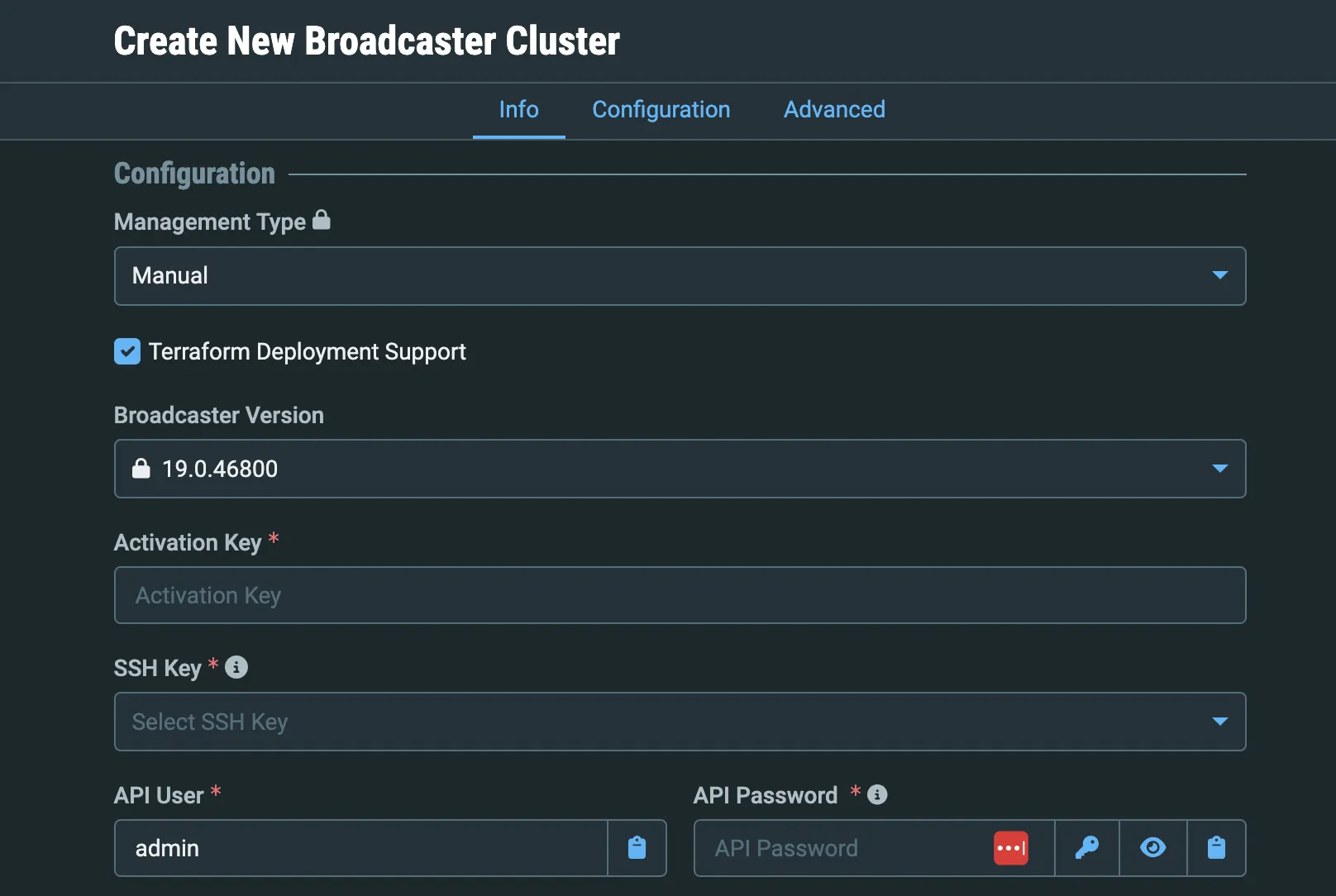
For Broadcaster Version, select the desired Broadcaster version that you would like to run on your cloud service machines.
- Broadcaster versions available for your account can be viewed and modified on the Customer Portal.
- Select a Broadcaster version that supports the type of processing that will be done on this Cluster.
For Activation Key, enter your Zixi Broadcaster license activation key.
For SSH Key, enter the SSH key pair used to establish a secure SSH tunnel and allow ZEN Master to access and manage the Broadcaster.
For API User, enter the username for ZEN Master to access the Broadcaster API.
For API Password, enter the password for ZEN Master to access the Broadcaster API.
Customize the other Cluster fields as needed. For details, see Adding a Broadcaster Cluster – ManualAdding a Broadcaster Cluster – Manual.
(Optional) Create a Broadcaster Placeholder
When using Terraform, creating a Broadcaster in ZEN Master is optional. If you want to set the Broadcaster name and override some configuration fields, you can create a Broadcaster placeholder in ZEN Master that OCI will use.
When OCI creates Broadcasters, it creates system-generated Broadcaster names.
Return to ZEN Master.
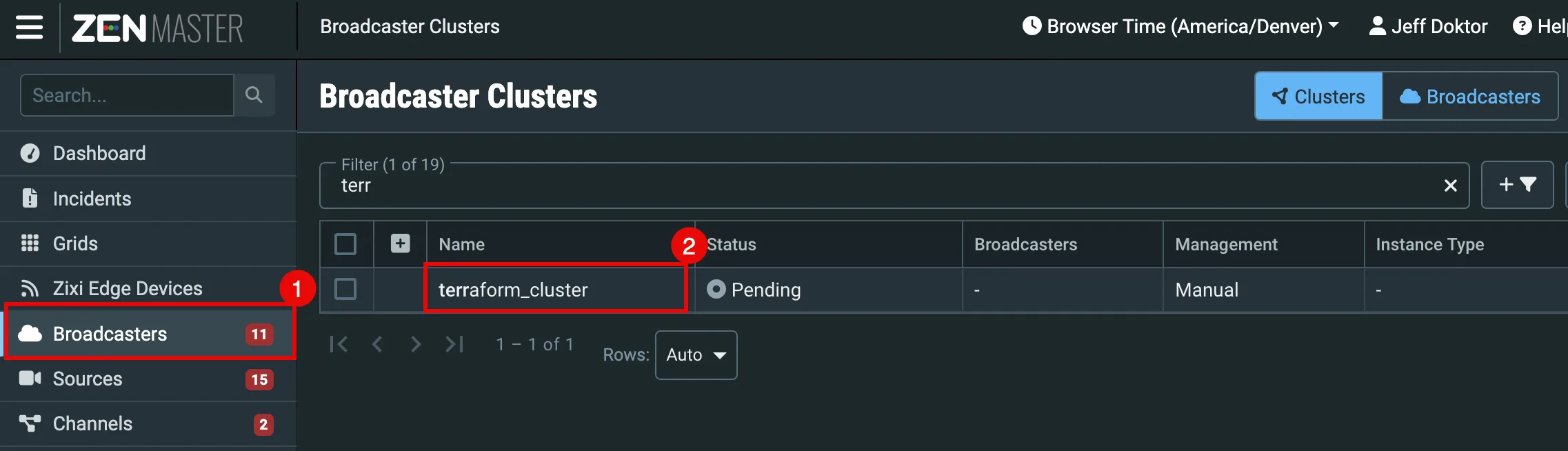
In the left navigation, select Broadcasters.
In the Broadcaster Cluster list, click on your Cluster name that is configured for Terraform Deployment Support.
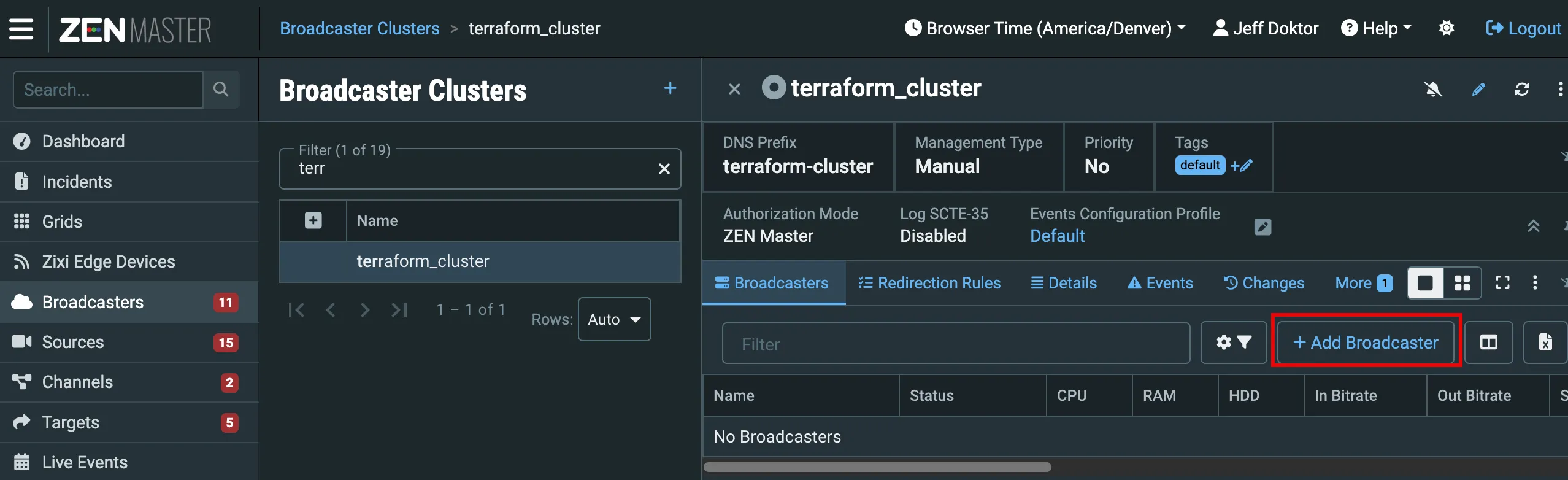
In the Broadcaster Cluster details screen, click + Add Broadcaster.
In the Create New Broadcaster dialog, provide a Name.
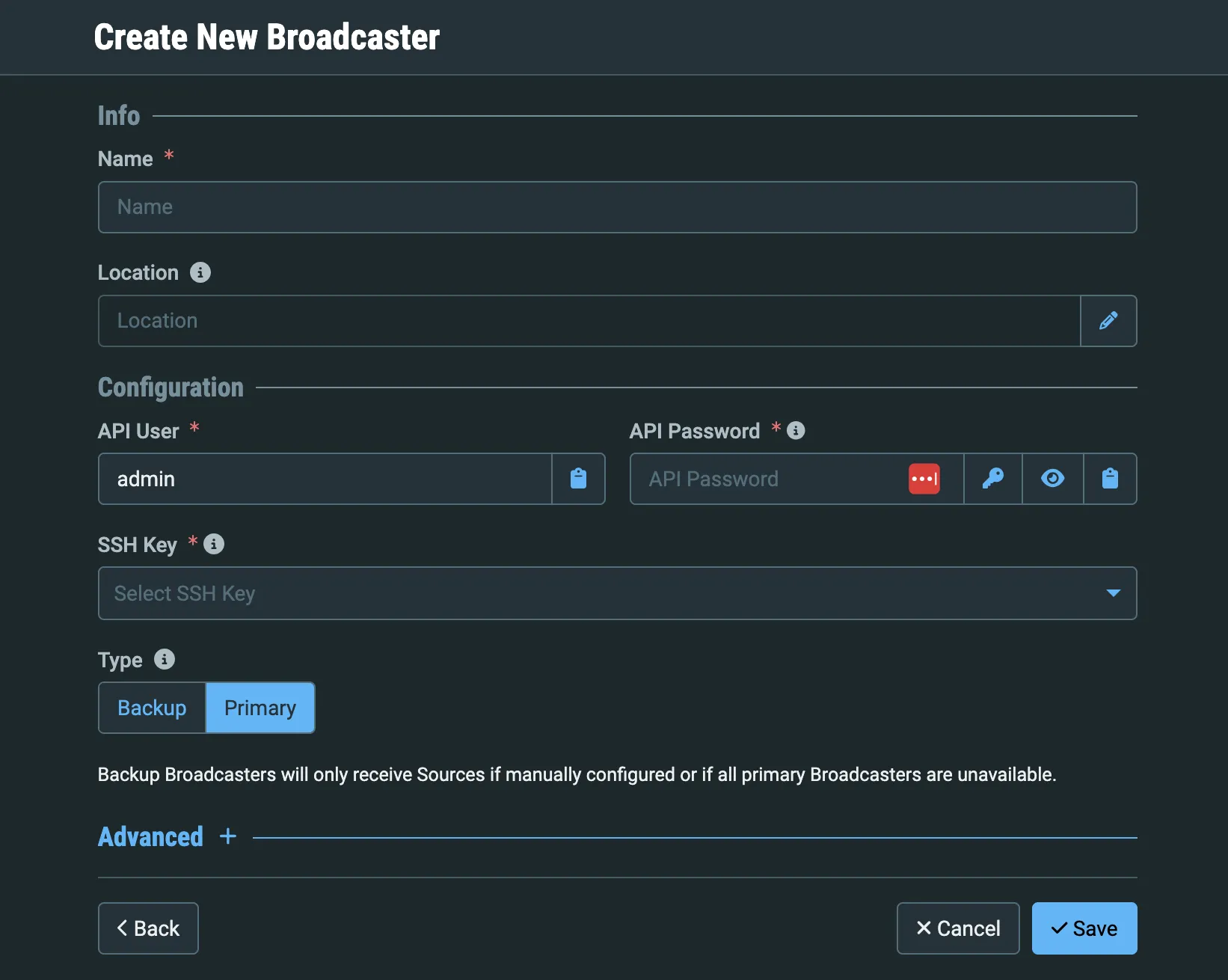
For API User, enter the username for ZEN Master to access the Broadcaster API.
For API Password, enter the password for ZEN Master to access the Broadcaster API.
For SSH Key, enter the SSH key pair used to establish a secure SSH tunnel and allow ZEN Master to access and manage the Broadcaster.
Customize the other Broadcaster fields as needed. For details, see Adding a Broadcaster to a Manual ClusterAdding a Broadcaster to a Manual Cluster.
- Values that you set when creating a Broadcaster placeholder will override the values from the Cluster.
- Creating a placeholder allows you to specify a custom Broadcaster name. Otherwise, the Terraform script creates system-generated Broadcaster names.
Complete Prerequisites
Review the Zixi public repo for using Terraform with OCI and install the system requirements.
In a browser, navigate to the Zixi Customer Portal (https://portal.zixi.com) and log in with your credentials.
In the left navigation, select Documentation.
Select BY TYPE and then ZEN Master.
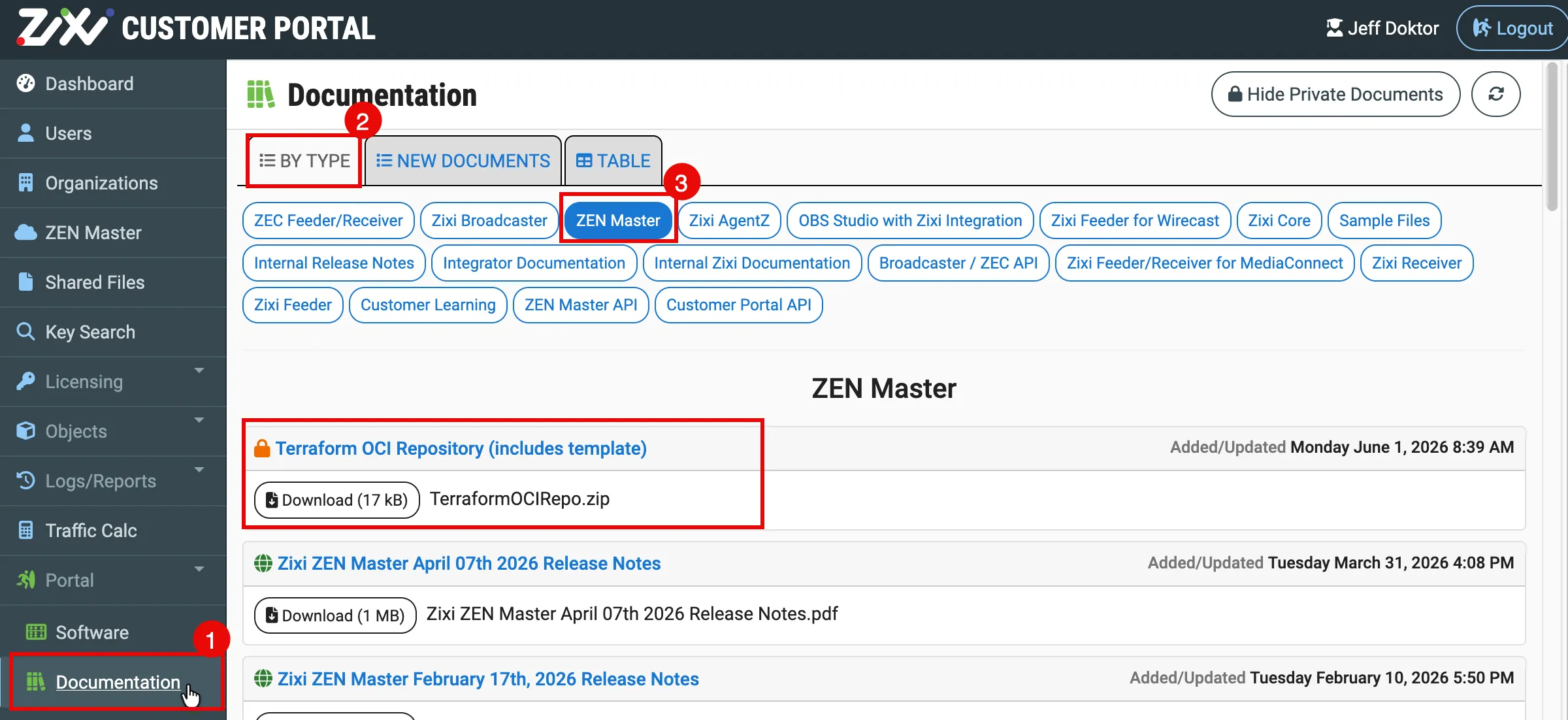
Download the TerraformOCIRepo.zip file and unzip it.
In the OCI-Broadcast-Cluster-TF repo, open the README.md file.
Review the Prerequisites section and follow the steps:
- Install Terraform CLI on your computer.
- Create an OCI API Key.
- Upload the public key file (public.pem) to the OCI console.
- Copy the fingerprint shown after you upload the public key file.
Create OCI Objects
Before running the Terraform script, the following OCI resources must exist.
Return to the README.md file in the OCI-Broadcast-Cluster-TF repo.
Review the OCI Prerequisites section to create OCI objects.
In a browser, navigate to and log in to the Oracle dashboard.
Using the Oracle dashboard, create the following objects:
- Compartment - A fundamental logical container within Oracle Cloud Infrastructure used to organize, isolate, and secure cloud resources.
- VCN - A Virtual Cloud Network (VCN) with a public subnet and an Internet Gateway (IGW) is the standard baseline setup for running public-facing cloud infrastructure.
- NSG - Network Security Groups (NSGs) allow you to apply granular firewall rules directly to specific virtual network cards (VNICs).
- Vault - Used to securely store your ZM API key (or any other media orchestration credentials) in OCI.
- Master Encryption Key - Before you can save a secret, OCI requires a master key to encrypt the secret's contents.
- Secret - Now that the vault structure and encryption framework are ready, you can create the actual secret.
- Dynamic Group - This allows your compute instances to securely access cloud resources—like pulling that ZM API key from the OCI Vault you just created—without hardcoding user credentials on the server.
- IAM Policy - Because you want this policy to apply to the tenancy level rather than just a single sub-compartment, the policy file itself must be attached to your Root compartment.
Customize Terraform Variables
Review and customize the Terraform variables used by the script.
Return to the OCI-Broadcast-Cluster-TF repo.
Open the CUSTOMER_INPUTS.md file. Use this as a reference that defines all the variables you will configure. You will NOT update this file.
What you will edit:
- terraform.tfvars - Variable values
What you will NOT edit:
- Terraform resource structure
- Cloud-init bootstrap logic
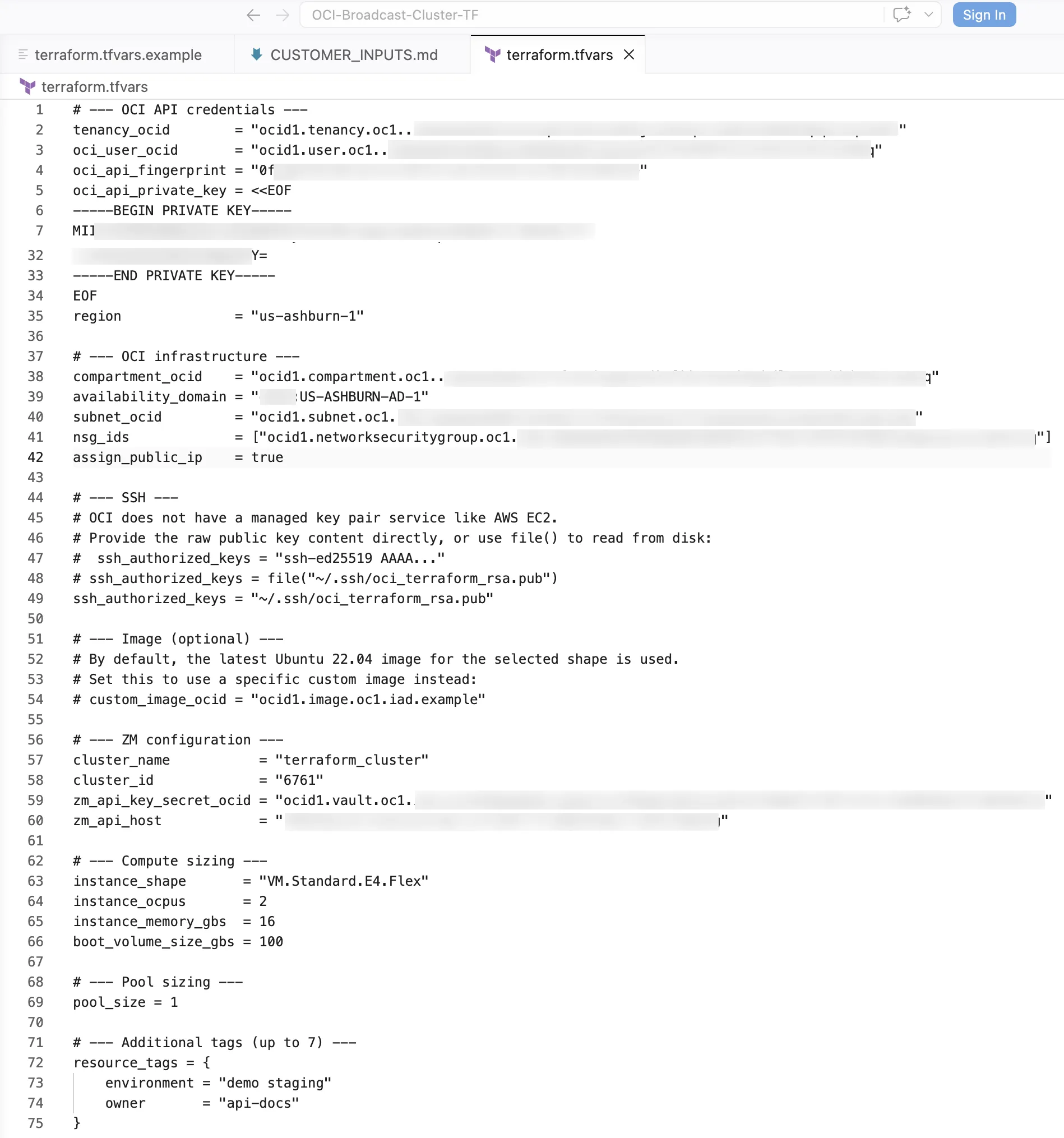
Duplicate the terraform.tfvars.example file and rename it terraform.tfvars
Open the newly created terraform.tfvars file. This is the only file you will edit. Customize this file with your variable values.
Run Terraform Script
Running a Terraform script with OCI follows the standard "Init, Plan, Apply" workflow. Under the hood, it instructs Oracle's cloud API to build, modify, or destroy Oracle-specific resources.
In a terminal window on your computer, navigate to the OCI-Broadcast-Cluster-TF repo folder.
First, run the init command (Setup):
This prepares your working directory and downloads plugins.
- It reads your code, determines the cloud provider, and downloads the plugins needed to talk to those APIs.
- It sets up the backend with your state file.
terraform initNext, run the plan command (Preview):
This lets you see what Terraform intends to do before making any changes to your cloud environment.
- It checks the current state of your cloud infrastructure.
- It generates a list of what will be created, modified, or destroyed.
terraform planThen, run the apply command (Execute):
This takes your configuration and updates your cloud infrastructure.
- It makes the API calls to your cloud provider to build, update, or delete resources.
- Once the resources are built, Terraform records their IDs and metadata into your state file.
terraform applyFor more details about working with OCI, see Terraform's document: Get Started - OCI
Notes:
- The script sets up an OCI vault and secret to securely store the ZEN Master API Key. No credentials are stored on the instances.
- The cloud-init script makes calls to the ZEN Master API.
- Cluster and Broadcaster management is still done within ZEN Master.
- If you want another instance, modify the template, redeploy, and Terraform takes care of it.
- If you want custom images (AMIs), add them to the script.