ZEC Adding AWS Outputs
The HTTP output stream, which is encapsulated in HLS or DASH/fMP4 HLS, can be pushed to either an AWS S3 Bucket or to an AWS Elemental MediaStore. The native AWS support includes the ability to configure the S3 authentication credentials, including the Region, Access Key, and Secret Key.
To Create an AWS Output:
In the ZEC Outputs page, click + New Output.
The New output window is displayed.
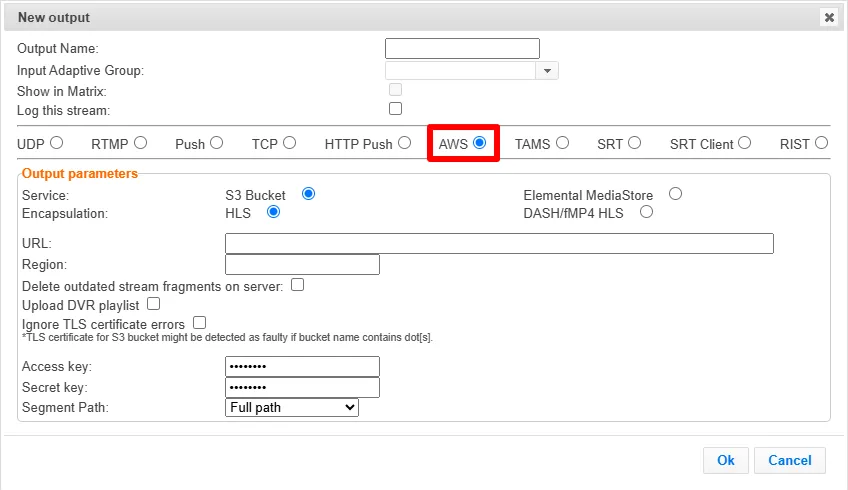
Select the AWS option (radio button).
Type in the unique identifier for this output in the Output Name.
Select an Input Adaptive Group to be made available on this output from the adjacent drop-down list. To create an Adaptive Group, see ZEC Adaptive Groups.
Select the Show in Matrix check box to display this stream in the Matrix (see ZEC Using the Matrix). Default: Selected.
Select the Log this stream checkbox if you would like to generate event logs for this output.
Specify the Output parameters (see Output Stream Parameters TableOutput Stream Parameters Table below).
Click OK.
The new AWS Output with its settings is created and now appears on the screen.
Output Stream Parameters Table
Parameter | Description |
|---|---|
Output Parameters | |
Service | Select one of the following options:
|
Encapsulation |
|
URL | The URL address of the destination host for the S3 Bucket or the AWS Elemental MediaStore. The path to the destination can be formed in one of the following ways, according to the option selected in the Segment Path field below:
|
Region | Enter the AWS Region of the S3 bucket, e.g., us-east-1. |
Delete outdated stream fragments on server | Select this checkbox to send delete messages to S3/AWS Elemental MediaStore to delete the outdated stream fragments from the servers. |
Upload DVR playlist | Select this checkbox if you are streaming a recorded/VOD stream and you want to upload a DVR playlist in addition to the live playlist. |
Ignore TLS certificate errors | Select this option when streaming to a trusted server that does not have a valid certificate. When this option is selected, ZEC will ignore the TLS certificate errors and transmit the stream to its destination. |
Access key | Enter your AWS S3 or AWS Elemental MediaStore Access key. |
Secret key | Enter your AWS S3 or AWS Elemental MediaStore Secret key. |
Segment Path | Select one of the following path segmentation types:
|
Advanced Mode
The fields discussed below are optional and available only in Advanced Mode.
To enter Advanced Mode add the URL parameter ?advanced=1 to the ZEC URL in your browser and press Enter/Return to reload the page:

Note the Advanced Mode settings are generally intended for advanced users and special cases. If you do not understand the settings, you should probably accept the default values.
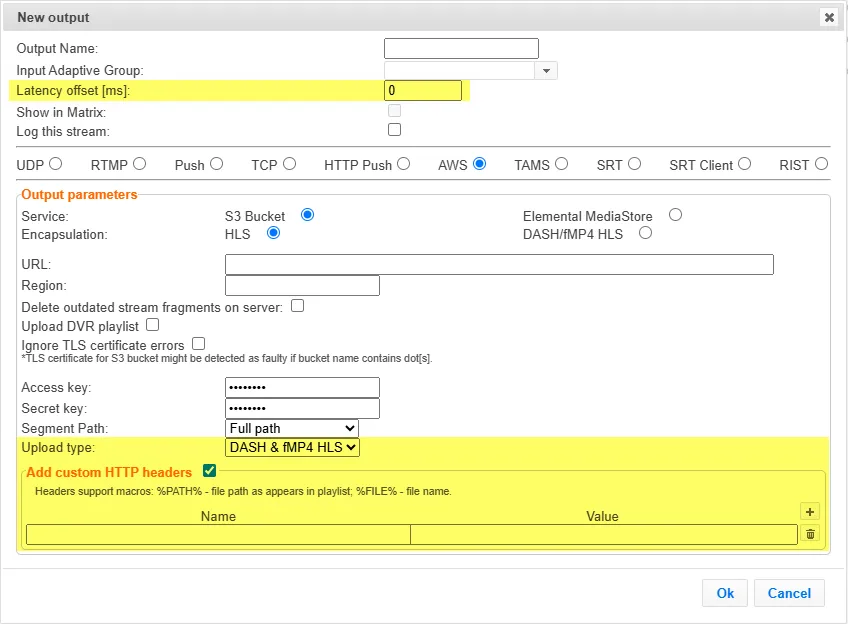
General
- Latency offset [ms] - Specify the additional buffering time in milliseconds. Increasing this value can improve stream stability in unstable network conditions, but will increase end-to-end delay. Default: 0 ms
Output Parameters
- Upload type -
Add Custom HTTP Headers
- Name - The name of the HTTP header to include in the request (e.g., Authorization)
- Value - The value to send for the selected header. (e.g., Bearer eyJhbGciOi...)