Configuring TAMS
You can configure your TAMS account(s) and configurations for reuse.
Note: TAMS outputs require Zixi Broadcaster v19 or later.
Broadcaster v19 implements TAMS 5.1 and should be compatible with any 5.x or earlier version. We have not yet tested on later versions of TAMS, but theoretically, it should work since TAMS maintains backward compatibility.
Configuring TAMS
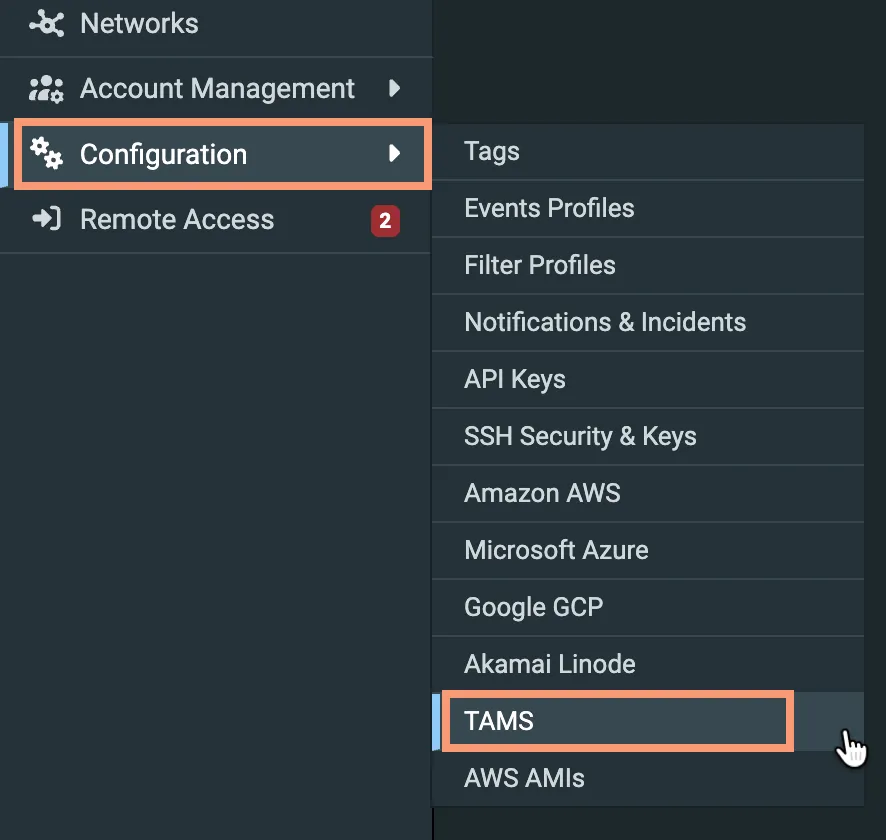
In the main navigation on the left, select TAMS from the Configuration menu:
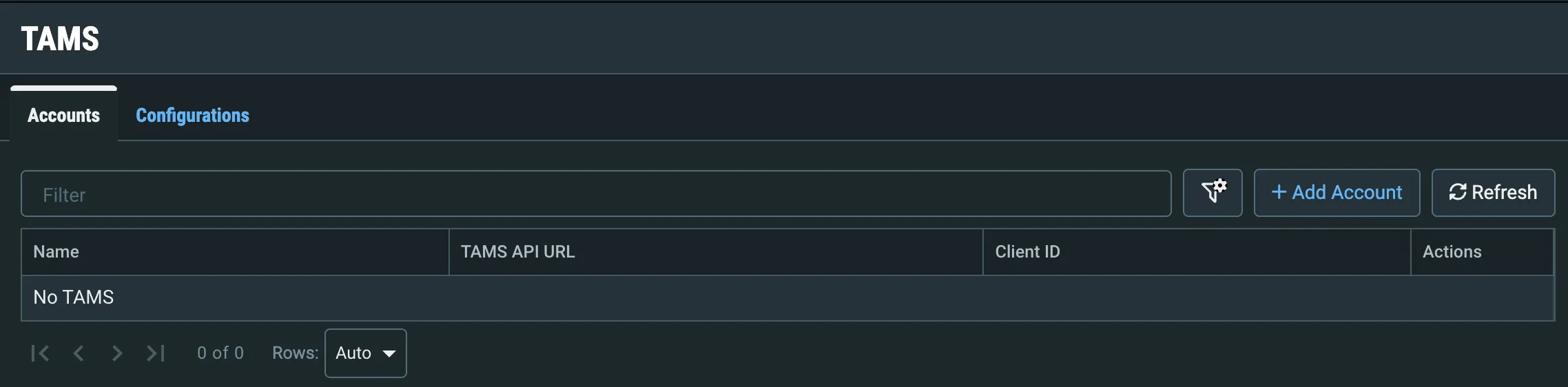
The TAMS configuration screen is displayed:
Adding a TAMS Account
On the TAMS configuration screen, click + Add Account. The Create New TAMS Account screen is displayed:
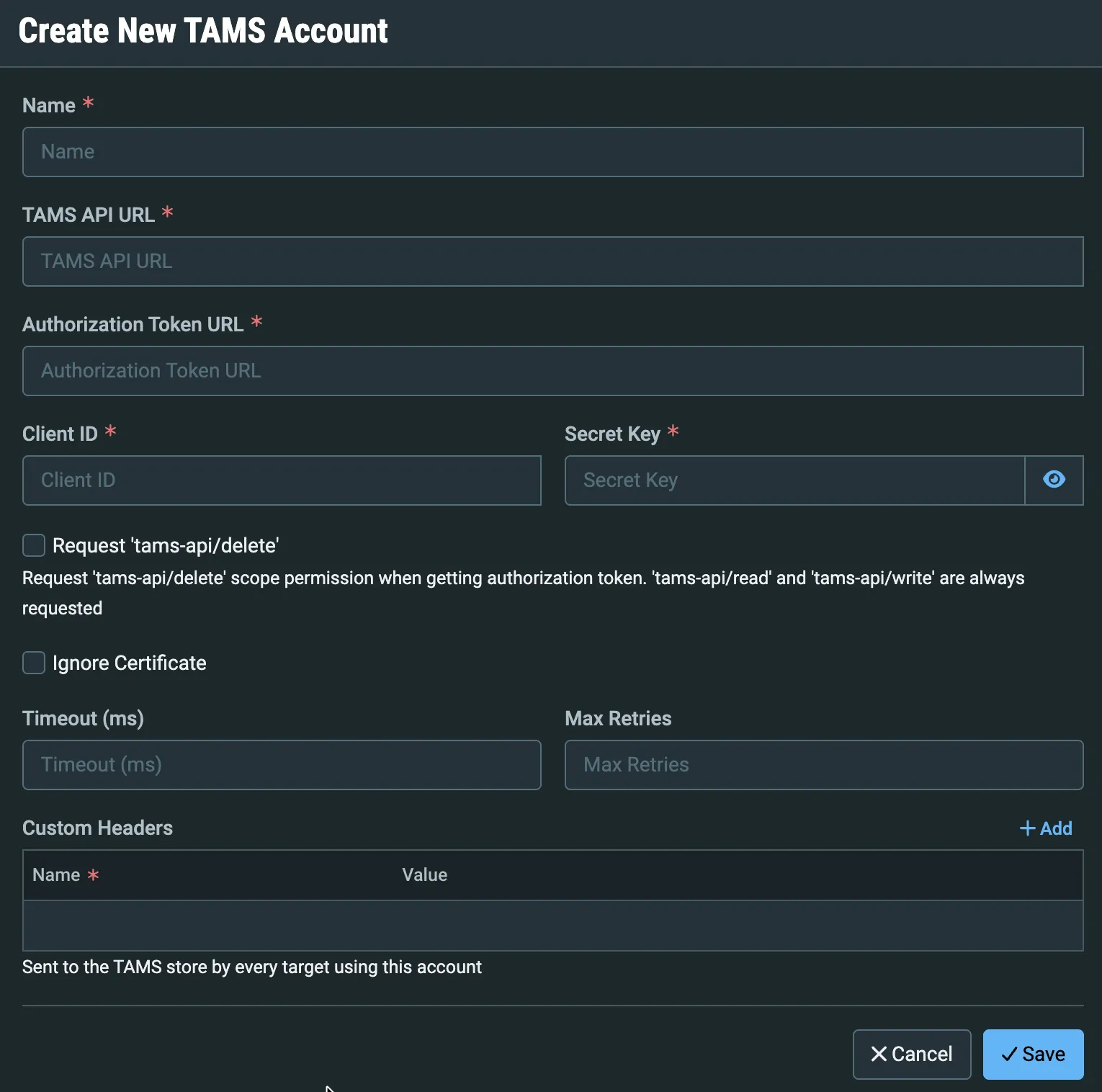
Enter a Name for the account that you will recognize in dropdown selectors.
Enter the TAMS API URL for this account.
Enter the Authorization Token URL for this account.
Enter the Client ID and Secret Key used to get access tokens for the TAMS API for this account.
If you will need to delete items from TAMS storage, select Request 'tams-api/delete'. Read and write operations are enabled automatically.
Select Ignore Certificate if you want requests to proceed even if the TAMS API and/or the Authorization Token server do not have valid certificates.
Enter values for Timeout and Max Retries to prevent workflows getting hung because a server isn't responding.
Enter Custom Headers as needed for your TAMS server.
Click Save.
Your account will now be available in a dropdown selector when you are Adding HTTP Targets.
Adding Configurations for TAMS Accounts
Configurations allow you to set up transcoding directions (renditions) for streams being sent to TAMS. To create a new Configuration, you first need to set up a TAMS account.
Creating a Configuration
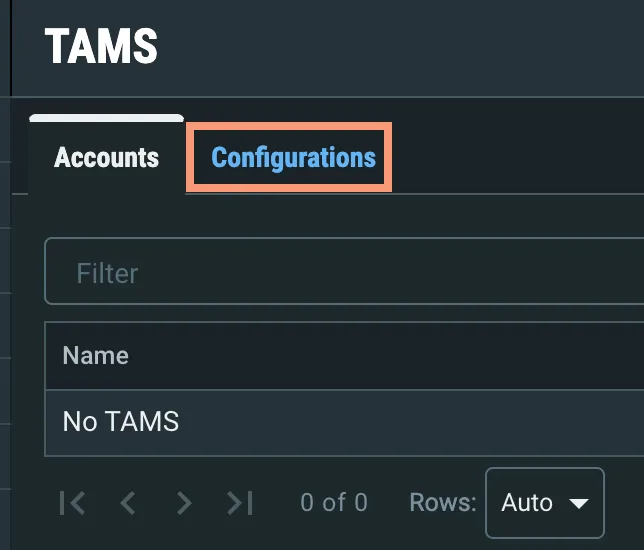
Click the Configuration tab in the Tams screen:
The TAMS Configuration screen is displayed:
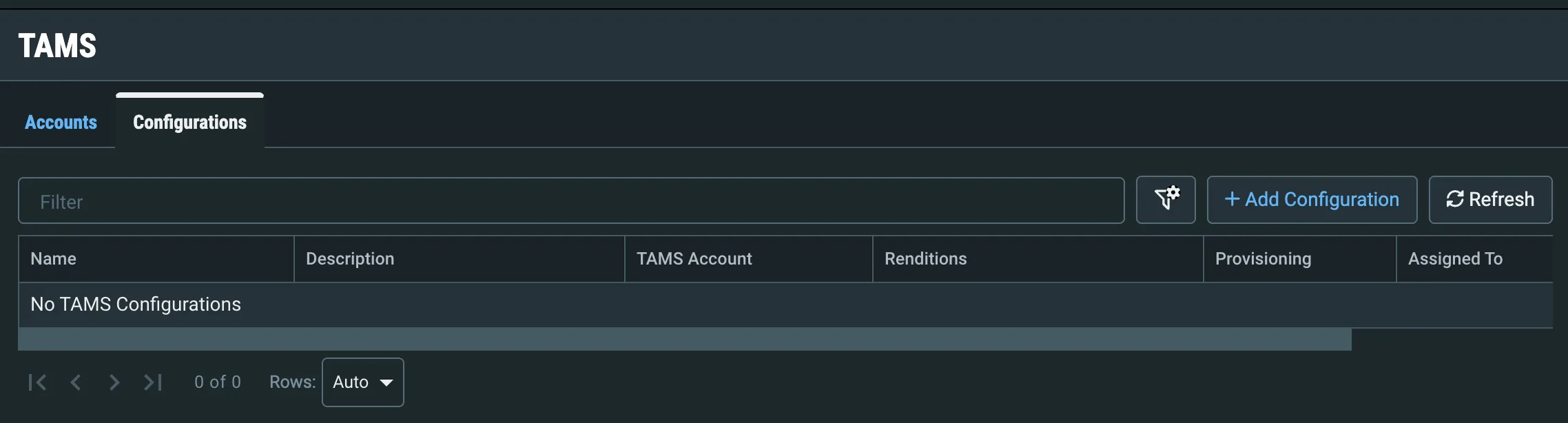
Click + Add Configuration - the Create New TAMS Configuration screen is displayed:
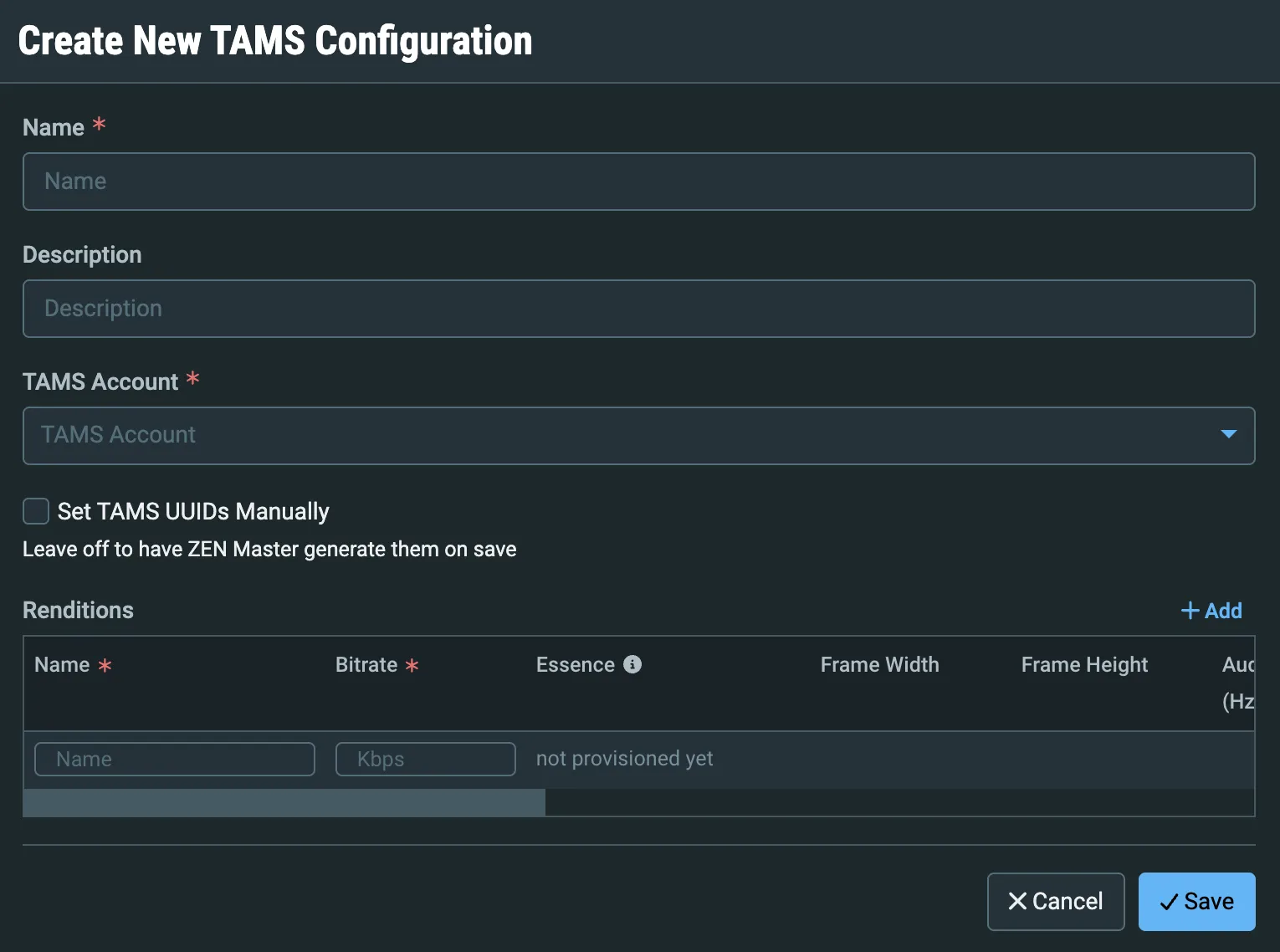
Enter a name for the configuration that you will recognize in dropdown lists.
Enter a description of the configuration.
Select the TAMS account to add this configuration to.
If you need to generate the TAMS UUIDs yourself, select Set TAMS UUIDs Manually.
Add renditions to create during transcoding if you need multiple renditions, entering the details for each - Name and Bitrate are required for each rendition; other settings are optional.
Click Save.
The configuration will be available to select when you are Adding Transcoded Channels or Adding Adaptive Channels.