AWS SSM User Guide
Overview
Using AWS Systems Manager (SSM) command scripts, you can control and automate your AWS resources. In this guide, you will learn how to connect and run SSM commands from your Zixi Broadcaster.
Steps
Follow these steps to initiate SSM commands from within ZEN Master.
Step 1: Update AWS IAM Policy
With the Feb 2026 release of ZEN Master, the AWS IAM policy has been updated to include authorization for SSM.
- Sign in to ZEN Master.
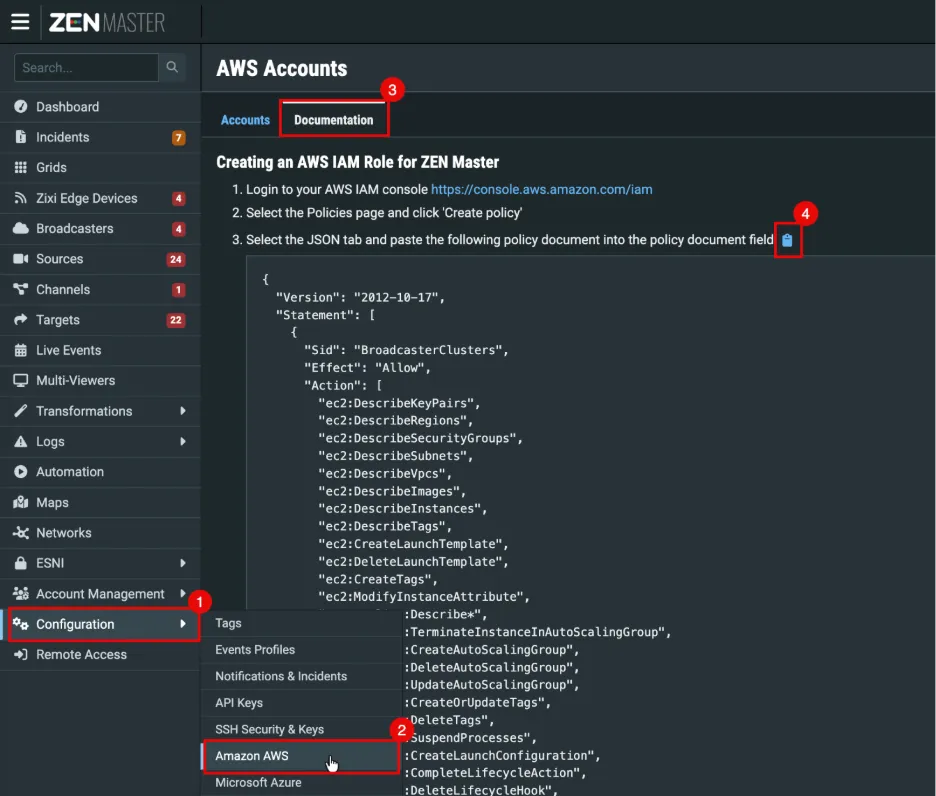
- In the left navigation, hover over Configuration and select Amazon AWS.
- In the top tabs, select Documentation.
- For the policy document JSON file, select the copy icon to the right of step 3. This latest set of permissions allows ZEN Master to trigger SSM documents.
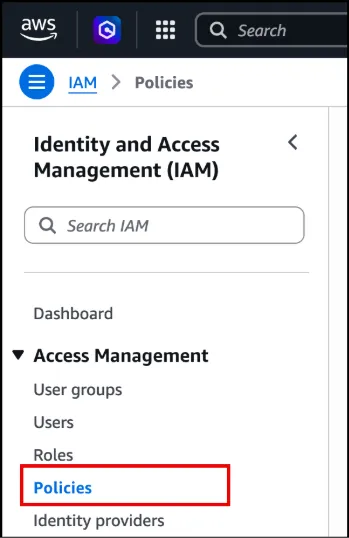
- Sign in to your AWS IAM console.
- Select the Policies page.
- Either update an existing policy or create a new policy using the copied permissions.
- If you are creating a new policy and role, follow the steps in the ZEN Master Documentation tab.
Step 2: Create a Role with SSM Agent
Next, create a Role with the SSM Agent installed.
- Return to your AWS IAM console.
- Select Roles and then Create Role.
- Select EC2.
- In the Add permissions screen, search for SSM.
- Select the SSM agent: AmazonSSMManagedInstanceCore
- Click Next.
- In the Name, review, and create screen, enter the following:
- Role name
- Description
- Leave the default trust policy and permissions
- Click Create role.
- View your new role and copy the Instance profile ARN.
Step 3: Apply the Role to your Cluster
Now, you can apply the AWS Role to your ZEN Master Broadcaster Cluster.
- Return to ZEN Master.
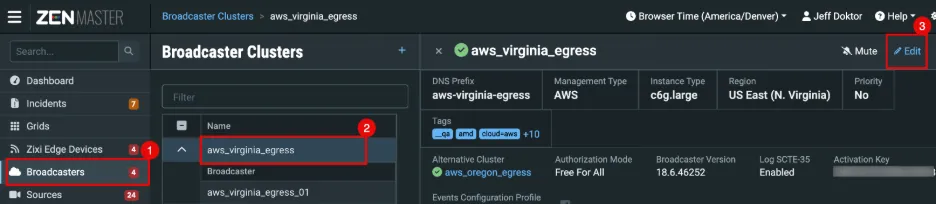
- In the left navigation, select Broadcasters.
- Select a Broadcaster Cluster and click Edit.
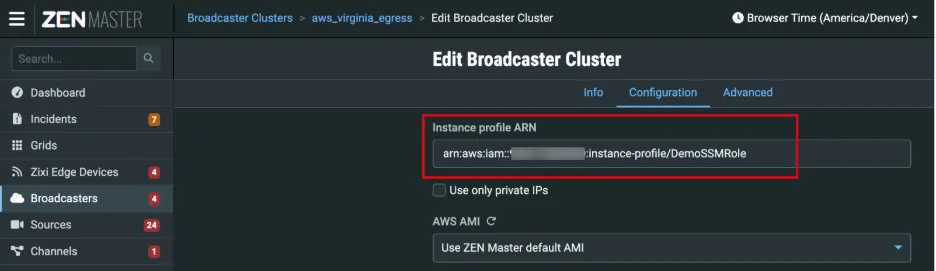
- Find the Instance profile ARN field and paste in your value from the new Role you created in AWS.
- Click Save.
You can now initiate an SSM document from a Broadcaster within this Cluster.
Step 4: Create an SSM Document
In the AWS IAM console, you will create an AWS Systems Manager (SSM) Command Document.
- In AWS, go to the AWS Systems Manager.
- In the left navigation, select Documents.
- Expand the Create document button and select Command or session.
- In the Document details screen, enter the following:
- Name
- Target type - AWS: EC2 Instance
- Content JSON – Update with your script
Here’s an example script that you can try. This example returns 'hello' whether the instance is running Linux or Windows.
{
  "schemaVersion": "2.2",
  "description": "A simple document to echo hello to the command line.",
  "mainSteps": [
    {
      "action": "aws:runShellScript",
      "name": "echoHelloLinux",
      "precondition": {
        "StringEquals": [
          "platformType",
          "Linux"
        ]
      },
      "inputs": {
        "runCommand": [
          "echo 'hello'"
        ]
      }
    },
    {
      "action": "aws:runPowerShellScript",
      "name": "echoHelloWindows",
      "precondition": {
        "StringEquals": [
          "platformType",
          "Windows"
        ]
      },
      "inputs": {
        "runCommand": [
          "Write-Output 'hello'"
        ]
      }
    }
  ]
} - Click Create document.
Step 5: Initiate SSM Document from ZEN Master
Your new SSM document will now appear as an option to select in ZEN Master.
- Return to your Cluster in ZEN Master.
- Edit a Broadcaster within the Cluster.
- In the top right, select the kabob menu and select Run SSM Command.
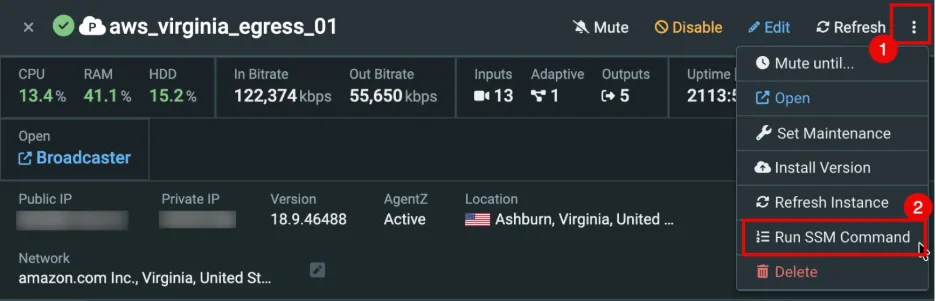
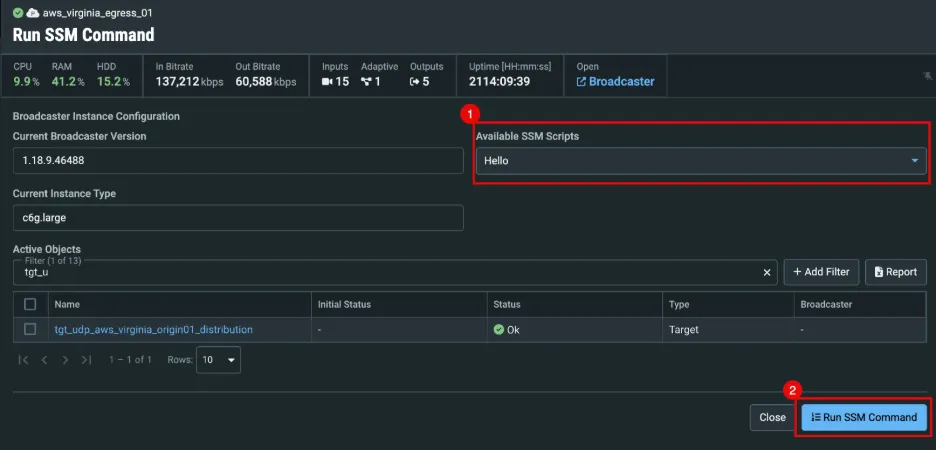
- Expand Available SSM Scripts. You should see your new SSM document in the list.
- Select your new SSM document.
- Click Run SSM Command.
In the SSM Command Output window, you will see the command-line output on the instance. Note that only the last 10 lines of output are displayed in the output window.
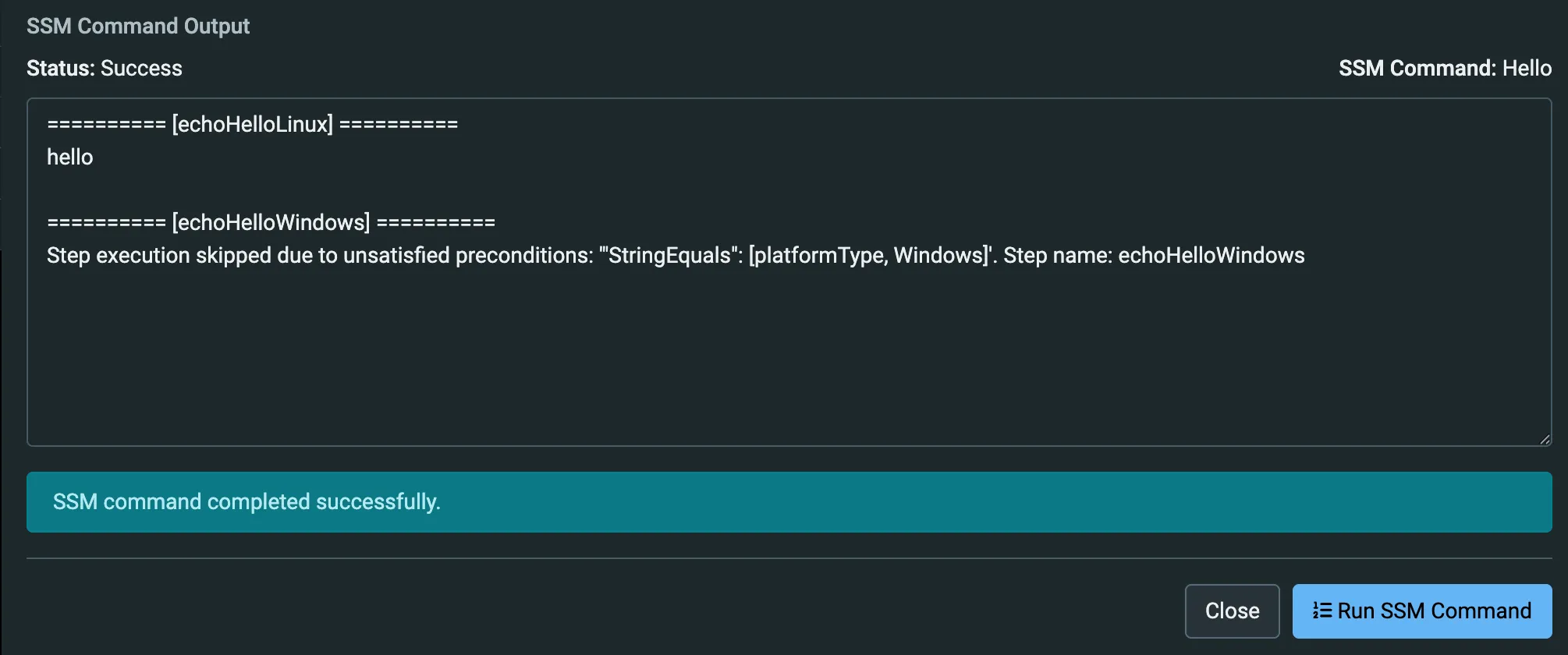
If you want to write the output to an S3 bucket, you can do this in AWS within your SSM document.
Coming soon, you will be able to write the output to an S3 bucket from ZEN Master.