Adding a Zixi Source – ZEC Push
You can add an input from a ZEC to a Broadcaster cluster to be managed as a Source in ZEN. This is done by selecting Zixi in the New Source menu. In this case, the ZEC is referred to as the Origin ZEC which streams to the Ingest Broadcaster.
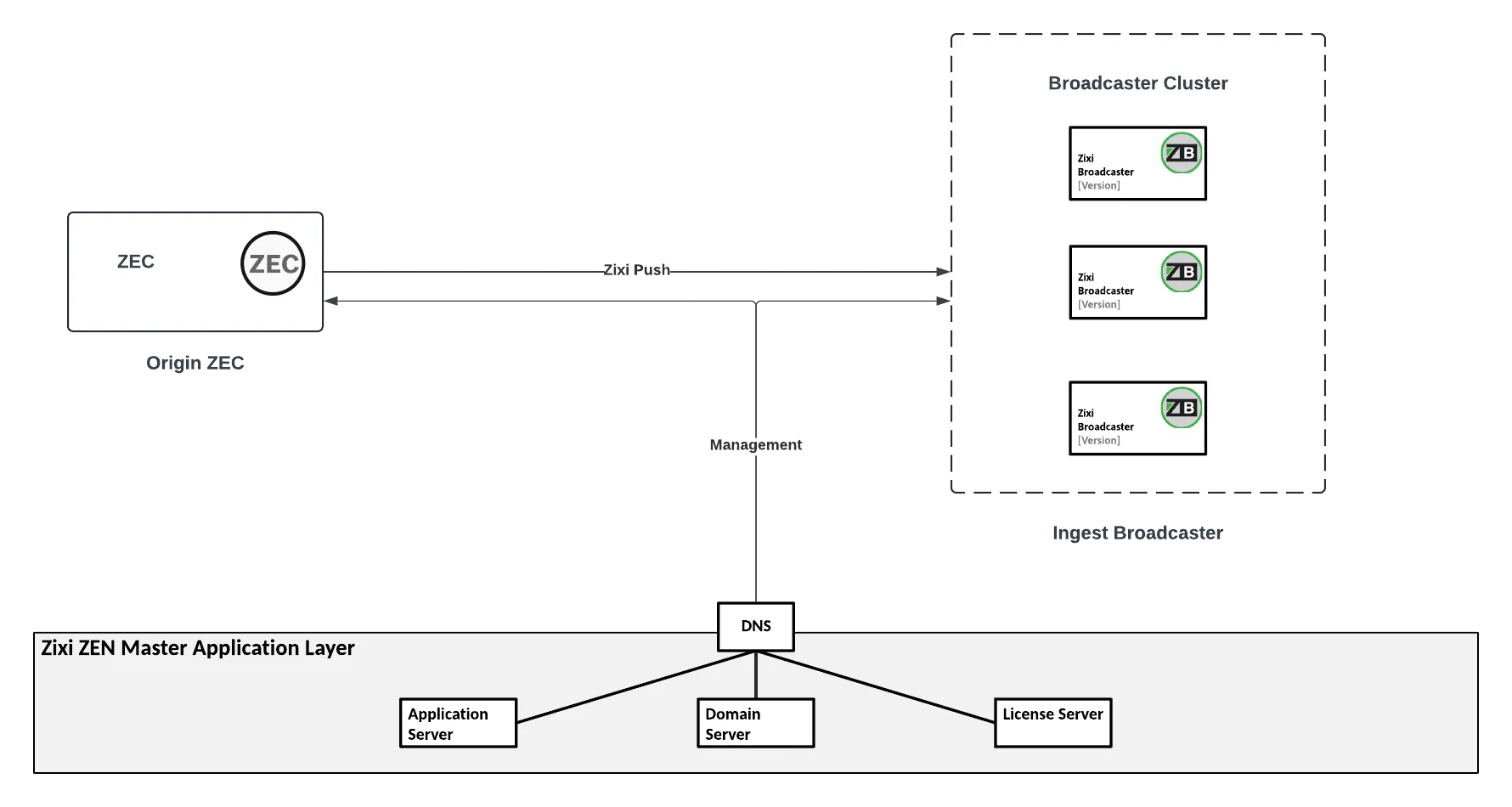
- Network bonding -when configuring a Source using a Push stream from a ZEC to a Zixi Broadcaster you can apply Network Bonding to the stream. This divides the stream into several network Channels using multiple NICs and subsequently reunites them at the Zixi Broadcaster. If you enable Bonding, you need to specify which ZEC Output NICs will used for Bonding.
The following procedure describes how to add a ZEC Source in ZEN Master. In addition, an explanation of each of the configuration parameters is given in the table below.
To add a Zixi Push Source from ZEC:
In the main navigation, click Sources.
Click + Add Source.
The New Source selection window is displayed.
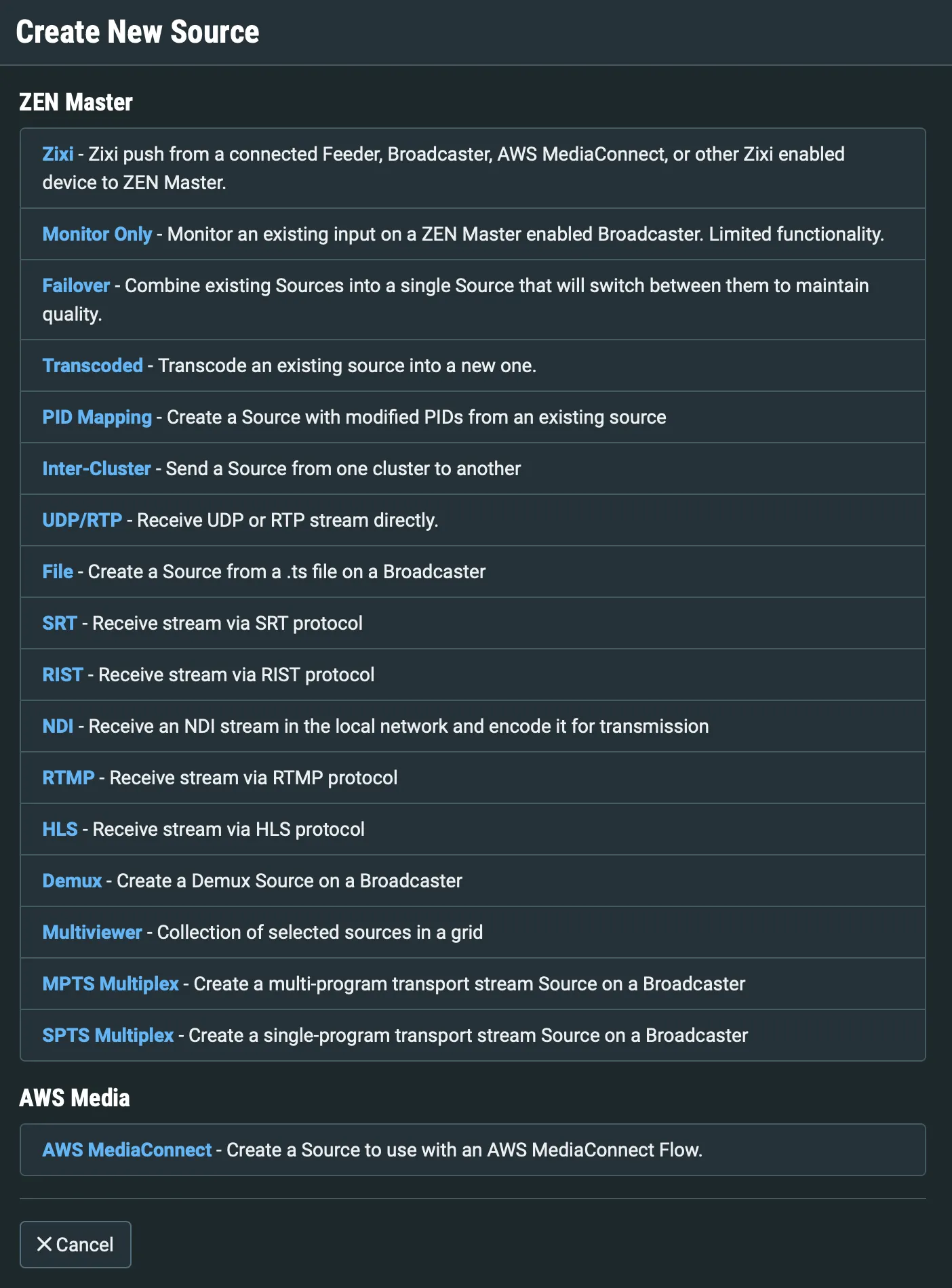
Click on Zixi.
The Create New Zixi Source window opens.
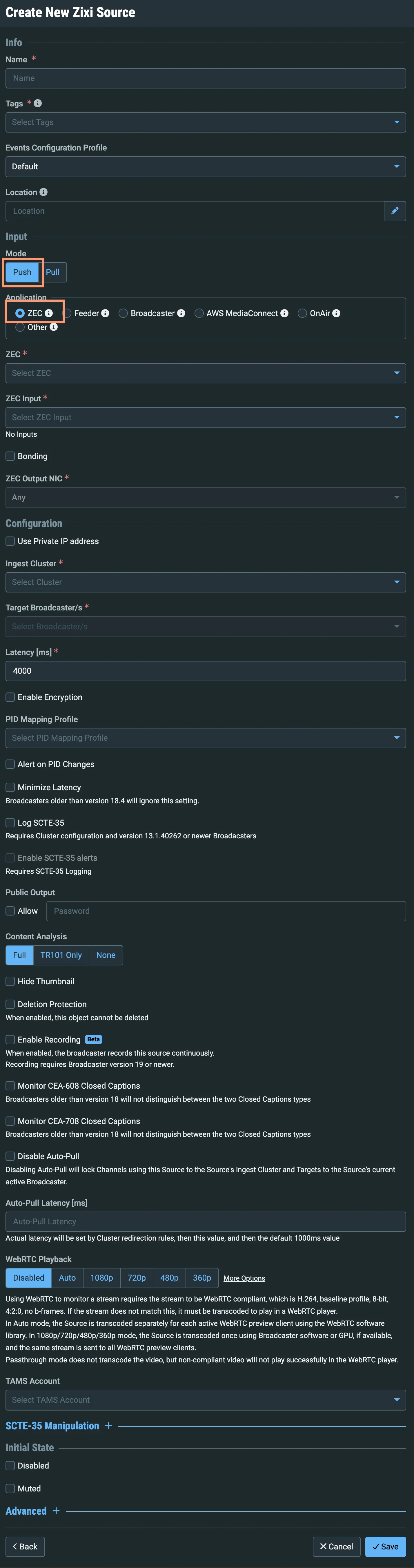
In the Info section, in the Name field, type a logical name for the ZEC Source.
In the Tags field, select one or more of the predefined Tags from the drop-down list. Tags are used for access control. By selecting a Tag, you are relating this Source to that Tag. Tags are associated with certain roles (through the Users & Roles screen), and roles, in turn, are associated with users and user groups. If you would like to create a new Tag, see Creating a Tag.
In the Events Configuration Profile field, select from the dropdown list the profile that you would like to apply to this Source. By default, the Default profile is applied.
Events Profiles consist of a series of rules that determine precisely how various types of Events are logged and what results they trigger.
The Source’s location is used to represent it in the proper position in the Map display (see Maps). By default, the location is determined automatically based on the Source’s IP. If you would like to manually set the location of the Source (Optional), use the following procedure:
- Click on the Edit icon next to the Location A search box is shown below the Location field.
- Enter identifying info for the location (e.g., street address, zip code, coordinates). Search results are displayed below the search box as you type.
- Click on the desired location. The selected location populates the Location.
In the Input section, verify under Mode that Push is selected (default) and not Pull, and under Application that the ZEC radio button is selected (default).
In the ZEC field, select from the drop-down list one of the available ZECs to be the ZEC that will be the Origin ZEC.
In the ZEC Input field, select the desired input that will be part of the Source from the Origin ZEC.
If you want the Source to be sent over a single NIC (i.e. no bonding) then do the following:
- Do not select the Bonding checkbox.
- In the ZEC Output NIC field, if you would like to specify which NIC is used, then select the IP of that NIC from the drop-down list. By default, Any is selected.
If you would like to use Bonding, then do the following:
- Select the Bonding checkbox.
- In the ZEC Output NICs field, select two or more NICs by clicking the button for each of the desired NICs. Selected NICs are shown above the Filter box. (You can remove a NIC by clicking the Remove button for that NIC).
- For each NIC that is selected you can adjust the following parameters:
- In the Max Bitrate field, enter the maximum bitrate to be used on this NIC.
- If you want to use this NIC only when there isn’t sufficient bandwidth available on the other NICs, then select the Backup checkbox.
If the Backup checkbox is not selected then this NIC is used in parallel with the other selected NICs.
In the Configuration section, select the Use Private IP address checkbox if you want to use a private IP address.
In the Ingest Cluster field, select from the drop-down list one of the available Ingest Clusters as the destination for the Source (i.e., the Ingest Broadcaster Cluster).
In the Target Broadcaster/s field, specify which Broadcaster/s within the Ingest Broadcaster Cluster on which ZEN Master can deploy the source. Either select a specific broadcaster to be used OR specify your preference for using primary vs. backup broadcasters, options are: Prefer Primary Broadcasters, Primary Broadcasters only, Backup Broadcasters only or Prefer Backup Broadcasters.
For managed clusters, it is not recommended to select a specific broadcaster, as the broadcaster’s availability may not remain stable.
In the Latency [ms] field, select the latency time for the stream (default 4000).
If you would like to enable the Zixi auto encryption feature for encrypting the Source stream, select the Enable Encryption checkbox.
If you would like to set a password to authenticate the stream from the Feeder, enter the password in the Source Password field or generate a random password by clicking on Random. You need to enter the identical password on the Feeder.
If you would like to apply a PID Mapping profile to this Source, then in the PID Mapping Profile field, select the desired profile from the dropdown list.
Using this method creates a single Source in ZEN Master with PID Mapping applied. If you would like to maintain a Source with the original PIDs and create an additional Source with PID Mapping (e.g. if you want to create several different PID Mapped variations), then use the method described in Adding a Source - PID Mapping. To create a new PID Mapping Profile, see PID Mapping Profiles.
If you would like to generate email notifications whenever a PID change is detected, select the Alert on PID changes.
Select the Minimize Latency checkbox to enable Dynamic Latency (see Latency Considerations for more information about Dynamic Latency).
Select the Log SCTE-35 checkbox if you would like to log SCTE-35 markers for this stream.
To log SCTE-35 markers, SCTE-35 needs to be enabled both on the Ingest Cluster and in the Source configuration.
SCTE-35 logging is only available for v13.1.40262+ Broadcasters.
If Log SCTE-35 was selected, you can choose to receive alerts for SCTE-35 markers by selecting the Enable SCTE-35 alerts.
In the Public Output field, if you would like to allow access to the stream directly through a supported player, select Allow.
If you selected the Allow checkbox, then enter a password in the Password field to authenticate access to the stream.
Under Content Analysis select one of the following options:
- Full - select this option if you would like to enable full Content Analysis (CQA), including analysis of the stream's audio and video content, including audio levels, audio silence detection, frozen video detection, and more.
- TR101 Only - select this option to perform TR101 analysis only (without video and audio content analysis). The analysis can be used to check the integrity of the TS and the most important elements of the stream. The analysis includes priority 1 and 2. To learn more about TR101 analysis see TR 101 290 Technical Report.
- None - no content analysis is enabled.
It is generally recommended to enable full Content Analysis unless it is causing technical problems. If Content Analysis is disabled, the system won't detect errors in the video and audio content of the stream and won't generate warnings for such events.
If you would like to disable the Source thumbnail from appearing in the Sources list and other places, select the Hide Thumbnail option. Disabling thumbnail may improve system performance.
Select the Deletion Protection checkbox if you want to prevent deletion of the Source.
Select the Enable Recording (Beta) checkbox if you would like to record the Source continuously.
If you would like to monitor CEA-608 closed captions, select the Monitor CEA-608 Closed Captions checkbox.
Broadcaster versions earlier than v18 will not distinguish between 608 and 708 captions.
Monitoring CEA-608 Closed Captions requires using a version 14.4 or newer Broadcaster.
If you would like to monitor CEA-708 closed captions, select the Monitor CEA-708 Closed Captions checkbox.
Broadcaster versions earlier than v18 will not distinguish between 608 and 708 captions.
Monitoring CEA-708 Closed Captions requires using a version 14.4 or newer Broadcaster.
If you would like to disable auto-pull, select the Disable Auto-Pull checkbox.
Disabling Auto-Pull will lock Channels using this Source to the Source’s Ingest Cluster and Targets to the Source’s current active Broadcaster. This setting only applies to Pass-Through Channels.
If Auto-Pull is enabled, in the Auto-Pull Latency [ms] field, specify the maximum latency for auto-pull actions. The Broadcaster will update the latency as required, by using the maximal defined latency and then reducing the latency gradually. (Default: 1000 ms)
In the WebRTC Playback section, select the desired playback method.
WebRTC enables you to monitor the stream via web browsers and mobile applications with real-time communication (RTC). WebRTC needs to be activated independently for each Source in ZEN Master (by default it is disabled).
Select one of the following options:
- Disabled – users will not be able to view this Source using WebRTC (default)
- Pass-Through – passes the stream through to WebRTC without transcoding. This option can only be used if the input stream is already in a WebRTC-compliant format (video - H.264 codec with Baseline or Main profile and no B frames, Audio – Opus codec).
- Auto - ZEN Master automatically transcodes the stream using the optimal profile for each specific user. In this option Zixi Broadcaster will decode the video, transforming it into RAW frames, which will be passed to the WebRTC library, where it will be re-encoded for each individual user.
Best quality. However, if monitored by multiple users this can consume extensive resources.
- 1080p/720p/480p/360p – ZEN Master transcodes the stream to a WebRTC-compliant profile with the specified resolution. The transcoding is done by Zixi Broadcaster's transcoder.
This method requires a Zixi Broadcaster with X264 or Nvidia for transcoding. This method allows many users to monitor the stream without encoding separately for each individual user, which saves CPU capacity. Since there is only one stream resolution, it is recommended to encode to a low resolution and low bitrate so that the stream will be viewable by all users monitoring the stream.
If you want a copy of the stream sent to your TAMS account, select the account from the dropdown list.
If you want to insert SCTE-35 messages into the stream, expand the SCTE-35 Manipulation section to expose the fields:
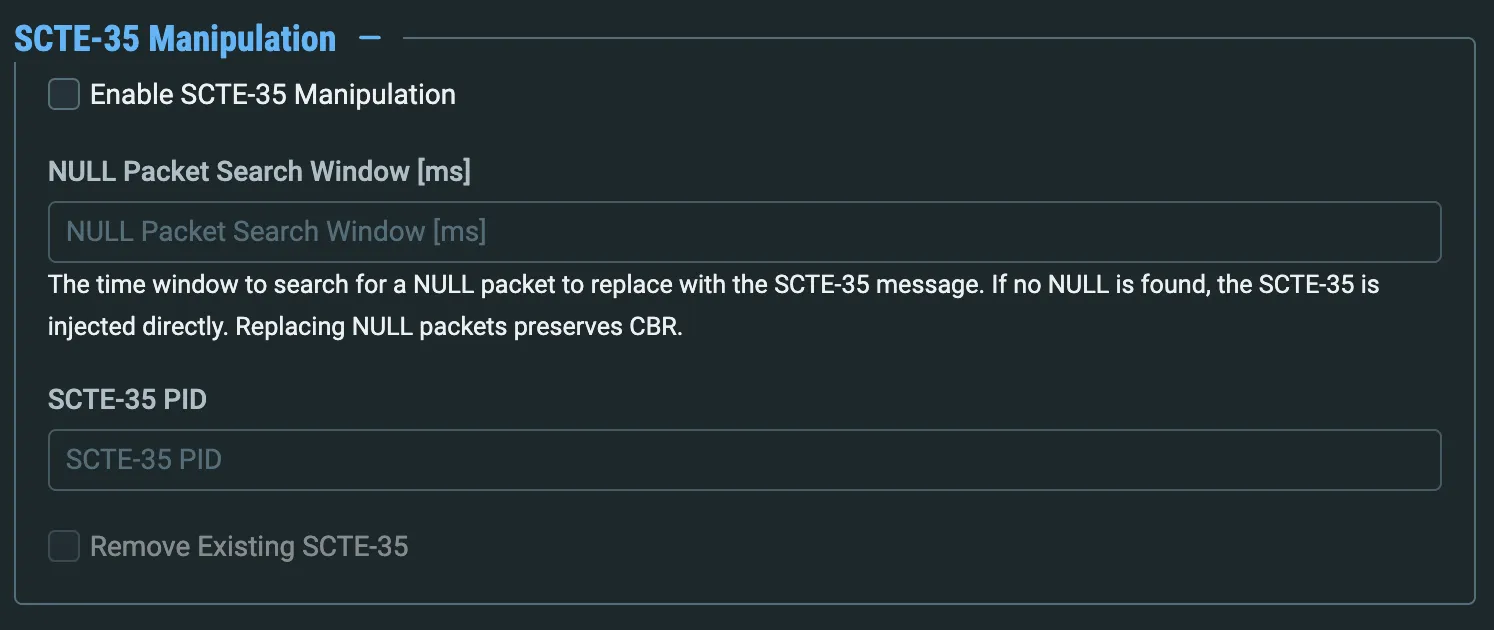
Check Enable SCTE-35 Manipulation to enable insertion and other management of SCTE-35 messages
Set the NULL Packet Search Window if needed - factors to consider:
- If the stream is VBR, set the value to 0 - SCTE-35 messages can be inserted anywhere, and do not need a NULL packet
- If the stream is CBR, the downstream receiver may need a CBR stream. Inserting the SCTE-35 message into a NULL packet ensures the stream will remain CBR; however, it may delay the insertion of the message up to the length of the search window
You can also specify a specific SCTE-35 PID number.
If you want to ensure that your inserted SCTE-35 messages are the only ones, you can elect to remove any pre-existing ones from the stream
In the Initial State section, select the Disabled checkbox if you would like to disable this Source upon initial configuration.
Select the Muted checkbox if you would like to disable error/recovery notifications for this Source upon initial configuration.
You can Enable/Unmute the Source at any time.
If you would like to adjust the advanced settings, click Advanced. The Advanced settings fields are displayed:
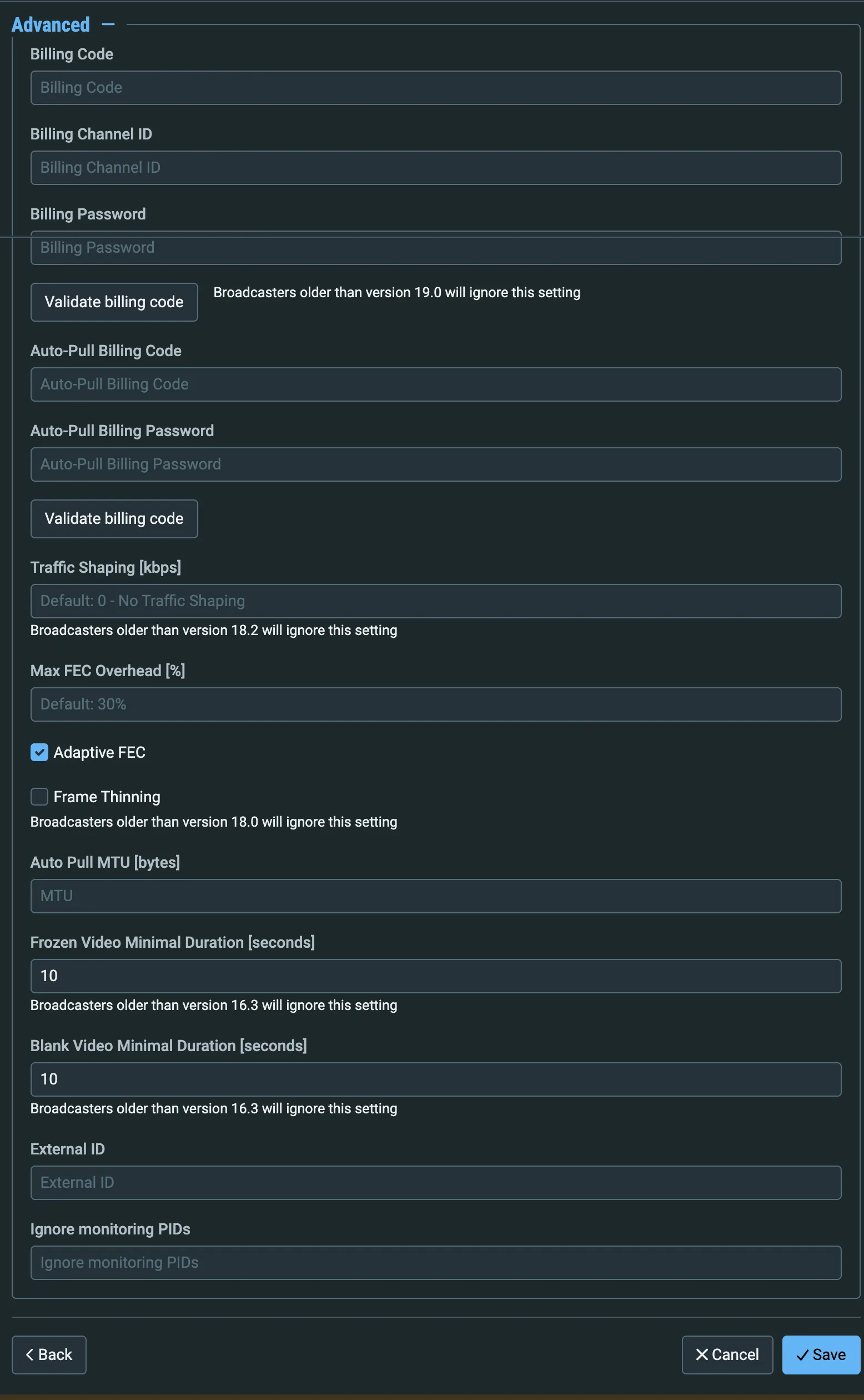
If you would like to track usage for this Source, enter your Billing Code and the Billing Password. See Billing Codes.
Note that billing codes are not supported for Push Sources until Broadcaster v19+.
In the Billing Channel ID field, enter an optional arbitrary string - you can enter anything you want to for your record-keeping. This is not related to ZEN Master Channels.
Click the Validate Billing Code button if you want to verify that the information you entered is correct.
If you would like to track auto-pull usage separately, enter your Auto-Pull Billing Code and Auto-Pull Billing Password.
Click the Validate Billing Code button if you want to verify that the information you entered is correct.
Traffic shaping is a network management technique used to control and optimize the flow of data. It ensures a smooth streaming experience by prioritizing video traffic and managing bandwidth usage. Set at 0 (default) for no traffic shaping, 1 for automatic traffic shaping, or specify a value in kbps.
This setting will be ignored for Broadcasters earlier than v18.2
Max FEC Overhead helps to fix transmission problems by sending redundant data that will allow reconstruction of lost packets instantly. By default the redundant data is limited to 30% of the actual data stream, but you can set the percentage to a lower value (this setting will be ignored for Broadcasters earlier than v18.2).
Adaptive FEC improves the efficiency of FEC by adjusting the amount of extra data sent according to network conditions. By default Adaptive FEC is turned on, but there are some cases where fixed FEC is needed and you will want to disable it.
Note that if you disable Adaptive FEC and later disable and reenable the source, Adaptive FEC will be turned on again, and you will need to edit the source and disable it again.
Frame Thinning allows non-critical frames to be dropped to reduce latency - check the box to enable it.
This option is available for Push sources only coming for Broadcaster 18.2 or later.
In the Auto Pull MTU field, specify the maximum transmission unit (largest data packet that a network-connected device will accept) in bytes for the Auto Pull.
To set the detection of frozen video, in the Frozen Video Minimal Duration field, specify the default minimal duration in seconds of frozen video after which the Broadcaster will trigger a Frozen video alert. Default: 10 seconds. This setting is supported for Broadcaster version 16.3 and higher.
To set the detection of blank video, in the Blank Video Minimal Duration field, specify the default minimal duration in seconds of blank video after which the Broadcaster will trigger a Blank video alert. Default: 10 seconds. This setting is supported for Broadcaster version 16.3 and higher.
In the External ID field, if you are using an external POIS or ESNI system, enter the External ID that you use to reference the ZEN Master object in the other system. See the Parameters table below for more information.
The Ignore Monitoring PIDs field prevents ZEN Master from issuing alerts for empty audio streams. If you wish to enable this, enter a comma-delimited list of PID numbers that should not be monitored for null content.
Click Save.
Parameters Table
Parameter | Description |
|---|---|
Info | |
Name | Specify a name for the Zixi Source in ZEN Master. |
Tags | Select one or more of the predefined Tags from the drop-down list. Tags are used for access control. By selecting a Tag, you are relating this Source to that Tag. Tags are associated with certain roles (through the Users & Roles screen), and roles, in turn, are associated with users and user groups. If you would like to create a new Tag, see Creating a Tag. |
Events Configuration Profile | Select from the dropdown list the profile that you would like to apply to this Source. By default, the Default profile is applied. Note: Events Profiles consist of a series of rules that determine precisely how various types of Events are logged and what results they trigger. |
Location (Optional) | The Source’s location is used to represent it in the proper position in the Map display (see Maps). By default, the location is determined automatically based on the Source’s IP. Enter identifying info for the location (e.g. street address, zip code, coordinates) and select the desired location from the suggestions that are shown. |
Input | |
Mode | To create a ZEC Source, verify that Push is selected (default). |
Application | To create a ZEC Source, verify that the ZEC radio button is selected (default). |
ZEC | Select from the drop-down list one of the available ZECs to be the ZEC that will be the Origin ZEC. |
ZEC Input | Select the relevant ZEC Input that will be part of the Source from the Origin ZEC. |
Bonding | Select the checkbox if you would like to use bonding. |
ZEC Output NIC/s (for None and Manual bonding) | If you would like to specify which NIC is used, then select the IP of that NIC from the drop-down list. By default, Any is selected. If you selected Manual for Bonding, then click the (plus) button for each of the NICs that you would like to use. Selected NICs are shown above the Filter box. (You can remove a NIC by clicking the (minus) button for that NIC). For each selected NIC, you can adjust the following parameters: In the Max Bitrate field, enter the maximum bitrate to be used on this NIC. If you want to use this NIC only when there isn’t sufficient bandwidth available on the other NICs, then select the Backup checkbox. If the Backup checkbox is not selected then this NIC is used in parallel with the other selected NICs. |
Configuration | |
Use Private IP address | Select this checkbox if you want to use a private IP address. |
Ingest Cluster | Select from the drop-down list one of the available Ingest Clusters as the destination for the Source (i.e., the Ingest Broadcaster Cluster). |
Target Broadcaster/s | Specify which Broadcaster/s within the Ingest Broadcaster Cluster on which ZEN Master can deploy the source. Either select a specific Broadcaster to be used OR specify your preference for using primary vs. backup Broadcasters. Options are: Prefer Primary Broadcasters, Primary Broadcasters only, Backup Broadcasters only or Prefer Backup Broadcasters. Note: For managed clusters, it is not recommended to select a specific Broadcaster, as the Broadcaster’s availability may not remain stable. |
Latency [ms] | Select the latency time for the stream (default 4000). |
Enable Encryption | If you would like to enable the Zixi auto encryption feature for encrypting the Source stream, select this checkbox. |
Source Password (Optional) | If you would like to set a password to authenticate the stream from the Feeder, enter the password or generate a random password by clicking on Random. You need to enter the identical password on the Feeder. |
PID Mapping Profile (Optional) | If you would like to apply a PID Mapping profile to this Source, then select the desired profile from the dropdown list. To create a new PID Mapping Profile, see Adding PID Mapping Profiles. Note: Using this method creates a single Source in ZEN Master with PID Mapping applied. If you would like to maintain a Source with the original PIDs and create an additional Source with PID Mapping (e.g. if you want to create several different PID Mapped variations), then use the method described in Adding a Source - PID Mapping. |
Alert on PID changes | If you would like to generate email notifications whenever a PID change is detected, select this checkbox. |
Minimize Latency | If enabled, Zixi adjusts the latency dynamically to optimize it for network conditions. |
Log SCTE-35 | Select this checkbox if you would like to log SCTE-35 markers for this stream. Note: To log SCTE-35 markers, SCTE-35 needs to be enabled both on the Ingest Cluster and in the Source configuration. Note: SCTE-35 logging is only available for v13.1.40262+ Broadcasters. |
Enable SCTE-35 alerts (for Log SCTE-35) | If you would like to receive alerts for SCTE-35 markers, select this checkbox. |
Public Output | If you would like to allow access to the stream directly through a supported player, select the Allow checkbox. |
Password (for Public Output) | If you selected Allow in the Public Output field, specify a password in this field to authenticate access to the stream. |
Content Analysis | Select one of the following options:
Note: It is generally recommended to enable full Content Analysis unless it is causing technical problems. If Content Analysis is disabled, the system won't detect errors in the video and audio content of the stream and won't generate warnings for such events. |
Hide Thumbnail | If you would like to disable the Source thumbnail from appearing in the Sources list and other places, select this option. Disabling thumbnail may improve system performance. |
Deletion Protection | Select this checkbox if you want to prevent deletion of the Source. |
Enable Recording (Beta) | Select this checkbox if you would like to record the Source continuously. |
Monitor CEA-608 Closed Captions | If you would like to monitor CEA-608 closed captions, select this checkbox. Note: Broadcasters/ZECs older than version 18 will not distinguish between 608 and 708 captions. Note: Monitoring CEA-608 Closed Captions requires using a version 14.4 or newer Broadcaster. |
Monitor CEA-708 Closed Captions | If you would like to monitor CEA-708 closed captions, select this checkbox. Note: Broadcasters/ZECs older than version 18 will not distinguish between 608 and 708 captions. Note: Monitoring CEA-708 Closed Captions requires using a version 14.4 or newer Broadcaster. |
Disable Auto-Pull | If you would like to disable auto-pull, select this checkbox. Note: Disabling Auto-Pull will lock Channels using this Source to the Source's Ingest Cluster and Targets to the Source's current active Broadcaster. This setting only applies to Pass-Through Channels. |
Auto-Pull Latency [ms] | Specify the maximum latency for auto-pull actions. The Broadcaster will update the latency as required, by using the maximal defined latency and then reducing the latency gradually. (Default: 1000 ms) |
WebRTC Playback | Select the desired playback method. Note: WebRTC enables you to monitor the stream via web browsers and mobile applications with real-time communication (RTC). WebRTC needs to be activated independently for each Source in ZEN Master (by default it is disabled). Select one of the following options:
|
TAMS Account | Choose a TAMS account (see Configuring TAMS). The point is to immediately send a variant of the stream to TAMS as soon as a feed connects. Intended to ensure there is a recording, not to replace delivering to TAMS via a Transcoded Channel and HTTP->TAMS target. |
SCTE-35 Manipulation | |
Enable SCTE-35 Manipulation | Enable insertion and other management of SCTE-35 messages (used typically to create ad breaks) |
NULL Packet Search Window [ms] | Look for a NULL packet to insert SCTE-35 messages into the stream
|
SCTE-35 PID | Specify a specific PID number for SCTE-35 insertion |
Remove Existing SCTE-35 | If you wish to override any existing SCTE-35 messages with your own, you can elect to have existing ones removed |
Initial State | |
Disabled | Select this checkbox if you would like to disable this Source upon initial configuration. |
Muted | Select this checkbox if you would like to disable error/recovery notifications for this Source upon initial configuration. |
Advanced | |
Billing Codes | If you would like to track usage for this Source, enter your Billing Code details, see Billing Codes. (Supported for Broadcasters v14.8+) Note: Billing codes are not supported for Push sources until Broadcaster v19. |
Billing Channel ID | An optional arbitrary string - you can enter anything you want to for your record-keeping. This is not related to ZEN Master Channels. |
Billing Password | Enter the password that corresponds to this billing code. |
Auto-Pull Billing Code | If you would like to track usage for this Source when using Auto-Pull connections, enter the billing code that corresponds to this stream. The relevant billing can be obtained from the organization that received the billing code from Zixi. |
Auto-Pull Billing Password | Enter the password that corresponds to this auto-pull billing code. |
Traffic Shaping | Traffic shaping is a network management technique used to control and optimize the flow of data. It ensures a smooth streaming experience by prioritizing video traffic and managing bandwidth usage. Set at 0 (default) for no traffic shaping, 1 for automatic traffic shaping, or specify a value in kbps. Note: This setting will be ignored for Broadcasters earlier than v18.2 |
Max FEC Overhead | Allows you to limit the additional data added for FEC (Forward Error Correction). Note: this option is only for sources for Zixi Broadcaster 18.2 or later. |
Adaptive FEC | Adaptive FEC improves the efficiency of FEC by adjusting the amount of extra data sent according to network conditions. By default Adaptive FEC is turned on, but there are some cases where fixed FEC is needed and you will want to disable it. Some examples of cases where fixed rate FEC is preferable:
|
Frame Thinning | Allow non-critical frames to be dropped to reduce latency. Note: this option is available for Push sources only coming for Broadcaster 18.2 or later. |
Auto Pull MTU | Specify the maximum transmission unit (largest data packet that a network-connected device will accept) in bytes for the Auto Pull. |
Frozen Video Minimal Duration | Specify the default minimal duration in seconds of frozen video after which the Broadcaster will trigger a Frozen video alert. Default: 10 seconds. This setting is supported for Broadcaster version 16.3 and higher. For existing sources, you may need to restart the source. |
Blank Video Minimal Duration | Specify the default minimal duration in seconds of blank video after which the Broadcaster will trigger a Blank video alert. Default: 10 seconds. This setting is supported for Broadcaster version 16.3 and higher. For existing sources, you may need to restart the source. |
External ID | The ID that is used when integrating ZEN Master with an external ESNI/ESAM server. The ID is whatever you use in the external system to reference the ZEN Master object, though depending on what you are doing, it might serve different purposes:
For more details, contact your Zixi representative. |
Ignore Monitoring PIDs | Ignore PIDs with empty audio streams to prevent false warnings - enter a comma-delimited list of PID numbers that should not be monitored for null content. |