ZEC Creating New Adaptive Groups
To Create a New Adaptive Group:
In the ZEC administrative screen, click the Adaptive tab.
Click Add Group.
The Adaptive live streams group window is displayed.
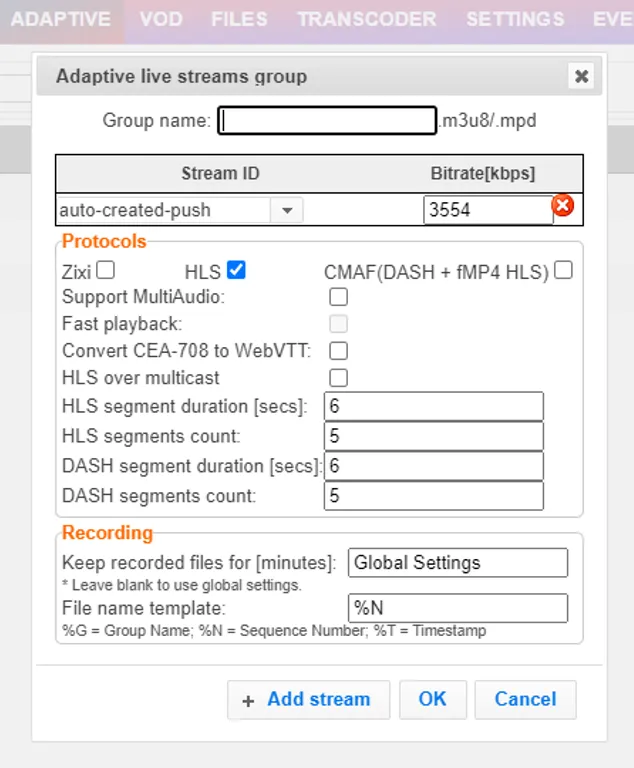
In the Group Name field, enter the unique string as the adaptive group's name.
Under StreamID, select a stream from the drop-down list to create an adaptive bitrate.
Enter the desired Bitrate[kbps] for that stream in the adjacent field to Stream ID.
Click + Add Stream to add as many streams as you want to include in the group, and repeat steps 4 and 5 for every stream that is added to the group
Select one or more Protocols that will be supported for this adaptive group. The Zixi protocol option enables devices using the Zixi SDK to view the stream using the Zixi protocol.
Select Support MultiAudio if the input streams include multiple audio channels to enable multiple separate audio channels in the adaptive group.
Specify the HLS/Dash segment/chunk duration and count (See details in the table below and also HLS DVR Maximum Recording Duration).
Specify the duration to Keep recorded files for [minutes]. If the file is left blank, the system will use the global settings specified in the Settings > Live Protocols screen in the HLS DVR Maximum Recording Duration field.
In the File name template field, specify the file name pattern that Zixi will use to generate when saving the recorded content.
Click OK.
The new Adaptive Group is created and appears on the Adaptive screen.
HLS DVR Maximum Recording Duration
For Broadcaster 19.3 and later, the Segment Count field is no longer capped at 60, but rather unlimited. Retaining more segments allows you to lengthen the DVR sliding window for purposes of recording or rewinding.
Note that there are memory implications to keeping the segments longer. For example: if you want to keep 6 hours of 6 second segments at a bitrate of ~30MBPS, the memory requirement will be ~1.3GB.
To calculate the appropriate Segment Count, divide the length of the rewind window you want by the segment length (6 seconds is a generally recommended segment length).
For example, if you would like a 3 hour rewind window with 6-second segments, divide 3 x 3600 (sec/hr) by 6 -> (3 * 3600) / 6 = 1800. 1800 is the value you would enter for the Segment Count.
S3/HTTP push behavior
The playlist and segments in object storage grow for the life of the stream; rolling window does not automatically delete rolled-off S3 segments in this implementation.
Broadcaster restart/crash behavior
The playlist resets on output stop/start - there is no persistence of prior segments across restarts.
API
hls_chunk_count parameter (the equivalent of Segment Count in the UI) now accepts values above 60; document valid range and any new fields exposed via list_adaptive_channels.json
Adaptive Field Parameters
Parameter | Description |
|---|---|
Group Name | Specifies the unique identifier for this group. |
Stream ID | Select an input stream from the drop-down list. |
Bitrate [kbps] | Specify the bitrate for the selected stream. |
Protocols | Select one or more Protocols that will be supported for this adaptive group - Zixi HLS (enables devices using the Zixi SDK to view the stream using the Zixi protocol), HLS, CMAF (DASH/fMP4) |
Support MultiAudio | Select this checkbox to enable multiple separate audio channels in the adaptive group. |
HLS Over Multicast | Select this checkbox to enable multicasting of the adaptive stream (requires multicast to be enabled in the Settings) |
Fast playback | Select this setting to enable low-latency HLS delivery. Enable HLS Fast playback on the Settings > Live Protocols screen must be enabled. Only the TS segments version of the HLS stream will be available for adaptive streaming, not the fragmented MP4 (fMP4) version. When enabled, the following playback URLs will be available:
|
Convert CEA-708 to WebVTT | Extracts closed caption from the video elementary stream and converts it to WebVTT format. This feature is currently available for HLS only, and there is no support for styling/placement, just text. |
HLS Segment Duration [sec] | Specify the duration in seconds of each segment/chunk in the HLS playlist. You can specify sub-second durations (e.g., 0.5). (Default: 6 seconds) |
HLS Segments Count | Specify the number of segments in the HLS playlist. |
DASH Segment Duration [sec] | Specify the duration in seconds of each segment/chunk in the DASH adaptive group. You can specify sub-second durations (e.g., 0.5). (Default: 6 seconds) |
DASH Segments Count | Specify the number of segments in the DASH adaptive group. |
Recording | |
Keep recorded files for [minutes] | Specifies the maximum time for storing the recording. If the file is left blank, the system will use the global settings specified in the Settings > Live Protocols screen in the HLS DVR Maximum Recording Duration field. |
File name template | Specify the file name pattern that Zixi will use to generate when saving the recorded content. A separate file will be generated for each recording up to the time specified in the Max recorded file duration parameter (see above). After this duration, a new file will be generated. The file name pattern can include any string and up to three variables listed below. Only the %T=HH.MM.SS Timestamp is mandatory. You can change the order of these variables and add text as long as you maintain the legitimate structure of the file in Linux and Windows: %G = Group Name – optional %N = Sequence Number – optional %T=HH.MM.SS Timestamp - mandatory |