ZEC Adding Push Outputs
Output streams can be pushed to one or more Zixi Broadcasters. You can specify multiple destinations (Broadcasters/ZEC (Receivers)) by adding them in the Links section. You can also split a single stream using multiple links and then bond them into a single stream in the target Broadcaster using the Bond Links feature. For each of these links, you can specify the max bitrate that can be used. In addition, some links may be specified as backups. The backup links will be used if the bandwidth across all the non-backup links is not enough for the stream (i.e., if a non-backup link is not available, it will not use the backup). Only if the accumulated bandwidth of non-backup links is not enough, then the Broadcaster will stream to a backup link.
To Create a Push Output:
In the ZEC Outputs page, click +New Output.
The New output window is displayed.
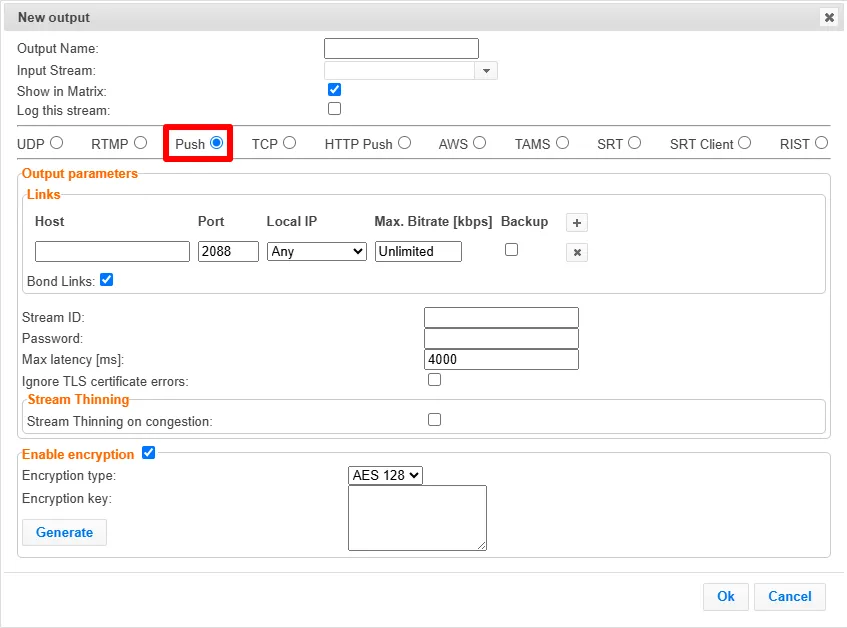
Type in the unique identifier for this output in the Output Name.
Select an Input Stream to be made available on this output from the drop-down list.
Select the Show in Matrix check box to display this stream in the Matrix (see ZEC Using the Matrix). Default: Selected.
Select the Log this stream checkbox if you would like to generate event logs for this output.
Select Push.
Specify the Output parameters (see Output Stream Parameters Table below).
You can decrypt an encrypted stream as it enters the ZEC. To decrypt a stream, select the Decrypt Stream checkbox and fill in the parameters as described in the Output Stream Parameters Table below. For more information, see Decrypting an Output Stream in ZEC.
Click OK.
The new Push Output with its settings is created and now appears on the screen.
Output Stream Parameters Table
Parameter | Description |
|---|---|
Output Parameters | |
Links | |
Host | The destination host for the push stream. Note: additional failover destinations can be added by clicking the adjacent “+” button. |
Port | Specify the ports to listen on for Push streams. Default: 2088. |
Local IP | Specify the local IP of the NIC that you will be using for this link. |
Bond Links | Click this checkbox to split the stream into multiple links, which will be forwarded to a single Broadcaster instance. |
Max Bitrate [kbps] (for Bond Links enabled) | Relevant for the Bond Links option. Specify the max bitrate in Kbps for the specific link. |
Backup (for Bond Links enabled) | Relevant for the Bond Links option. Select this checkbox to define the link as a backup. The backup will be used only if the accumulated bandwidth of the non-backup links is not sufficient. |
Stream ID | Specify the unique Stream ID that the remote Broadcaster expects. |
Password | Optional - Specify a string to be used at the receiving Broadcaster to authenticate that the pushing ZEC is allowed to push this stream. |
Max Latency [ms] | Specify the buffer size that ZEC will keep for error correction. For example, 6000 milliseconds would ensure that the stream is protected for six seconds of errors in the network. Default: 4000 |
Ignore TLS certificate errors | Select this option when streaming to a trusted server that does not have a valid certificate. When this option is selected, ZEC will ignore the TLS certificate errors and transmit the stream to its destination. |
Stream Thinning | |
Stream Thinning on congestion | Gracefully reduces output frame rate for video transported by Zixi protocol, under constrained network conditions without adding latency, preserving audio and key frames to keep streams continuous through congestion and failover. |
Enable Encryption | Select this checkbox to encrypt the Output stream. |
Encryption type (for Encryption enabled) | Specify the type of Encryption (AES 128/192/256). Click Generate to generate an encryption key or enter another encryption key. |
Advanced Mode
The fields discussed below are optional and available only in Advanced Mode.
To enter Advanced Mode add the URL parameter ?advanced=1 to the ZEC URL in your browser and press Enter/Return to reload the page:

Note the Advanced Mode settings are generally intended for advanced users and special cases. If you do not understand the settings, you should probably accept the default values.
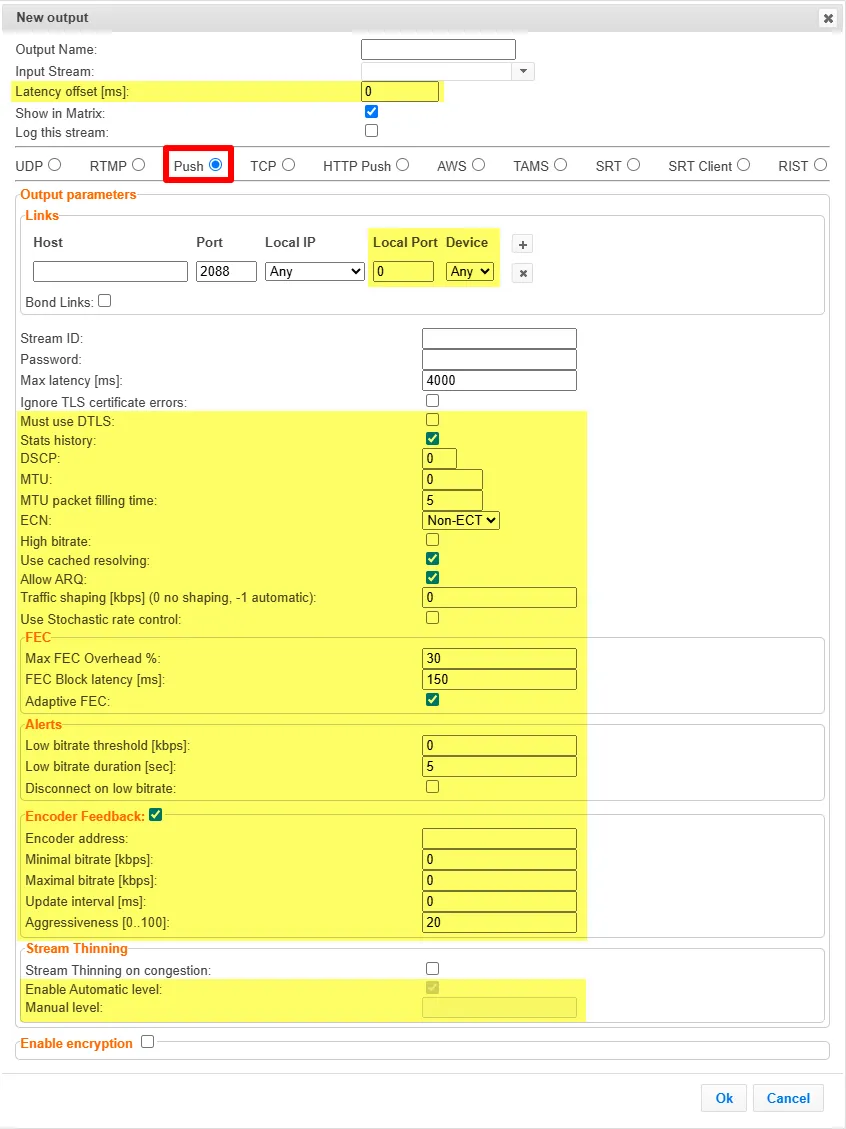
General
- Latency offset [ms] - Specify the additional buffering time in milliseconds. Increasing this value can improve stream stability in unstable network conditions, but will increase end-to-end delay. Default: 0 ms
Links
- Local Port - Specify from which local port to source the stream, if desired (instead of randomly chosen by the operating system).
- Device -
Output Parameters
- Must use DTLS - By default, Broadcaster auto-detects DTLS and uses it when available. If it's not available, the stream falls back to clear/non-DTLS. Select this setting to fail the Output (error) when DTLS is not available.
- Stats History - Select this checkbox to record stream statistics.
- DSCP - Specify the Differentiated Services Code Point (DSCP) value for the stream. This 6-bit value (ranging from 0 to 63) is embedded within the IP header of the network packets to classify the traffic type and define its priority level across the network routing infrastructure. Typical value for video transmission is 46. Note that this is only a request, and whether it is honored depends on all devices in the path to be DSCP-capable. In most cases, enabling ARQ and FEC are more reliable ways of ensuring video delivery on congested networks.
- MTU - If you would like to configure the Maximum Transmission Unit (the largest data packet that a network-connected device will accept) for pushing the stream, enter the MTU in bytes.
- MTU packet filling time - sets the maximum time the output will hold a packet, accumulating data toward the MTU, before sending it out regardless of whether it's full. When the timer expires, the packet goes out partially filled. The reason for setting this is that on slow network, waiting for data to fill packets to the MTU amount can increase the stream latency.
- ECN - ECN lets a congested router mark a packet to signal congestion rather than dropping it. The sender declares "I understand ECN" by marking its packets as ECN-capable; a congested router along the path can then flip the bits to signal congestion without packet loss. Note that this is only a request that depends on all devices downstream being ECN-capable. In most cases, enabling ARQ and FEC are more reliable ways of ensuring video delivery on congested networks.
- High bitrate - Select this option to enable the Broadcaster to handle streams up to 1Gbps (e.g., for JPEGXS)
- Use cached resolving -
- Allow ARQ - Enable ARQ to automatically detect lost or corrupted data packets and request their transmission. Options are: Remote Configuration (default), On, and Off.
- Traffic Shaping [kbps] - Specify a value in kbps to use the Traffic shaping network management technique to control and optimize the flow of data.
- Use Stochastic rate control -
FEC
- Max FEC Overhead % - Specify the percentage above the source bitrate to apply FEC (default is 30%)
- FEC Block Latency [ms] - Specify the number of milliseconds that Zixi protects with a single FEC block.
- Adaptive FEC - Select to adjust FEC latency adaptively in real time. When enabled, FEC protection is applied only when it's actually needed, not wasting FEC bandwidth on clean networks.
Alerts
- Low bitrate threshold [kbps] - Specify a bitrate at which an alert will created for low bitrate.
- Low bitrate duration [sec] - Specify number of seconds for continuous low bitrates (the threshold defined above) before generating an alert.
- Disconnect on low bitrate - Whether to disconnect the stream when the bitrate falls below the threshold for the low bitrate duration defined above.
Encoder Feedback
- Encoder Address -
- Minimal bitrate [kbps] -
- Maximal bitrate [kbps] -
- Update interval [ms] -
- Aggressiveness [0..100] -
Stream Thinning
- Enable Automatic level -
- Manual level -
The error recovery techniques implemented in the Zixi protocol are protected under U.S. patent 11,546,615.