ZEC Adding Pull Streams
Typically, a Pull Stream is transmitted from a Broadcaster. In this case, the stream is initiated by your ZEC.
If the stream is an MPTS stream and you want to demux it into separate SPTS input streams, create the stream by following the instructions below, and then follow the instructions in the Demuxing an MPTS Stream section.
To Add a Pull Stream:
In the ZEC Navigation menu, click the Inputs tab.
In the Menu bar, click +New Input. The Add a new input stream window is displayed.
Enter the unique Stream I.D. for the ZEC.
Note this must be identical (case sensitive) to the stream name configured in the sending Zixi Broadcaster or MediaConnect.
Select the maximum concurrent connections to this stream from the Max. Outputs drop-down list. Default: Unlimited.
This setting can be modified without interrupting an existing stream.
Select the Show in Matrix check box to display this stream in the Matrix (see ZEC Using the Matrix). Default: Selected.
Select the Log this stream checkbox if you would like to generate event logs for this input.
Select the Analyze checkbox if you would like to enable stream analysis for the input.
Select Pull for the input stream.
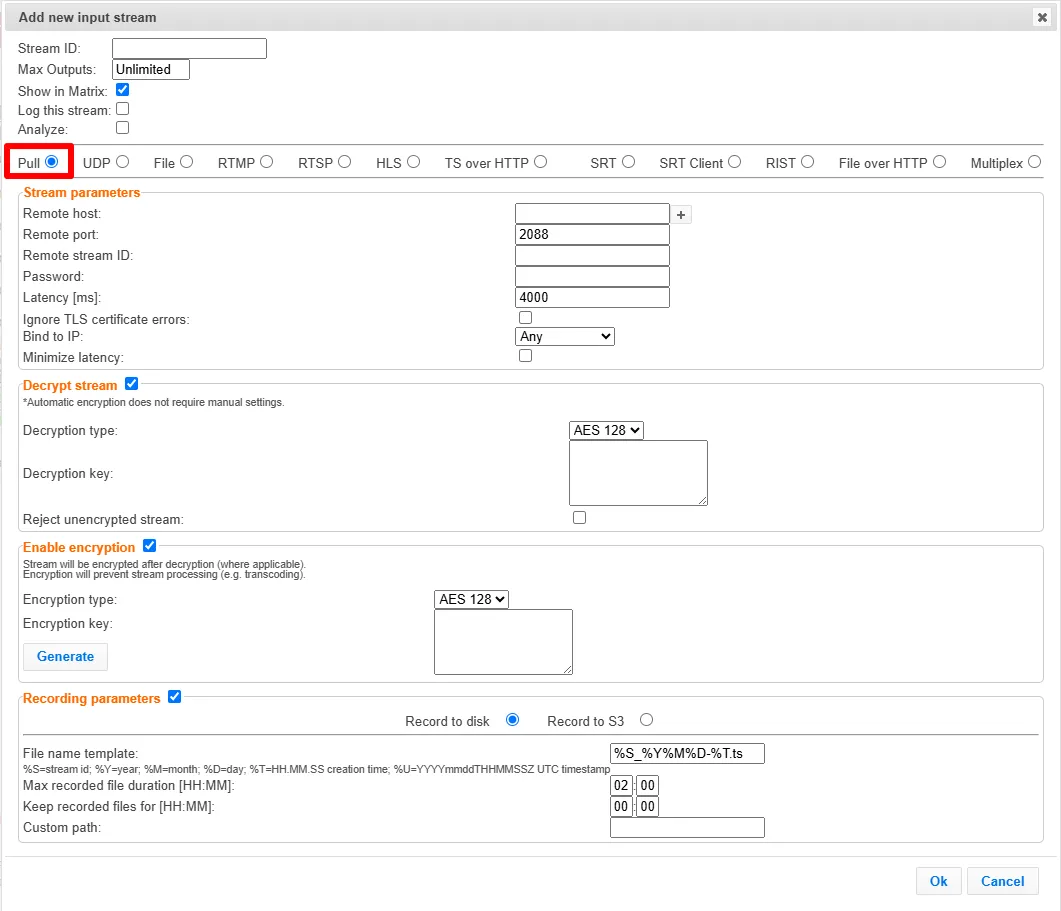
Specify the Stream Parameters (see the Input Stream Parameter Table below).
You can decrypt an encrypted stream as it enters the ZEC. To decrypt a stream, select the Decrypt Stream checkbox and fill in the parameters as described in the Input Stream Parameter Table below. For more information, see ZEC Decrypting an Input Stream.
If you want to configure the Recording Parameters, specify them in the respective fields (see Input Stream Parameter Table).
Click OK.
The “Input added” message appears at the top of the screen. The Pull Stream is added to the ZEC and now appears in the list of streams available in the ZEC inputs UI.
Input Stream Parameters Table
Parameter | Description |
|---|---|
Stream Parameters | |
Remote Host | Enter the IP Address of the remote ZEC server. Note that additional (failover) destinations can be added by clicking the adjacent “+” button |
Remote Port | Enter the port through which ZEC receives the stream from another ZEC server. Default: 2088 The default input port for ZEC is UDP port 2088. This port must be open on any firewalls between ZEC and other devices it is communicating with. |
Remote stream ID | Enter the unique stream ID from another ZEC server. |
Password (Optional) | If desired, enter the string for authentication. It must be identical to the string configured on the other ZEC. |
Latency [ms] | Specify the maximum number of milliseconds that ZEC should protect the stream for. For example, 6000 milliseconds would ensure that the stream is protected for up to six seconds of delay in the network. This setting affects memory usage as higher levels of protection require more buffering. Default: 4000. |
Ignore TLS certificate errors | Select this option when connecting to a trusted server that does not have a valid certificate. When this option is selected, ZEC will ignore the TLS certificate errors. This setting can be modified without interrupting an existing stream. |
Bind to IP | Select from the drop-down list the local IP address to be used for this Input, OR select Any to enable any IP to be used. |
Minimize latency | When enabling this mode, the latency target will be adjusted down from the user setting to automatically find the lowest error-free latency. |
Decrypt stream | Select this checkbox to decrypt the Input stream. Please note that the stream will not be encrypted as it passes through the Zixi path unless encryption is added. For more information, see ZEC Decrypting an Input Stream. |
Decryption type (for Decrypt stream enabled) | Specify the type of encryption that is being used in the stream. This setting can be modified without interrupting an existing stream. |
Decryption key (for Decrypt stream enabled) | Specify the key for decryption. This setting can be modified without interrupting an existing stream. |
Enable Encryption | Select this checkbox to encrypt the Input stream. The stream encryption prevents any further processing, such as analysis, transcoding, etc. The encryption works in the following way:
For more information, see ZEC Encrypting an Input Stream. |
Encryption type (for Encryption enabled) | Specify the type of Encryption (AES 128/192/256). |
Encryption key (for Encryption enabled) | Click Generate to generate an encryption key. The generated encryption key must be sent to the end-user to decipher the received encoded stream. |
Recording parameters | Select this checkbox to customize the recording parameters. |
Destination Type | Select the radio button for the desired storage type and then fill in the relevant parameters.
|
Record to Disk Parameters | |
File Name Template | Specify the file name pattern that Zixi will use to generate when saving the recorded content. A separate file will be generated for each recording up to the time specified in the Max recorded file duration parameter (see above). After this duration, a new file will be generated. The file name pattern can include any string and up to five variables listed below. Only the %T=HH.MM.SS creation time is mandatory. You can change the order of these variables and add text as long as you maintain the legitimate structure of the file in Linux and Windows:
For example, the following pattern %Y_recording%T.ts will generate the following file name 2022_recording15:32:35.ts. |
Max recorded file duration [HH:MM] | Specify the maximum time allotted for recording a video stream. Default: 2 hours |
Keep recorded files for [HH:MM] | Specify the maximum time for storing the recording. Default: 0 hours |
Custom Path | Optionally specify a storage location for the recorded files that is relative to the root folder. This location bypasses the location specified as the root folder in the Settings > General screen. |
Record to S3 Parameters | |
File Name Template | Specify the file name pattern that Zixi will use to generate when saving the recorded content. A separate file will be generated for each recording up to the time specified in the Max recorded file duration parameter (see above). After this duration, a new file will be generated. The file name pattern can include any string and up to five variables listed below. Only the %T=HH.MM.SS creation time is mandatory. You can change the order of these variables and add text as long as you maintain the legitimate structure of the file in Linux and Windows:
For example, the following pattern %Y_recording%T.ts will generate the following file name 2022_recording15:32:35.ts. |
Max recorded file duration [HH:MM] | Specify the maximum time allotted for recording a video stream. Default: 2 hours |
URL | Specify the URL of the S3 bucket. |
Ignore TLS certificate errors | TLS certificate for S3 bucket might be detected as faulty if bucket name contains dot[s]. When this option is selected, ZEC will ignore the TLS certificate errors and transmit the stream to its destination. |
Access Key | The access key that is used for accessing the S3 bucket. |
Secret Key | The secret key that is used for accessing the S3 bucket. |
Advanced Mode
The fields discussed below are optional and available only in Advanced Mode.
To enter Advanced Mode add the URL parameter ?advanced=1 to the ZEC URL in your browser and press Enter/Return to reload the page:

Note the Advanced Mode settings are generally intended for advanced users and special cases. If you do not understand the settings, you should probably accept the default values.
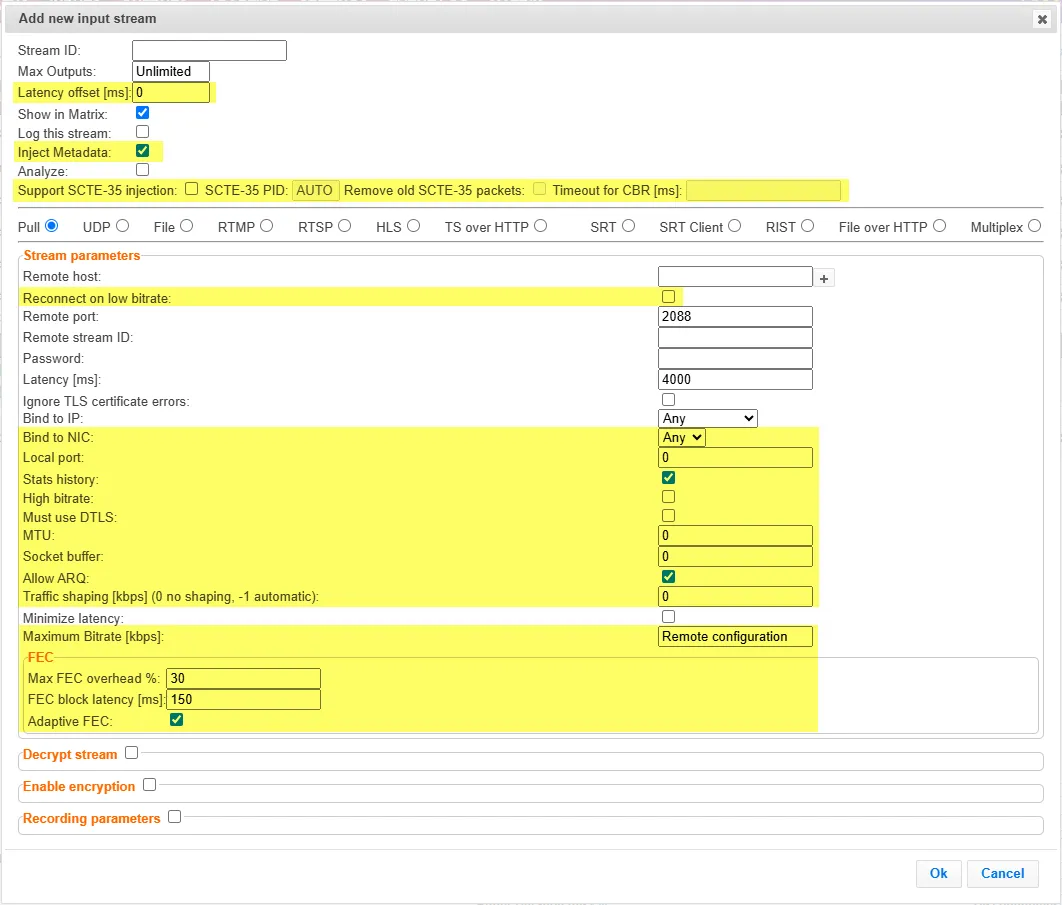
General
- Latency Offset [ms] - Specify the additional buffering time in milliseconds. Increasing this value can improve stream stability in unstable network conditions, but will increase end-to-end delay. Default: 0 ms
- Inject Metadata - allows Zixi create a PID that carries information about what hops a feed has travelled through on the way to its destination, it includes things like CC errors and IAT at each hop. The information is useful for debugging issues with streams.
- Support SCTE-35 injection - Select this checkbox if you would like the stream to support SCTE-35 insertion.
- SCTE-35 PID- Enter a PID number for SCTE-35 injection. You can enter a value manually or use the Up/Down arrows that appear when clicking the field. (or leave as Auto to match existing SCTE-35 PID)
- Remove old SCTE-35 packets - If SCTE-35 injection is supported, select this checkbox to clear out existing packets.
- Keep Stream CBR - Select this checkbox to insert on NULL packets and maintain PCR Accuracy in CBR Streams.
Stream Parameters
- Reconnect on low bitrate - Select this option to automatically disconnect and reestablish a connection when experiencing low bitrate conditions. This creates a "hard reset" to address unrecoverable congestion, clearing stalled buffers, and renegotiating path bandwidth.
- Bind to NIC - Select from the drop-down list the CIDR that represents the IP range where the desired NIC is accessed.
- Local Port - Specify the port to listen on. This port must be open on all firewalls between the ZEC and other devices it is communicating with.
- Stats History - Select this checkbox to record stream statistics.
- High Bitrate - Select this option to enable the Broadcaster to handle streams up to 1Gbps (e.g., for JPEGXS)
- Must use DTLS - By default, Broadcaster auto-detects DTLS and uses it when available. If it's not available, the stream falls back to clear/non-DTLS. Select this setting to fail the Input (error) when DTLS is not available.
- MTU - If you would like to configure the Maximum Transmission Unit (the largest data packet that a network-connected device will accept) for pulling the stream, enter the MTU in bytes.
- Socket buffer - Specify the Socket Buffer value in bytes.
- Allow ARQ - Enable ARQ to automatically detect lost or corrupted data packets and request their transmission. Options are: Remote Configuration (default), On, and Off.
- Traffic Shaping [kbps] - Specify a value in kbps to use the Traffic shaping network management technique to control and optimize the flow of data.
- Maximum Bitrate [kbps] - Specify the maximum expected bitrate for memory allocation. Recommended: 2X the actual bitrate, which will prevent buffer overruns (especially with VBR streams). Default: 0 Note – Overflows will typically occur when the Max Bitrate isn’t sufficient.
FEC
- Max FEC overhead % - Specify the percentage above the source bitrate to apply FEC (default is 30%)
- FEC Block Latency [ms] - Specify the number of milliseconds that Zixi protects with a single FEC block.
- Adaptive FEC - Select to adjust FEC latency adaptively in real time. When enabled, FEC protection is applied only when it's actually needed, not wasting FEC bandwidth on clean networks.
The error recovery techniques implemented in the Zixi protocol Pull streams are protected under U.S. patent 11,546,615.