TCPDump
Broadcaster can capture the network traffic of a connected input or output for troubleshooting. Start or stop a capture from the input/output Actions menu → tcpdump start/stop. While a capture is running, the stream's status indicator shows a recording icon.
Also see:
Requirements
Linux - capture uses the zdump utility included in the Broadcaster installation directory.
Windows - capture uses Wireshark, which must be installed on the system.
Limitations
Capture is available only on Connected inputs/outputs with a network socket; it is not offered for internal stream types (mux, demux, ASI, failover groups, etc.).
TCPDump Files Location
Capture files are written under the Broadcaster files folder: <files folder>/tcpdump/<input or output ID>/capture<timestamp>.pcap Files rotate according to the size/count settings, and a tcpdump.log in the same folder records any capture-utility errors.
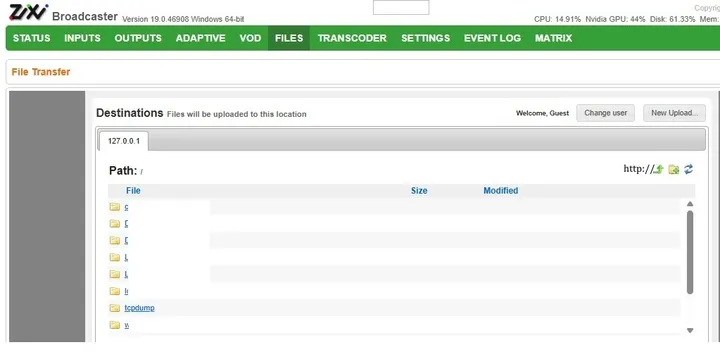
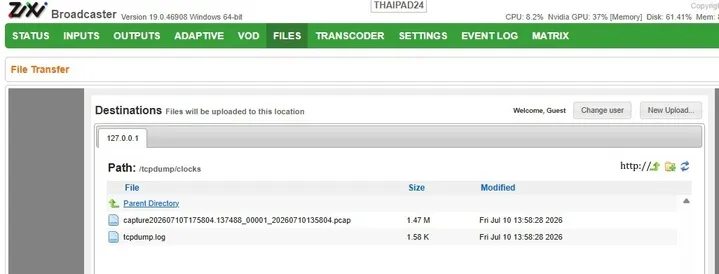
Settings
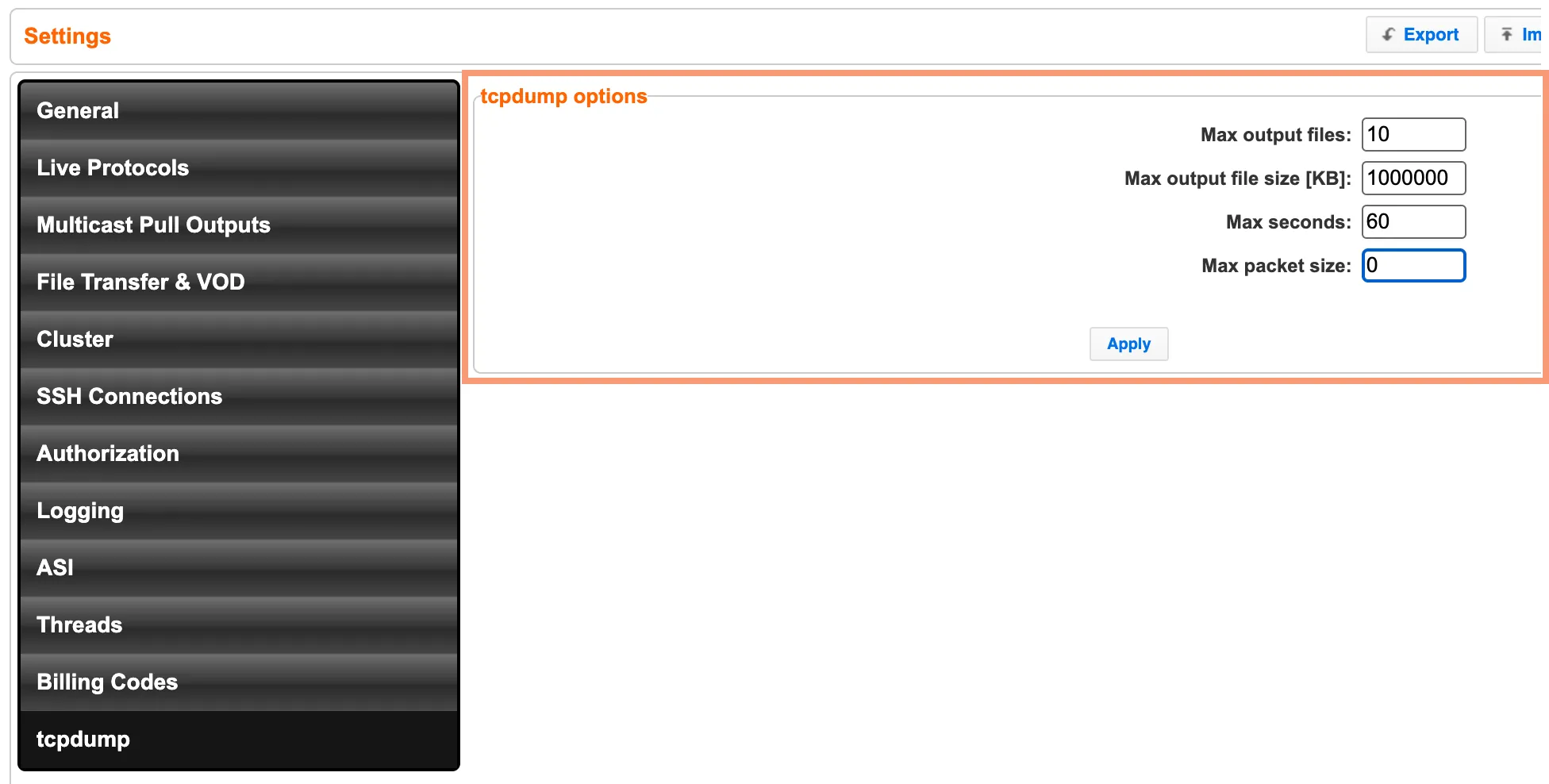
Fields
- Max output files: (default 10) control file rotation.
- Max output file size (KB): (default ~1 GB) capture automatically stops when the maximum file size is reached.
- Max seconds: (default: 60) capture will stop when this limit is reached (the max filesize limit takes precedence over this setting).
- Max Packet Size: The maximum number of bytes saved per packet (snap length). The default, 0, captures full packets and is recommended for most cases. Set a small value (e.g., 128) to capture headers only and reduce file size, or a value at or above your MTU (e.g., 1514) to explicitly guarantee full frames.