ZEC Adding File Streams
This input creates a file input for the ZEC from a local or mounted disk and subsequently streams it to the end-user.
If the stream is an MPTS stream, you can either upload it as an MPTS file or you can demux it into separate SPTS input streams. To Demux the MPTS stream, create the input stream by following the instructions below, and then follow the instruction in the Demuxing an MPTS Stream section.
To Add a File Stream:
In the ZEC Navigation menu, click the Inputs tab.
In the Menu bar, click +New Input. The Add a new input stream window is displayed.
Enter the unique Stream ID.
Note this must be identical (case sensitive) to the stream name configured in the sending Zixi Broadcaster or MediaConnect.
Select the maximum concurrent connections to this stream from the Max. Outputs drop-down list. Default: Unlimited.
Select the Show in Matrix check box to display this stream in the Matrix (see ZEC Using the Matrix). Default: Selected.
Select File for the input stream.

Specify the Stream Parameters (see the Input Stream Parameter Table below).
If you want to Enable encryption, select this checkbox (see Input Stream Parameters Table). For more information, see ZEC Encrypting an Input Stream .
If you want to configure the Recording Parameters, specify them in the respective fields (see Input Stream Parameter Table)
Click OK. The “Input added” message appears on the top of the screen. The stream is added to ZEC and now appears in the list of streams available in the ZEC inputs UI.
Input Stream Parameters Table
Parameter | Description |
|---|---|
Stream Parameters |
|
Path | See Notes on the File Path below |
Enable Encryption | Select this checkbox to encrypt the Input stream. For more information, see ZEC Encrypting an Input Stream . |
Encryption type (for Encryption enabled) | Specify the type of Encryption (AES 128/192/256). |
Encryption key (for encryption enabled) | Click Generate to generate an encryption key. The generated encryption key must be sent to the end-user to decipher the received encoded stream. |
Notes on the File Path
- The paths the Broadcaster understands here are not operating system paths - full system paths such as /home/user/videos/file.ts or C:\home\videos\file.ts will not work.
- Instead, the file you wish to use must be in the root folder for the Broadcaster. The location of the root folder is shown in the General settings of the Settings tab:
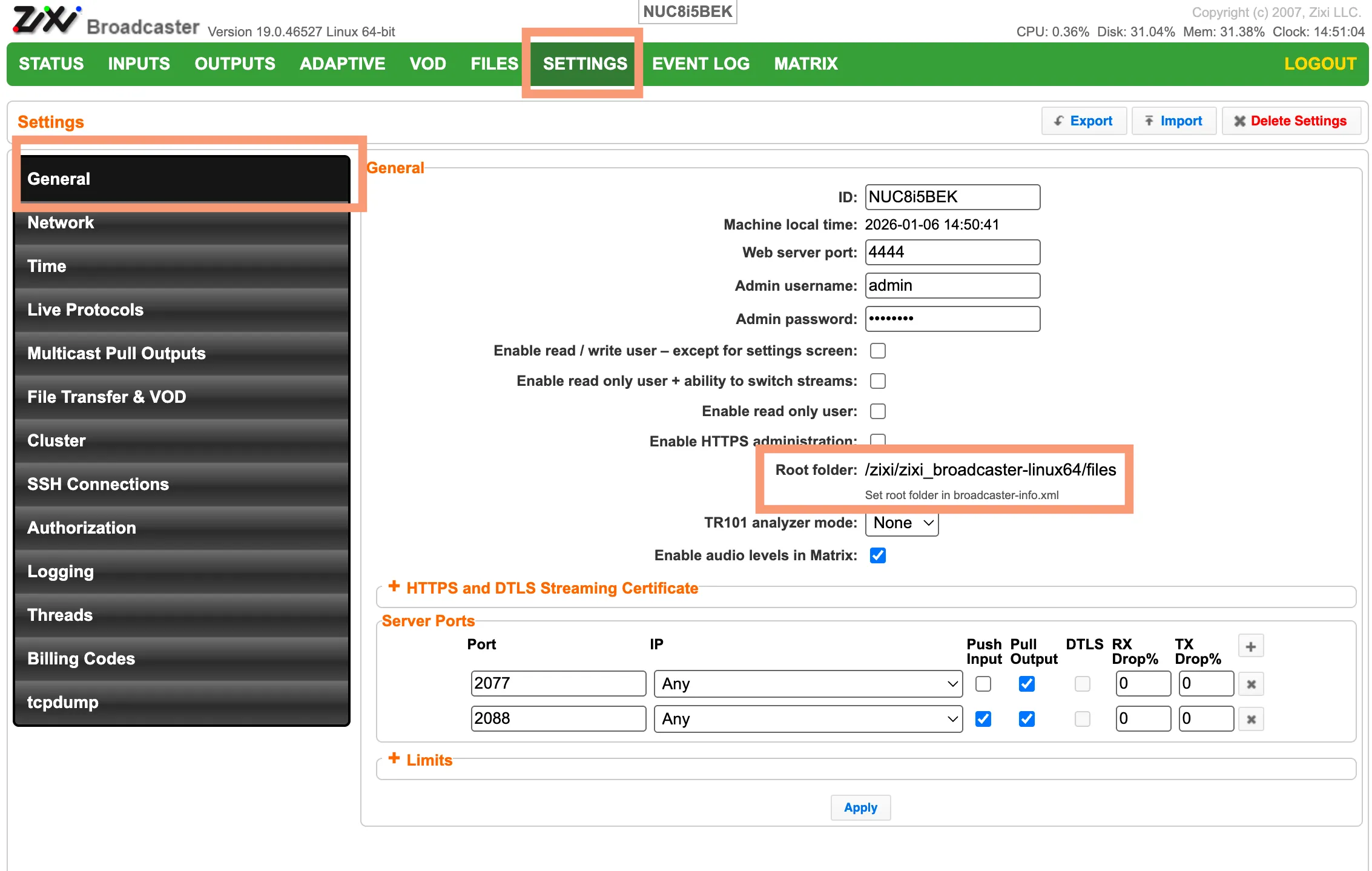
- Note that to change the root folder location, you must edit the broadcaster-info.xml file, which is located in the Broadcaster installation folder.
- On the Files tab, you can upload files to the Broadcaster for use as file streams, and also create subfolders to organize files.
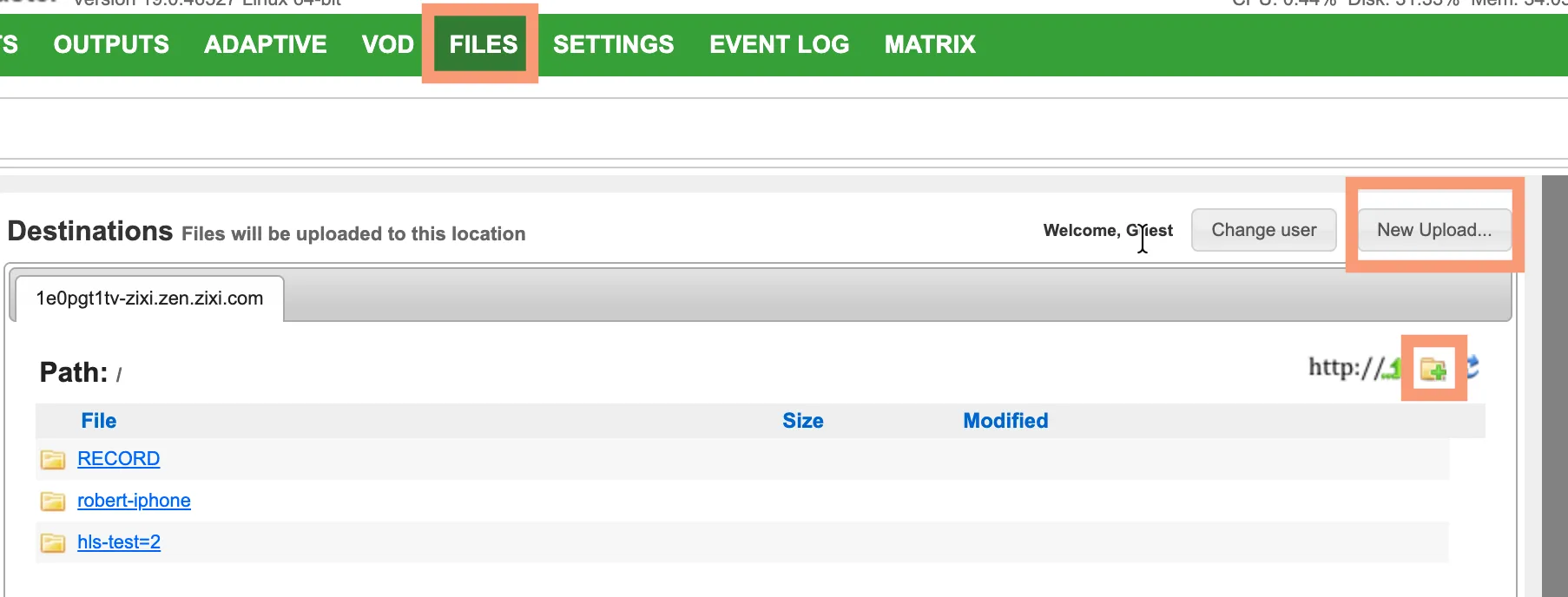
- For files in subfolders, the Path is relative to the root folder - for example, if you create a videos subfolder and within the videos folder create another subfolder called nature, and you want to use a file called forest.ts for the file stream, the path would be: /videos/nature/forest.ts
Advanced Mode
The fields discussed below are optional and available only in Advanced Mode.
To enter Advanced Mode add the URL parameter ?advanced=1 to the Zixi Broadcaster URL in your browser and press Enter/Return to reload the page:

Note the Advanced Mode settings are generally intended for advanced users and special cases. If you do not understand the settings, you should probably accept the default values.
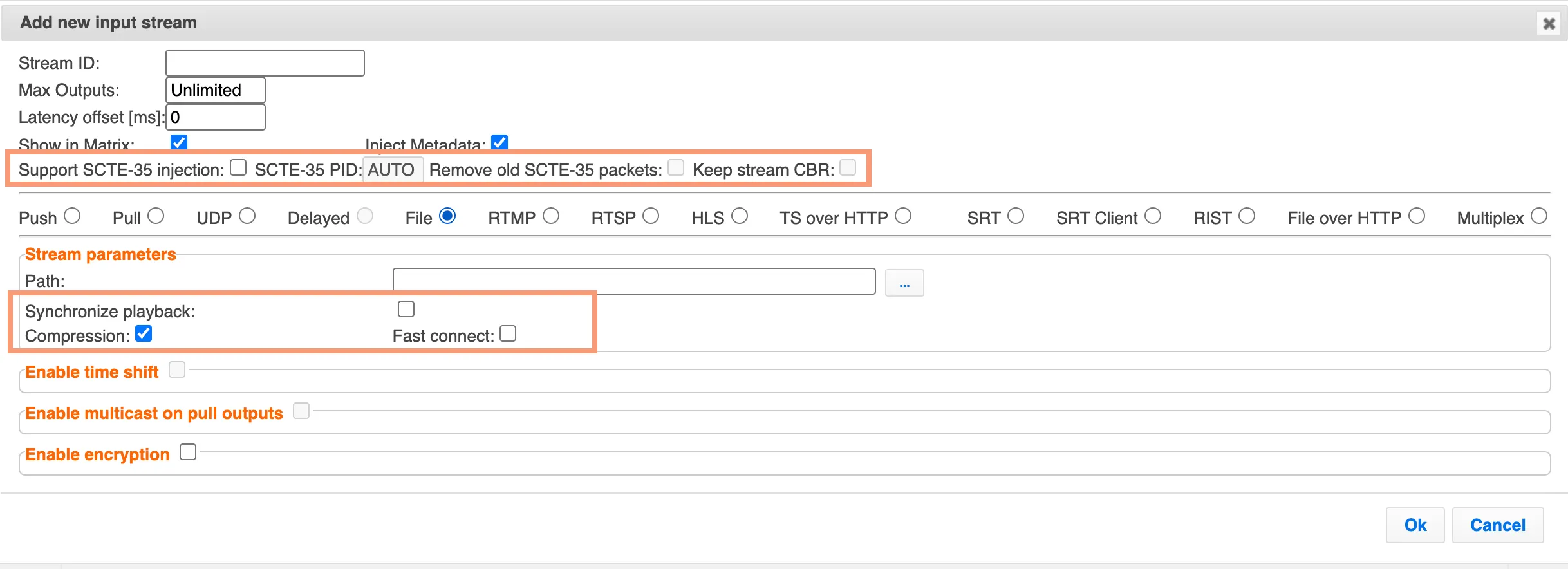
General
- Latency Offset [ms]
- Support SCTE-35 injection
- SCTE-35 PID
- Inject Metadata
- Remove old SCTE-35 packets
- Keep Stream CBR
Stream Parameters
- Synchronize playback - checkbox
- Compression - checkbox
- Fast connect - checkbox
Synchronize Playback
Synchronize playback ties a looping file's position to wall-clock time instead of to when the input was started.
When it's OFF (default): the file simply starts from the beginning when the input starts, and loops from there. If you restart the input, or start the same file on a second Broadcaster, each one begins at the start of the file at the moment it was started — so they will not be at the same point in the file as each other.
When it's ON: the Broadcaster calculates where in the file it would be if the file had been playing continuously since a fixed reference time and jumps straight to that position. This means: The playout position is deterministic from the clock — restarting the input resumes at the "correct" point for the current time rather than jumping back to the beginning. Two or more Broadcasters playing the same looping file will stay aligned with each other because they all compute their position from the same clock reference rather than from their individual start moments.
This is what makes it possible to have multiple servers (or a restarted input) present the same looping file content in lock-step, as a continuous "always-on" channel, rather than each copy starting from frame one whenever it happens to be launched. PCR, PTS and DTS are all derived from the NTP time.