Linking an Akamai Linode Account
To create a GCP account and connect it to ZEN follow the procedure shown in the Documentation tab, as described below:
Login to your Linode service accounts console at https://login.linode.com/login or create one at https://login.linode.com/signup.
Once you have an account, you will need to do the following before making the connection to ZEN Master:
- The user must have either full account permissions
- Or the following specific permissions:
- Create Linodes
- Read Firewalls
- Read Images
- Create a new API key in your Linode account
- Ensure the API key has the following permissions:
- Linodes - Read/Write
- Images - Read Only
- Firewalls - Read Only
Notes
- You can manage your API keys here: https://cloud.linode.com/profile/tokens
- You can manage users and their permissions here: https://cloud.linode.com/account/users
Once you have created the API key for your Linode account, go to ZEN Master.
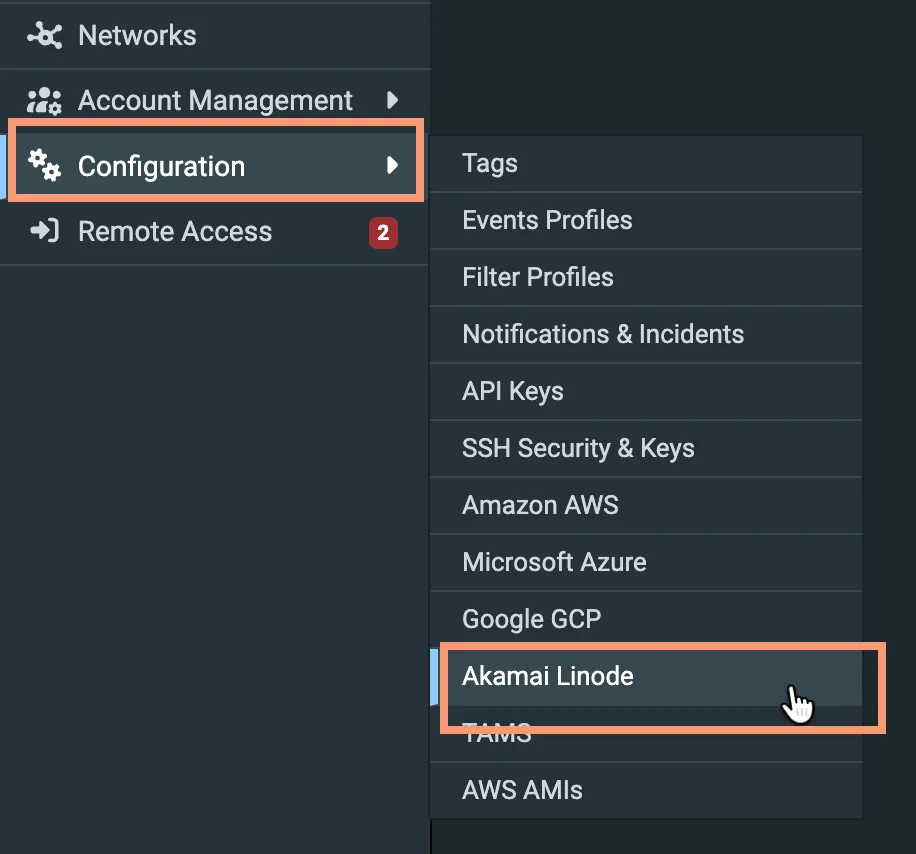
In the Configuration menu on the left side, select Akamai Linode:
On the Linode Accounts screen, click New Account:

On the Create New Linode Account screen, enter:
- A name for the account
- Your Linode API Key
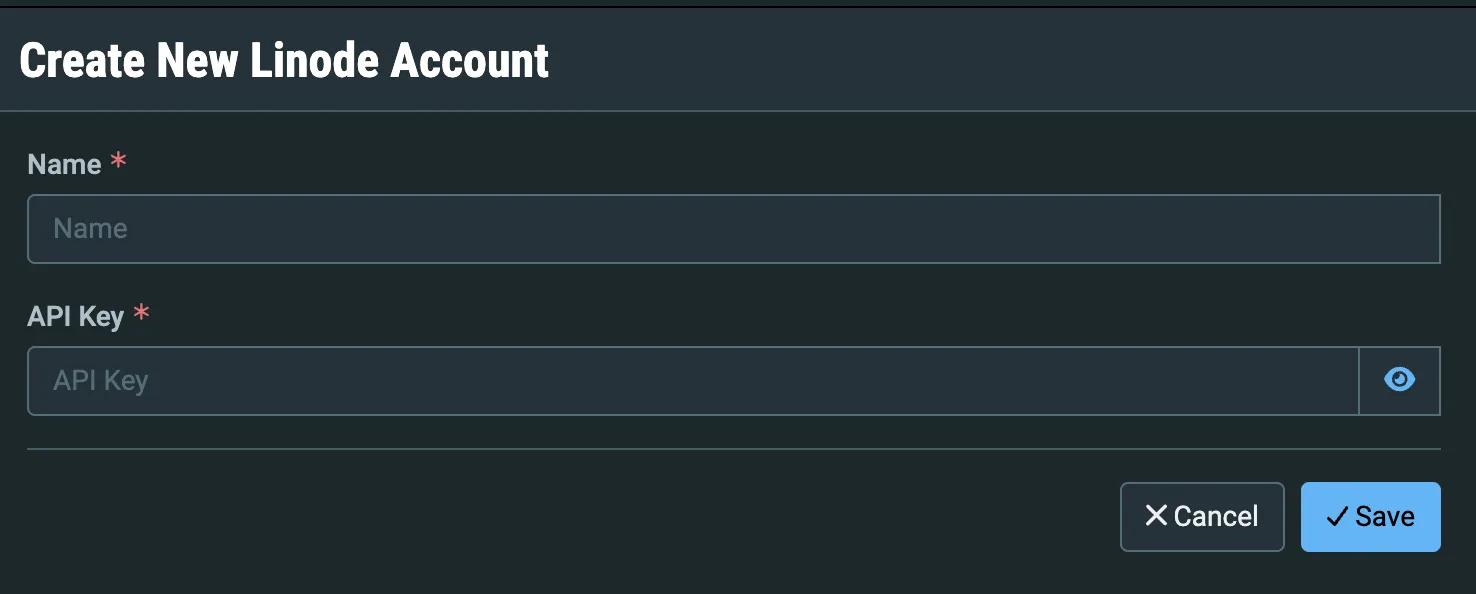
Click Save.
Your Linode account is now linked to ZEN Master. You can now launch Broadcaster Clusters on this Linode account. See Adding a Broadcaster Cluster - Linode.