Adding an AWS MediaLive Channel
AWS MediaLive service is an Elemental Transcoder that performs both transcoding (encoding) and HLS packaging in a single service. The input to the MediaLive channel must be a MediaConnect channel or an AWS Elemental Link.
Requirements:
- The input to the MediaLive channel must be a MediaConnect channel or an AWS Elemental Link. So before configuring the MediaLive channel, make sure you have a MediaConnect channel or an AWS Elemental Link configured. It is not possible to go from a Broadcaster to a MediaLive Channel directly.
- Before configuring the MediaLive channel, the Target must be created and enabled. If you try to attach a Target that is not enabled to a MediaLive channel, you will have to first disable the MediaLive Channel, then attach the Target, enable the Target, and then enable the MediaLive Channel.
To create a new MediaLive Channel:
In the main navigation, click Channels.
Click + Add Channel.
The Create New Channel selection menu is displayed.
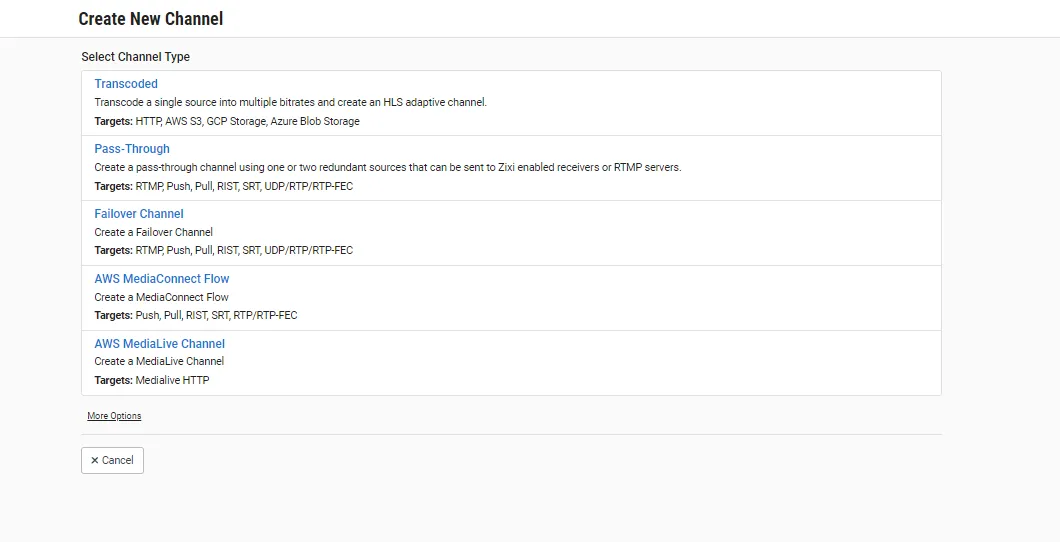
Click on AWS MediaLive Channel.
The Create AWS MediaLive Channel window is displayed.
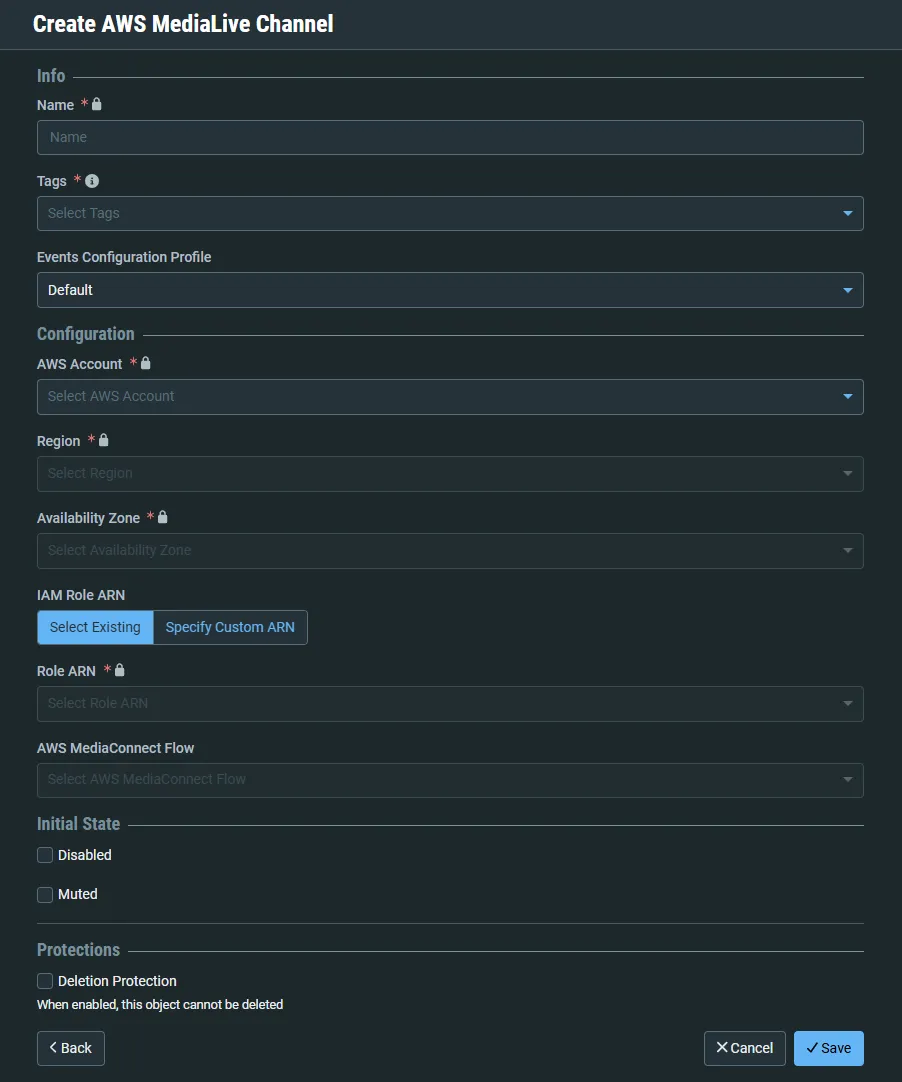
In the Info section, in the Name field, enter a logical name for the Channel.
In the Tags field, select one or more of the predefined Tags from the drop-down list. Tags are used for access control. By selecting a Tag, you are relating this Channel to that Tag. Tags are associated with certain roles (through the Users & Roles screen), and roles, in turn, are associated with users and user groups. If you would like to create a new Tag, see Creating a Tag.
In the Events Configuration Profile field, select from the drop-down list the profile that you would like to apply to this Channel. By default, the Default profile is applied.
Events Profiles consist of a series of rules that determine precisely how various types of Events are logged and what results they trigger.
In the Configuration section, in the AWS Account field, select from the drop-down list the AWS MediaConnect account that you would like to use for this Channel.
In the Region field, select from the drop-down list the AWS region that you would like to use for this Channel.
In the Availability Zone field, select from the drop-down list the Availability Zone that you would like to use for this Channel.
In the IAM Role ARN field, to use an existing IAM role ARN, select Select Existing and select an existing Role ARN from the Role ARN field drop-down list.
To specify a custom ARN, select Specify Custom ARN and enter the custom Amazon Resource Name in the Role ARN field.
In the AWS MediaConnect Flow field, select from the drop-down list the Flow that you would like to assign to this Channel.
In the Initial State section, select the Disabled checkbox if you would like to disable this Channel upon initial configuration.
Select the Muted checkbox if you would like to disable error/recovery notifications for this Channel upon initial configuration.
You can Enable/Unmute the Channel at any time.
In the Protections section, select the Deletion Protection checkbox if you want to prevent deletion of the Channel.
Click Save.
New MediaLive Channel Configuration Parameters Table
Parameter | Description |
|---|---|
Info | |
Name | Specify a name for the MediaLive Channel in ZEN Master. |
Tags | Select one or more of the predefined Tags from the drop-down list. Tags are used for access control. By selecting a Tag, you are relating this Channel to that Tag. Tags are associated with certain roles (through the Users & Roles screen), and roles, in turn, are associated with users and user groups. If you would like to create a new Tag, see Creating a Tag. |
Events Configuration Profile | Select from the drop-down list the profile that you would like to apply to this Channel. By default, the Default profile is applied. Note: Events Profiles consist of a series of rules that determine precisely how various types of Events are logged and what results they trigger. |
Configuration | |
AWS Account | Select from the drop-down list the AWS MediaConnect account that you would like to use for this Channel. |
Region | Select from the drop-down list the AWS region that you would like to use for this Channel. |
Availability Zone | Select from the drop-down list the Availability Zone that you would like to use for this Channel. |
IAM Role ARN | Select Select Existing or Specify Custom ARN. |
Role ARN | For Select Existing: Select from the drop-down list an existing Role ARN of the IAM role that you previously created. For Specify Custom ARN: Enter a specific ARN in the field. |
AWS MediaConnect Flow | Select from the drop-down list the Flow that you would like to assign to this Channel. |
Initial State | |
Disabled | Select this checkbox if you would like to disable this Channel upon initial configuration. |
Muted | Select this checkbox if you would like to disable error/recovery notifications for this Channel upon initial configuration. |
Protections | |
Deletion Protection | Select this checkbox if you want to prevent deletion of the Channel. |