Adding a Broadcaster Cluster - Azure
When creating a ZEN Master managed Linode Broadcaster cluster, make sure to select an instance type that supports the type of processing that will be done on this cluster. ZEN Master supports both standard CPU instances as well as Nvidia GPU instances on AWS, Azure, Linode, and GCP (including Tesla V100 and T4, which support both HEVC decoding and encoding).
To add an Linode Broadcaster Cluster:
In the main navigation, click Broadcasters.
Click + Add Cluster. The Create New Broadcaster Cluster screen is displayed.
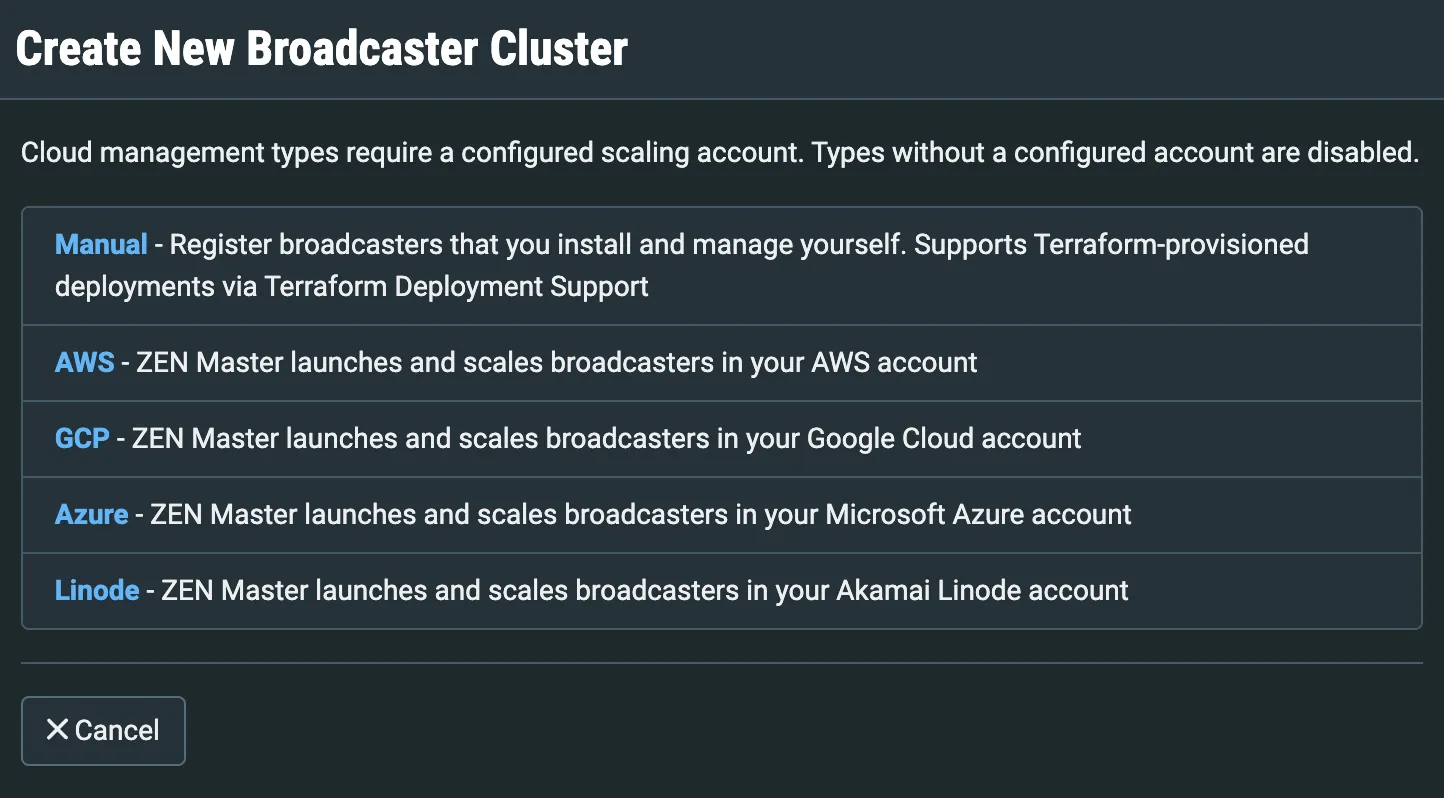
Select Azure to open the Create New Linode Broadcaster Cluster screen:
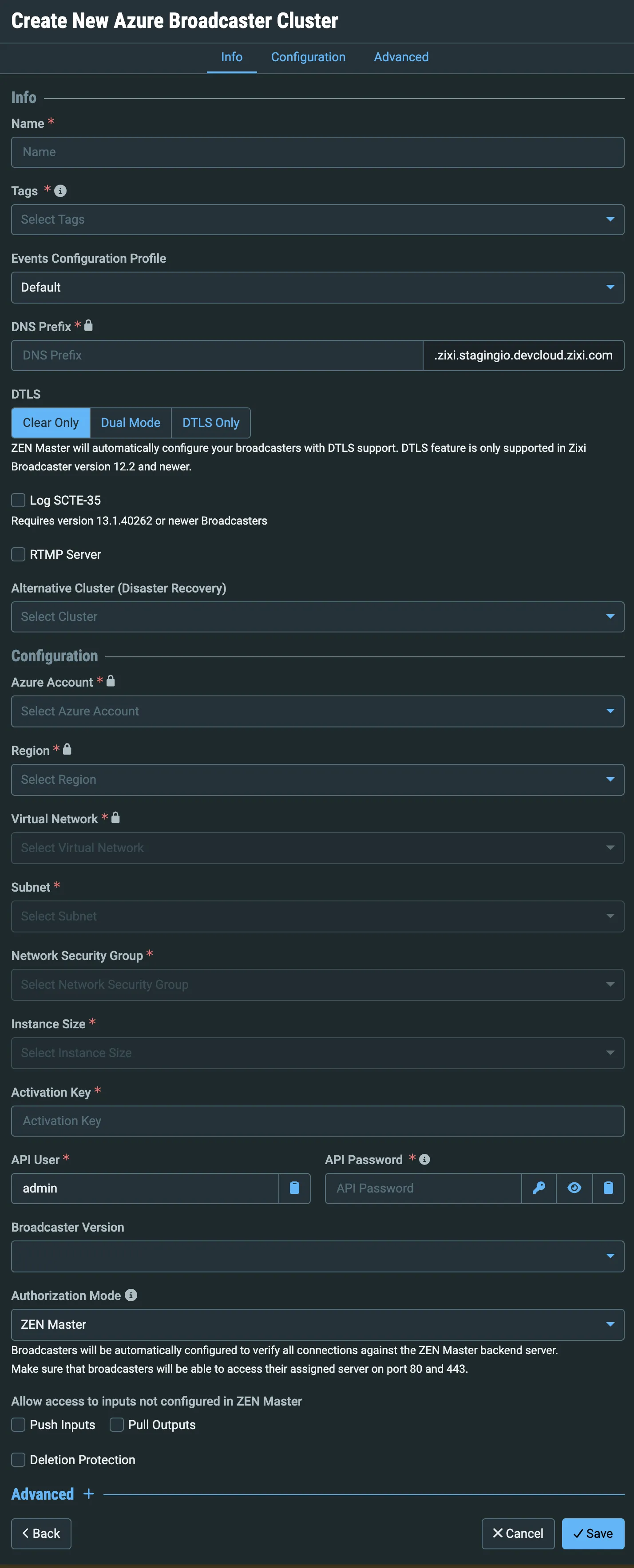
In the Info section, in the Name field, type a logical name for the Zixi Cluster resource.
In the Tags field, select one or more of the predefined Tags from the drop-down menu. Tags are used for access control. By selecting a Tag you are relating this Cluster to an Tag. Tags are associated with certain roles (through the Users & Roles screen), and roles, in turn, are associated with users and user groups. If you would like to create a new Tag, see Creating a Tag .
In the Events Configuration Profile field, select from the dropdown list the profile that you would like to apply to this cluster. By default, the Defaultprofile is applied.
Events Profiles consist of a series of rules that determine precisely how various types of Events are logged and what results they trigger.
In the DNS Prefix field, enter a unique domain name for sending the streams to/from this cluster.
Select the DTLS checkbox if you would like to activate DTLS encryption and authentication. (This feature is only supported for Broadcasters running v12.2+.)
If you selected the DTLS checkbox then the Ignore DTLS certificate when not supported checkbox appears. Select this checkbox if you would like to enable resources using older versions of Zixi software (<v12.2) that don't support verification of the ZEN DTLS certificate to connect to this cluster.
Select the Log SCTE-35 checkbox if you would like to log SCTE-35 markers for streams on this cluster.
- To log SCTE-35 markers, SCTE-35 needs to be enabled both on the Ingest Cluster and in the Source configuration.
- SCTE-35 logging is only available for v13.1.40262+ Broadcasters.
Select the RTMP Server checkbox if you would like to receive RTMP push inputs.
If you want to configure an alternative path for disaster recovery, in the Alternative Cluster (Disaster Recovery) field, select the Cluster that will be used as the alternative path. For more details, see Disaster Recovery (Alternative Path) .
Fill in your cloud service account details as follows:
- In the Configuration section, choose your Azure account from the dropdown list.
- In the Region field, select from the drop-down list the location of the account to be used for this cluster.
- In the Virtual Network field, select from the drop-down list a VN in your Azure account.
- In the Subnet field, select from the drop-down list a subnet that is available in the specified VN.
- In the Network Security Group field, select from the drop-down list a network security group for this cluster.
In the Activation Key field, input the activation key for your Zixi Broadcaster license.
In the API User field, enter the username for accessing the Zixi Broadcaster via API.
In the API Password field, enter the password for accessing the Zixi Broadcaster via API
In the Broadcaster Version field, select from the drop-down list the desired Broadcaster version that you would like to run on your cloud service machines.
- The Broadcaster versions available for your account can be viewed and modified on the Customer Portal.
- Make sure to select a Broadcaster version that supports the type of processing that will be done on this cluster.
In the Authorization Mode field, select one of the following options:
- ZEN Master – ZEN Master automatically verifies the authorization for each ZEN entity (e.g. sources, channels and targets) that accesses the Broadcaster cluster. If you would like to allow access to inputs/outputs that are not configured in ZEN Master, then in the Allow access… section, select the Push Inputs and/or Pull Outputs
- Global Password – Broadcasters are automatically configured to authorize all connections using a single global password. The global password will be used in the Source Password field when you configure a Source. In the Password field, enter the password OR click Random to generate a random password.
- Free for All – Broadcasters will be automatically configured to allow all inputs/outputs to connect. Select Inputs and/or Outputs to automatically allow them to connect.
- Manual – ZEN will not authorize connections. You will need to authorize each connection independently.
All authorization modes other than Manual will override the authorization configured on your Broadcasters. Therefore, if you have streams on your Broadcasters that are not configured on ZEN Master, then any mode other than Manual or Free for All may interrupt those streams.
If you want to allow access to inputs not configured in ZEN Master, check the types you want to allow, and check Delete Protection if you do not want to allow these inputs to be deleted via ZEN Master.
If you would like to adjust the advanced settings, click Advanced. The Advanced settings are displayed:
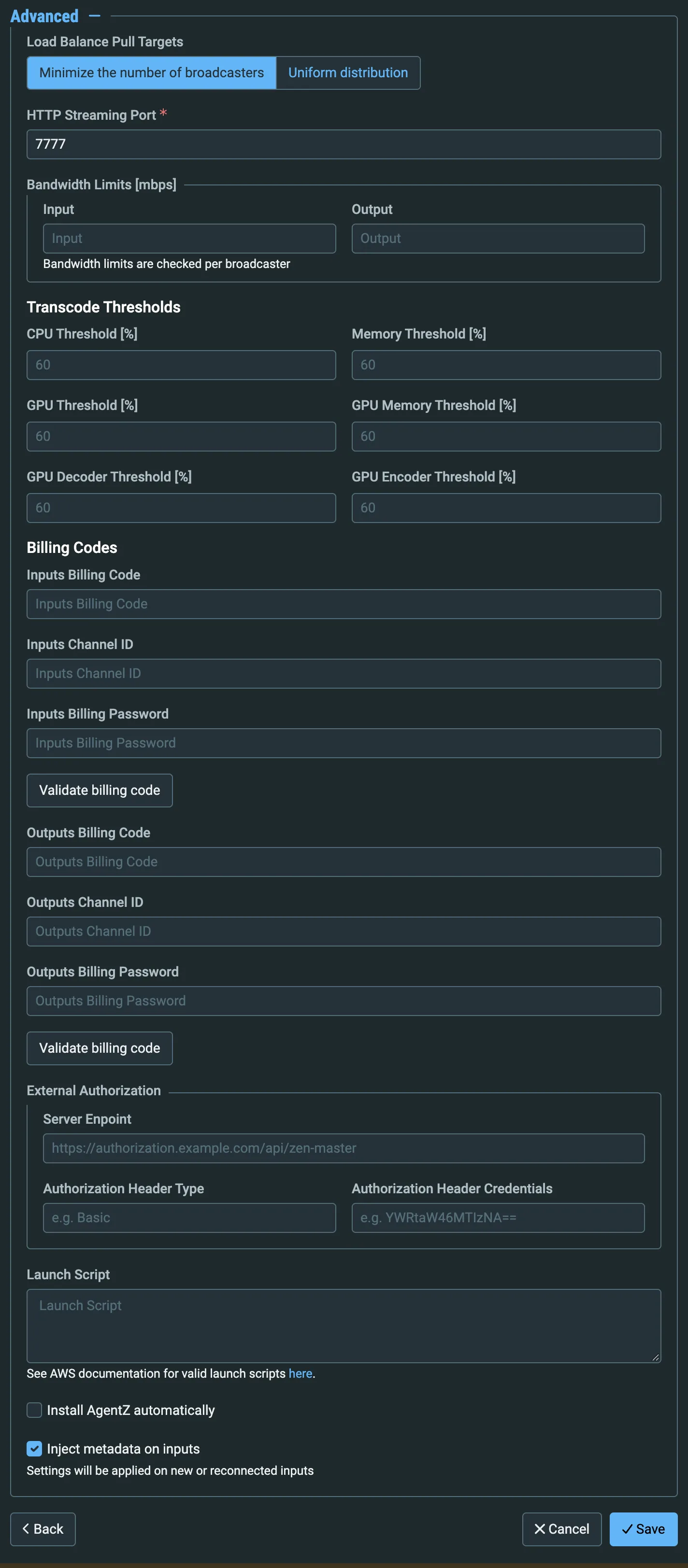
You can adjust the following settings:
- Balance Pull Targets– select one of the following load balancing methods for Pull outputs:
- Minimize the number of broadcasters (default)– transfers excess load to other broadcasters only when the allotted capacity on the host broadcaster is filled.
- Uniform distribution – distributes the load equally between all available broadcasters under all circumstances.
- HTTP Streaming Port – You can change the HTTP streaming port from the default (7777) to a custom port. The custom port should match the configuration on the Zixi Broadcaster.
- Public IP Prefix – enter an appropriate IP prefix based on the example shown in the UI.
- Bandwidth Limits– set the bandwidth limits. Choose one of the two fields: Input - Output.
- The Transcode Thresholds are used by ZEN Master to determine whether an additional transcoded Channel can be added to the broadcaster. The following thresholds can be adjusted:
- CPU Threshold – percentage of CPU being used.
- Memory Threshold – percentage of memory being used.
- GPU Threshold – percentage of GPU being used.[1]
- GPU Memory Threshold – percentage of GPU memory being used.
- GPU Decoder Threshold – percentage of GPU decoder pipeline being used.
- GPU Encoder Threshold – percentage of GPU encoder pipeline being used.
- Enable Real-time Broadcaster process priority - this setting is deselected by default. You can increase the Broadcaster's process priority by selecting it. This may be beneficial for sending streams to highly sensitive IRDs. However, this should not be done without consulting with your customer success agent. ZEN Master will expect a response form the external server, consisting of a JSON object. The following details need to be configured:
- Server endpoint - an external authorization URL for the server endpoint.
- Optional authorization header schema and credentials to access the service.
- If you would like to track usage for this Broadcaster, enter your Billing Code details, see Billing Codes . (Supported for Broadcasters v14.8+)
- External Authorization - ZEN Master can, in addition to its standard internal authorization process, redirect the authorization of connections to an external service. For example, an external pay-per-view application, which confirms that a requesting end-device belongs to an account that has paid for a live event.
- Server endpoint - an external authorization URL for the server endpoint.
- Optional Authorization header schema and credentials.
- If you would like to install AgentZ automatically, select the Install AgentZ automatically checkbox. Agent Z is a Sidecar tool that sits on a Zixi Broadcaster, it acquires the system health data and other statistics locally and pushes it to ZEN Master. By enabling this option, ZEN Master will automatically install AgentZ on any existing and future Broadcasters connected to the Cluster. The feature is off by default. Due to AgentZ installation requiring a restart, ZEN Master will not auto-install AgentZ on a Broadcaster that already contains any inputs to avoid disturbing active streams.
- Leave the Inject Metadata option checked to add metadata to packets that can be helpful in diagnosing issues with streams. This setting can be overridden on individual sources.
Click Save. The new Broadcaster cluster is created in the system and added to the list of Broadcaster clusters. The status should change from Pending to OK after a few minutes.
Notes
- The GPU thresholds are only relevant for transcoding workflows using Intel Quick Sync or NVIDIA GPUs.
Parameters for Azure Clusters
Parameter | Description |
|---|---|
Region | Select from the drop-down list the location of the account to be used for this cluster. |
Virtual Network | Select from the drop-down list a VN in your Azure account. Note: You need to have a Virtual Network in your Azure account in order to be able to create a Broadcaster Cluster in ZEN Master. If you don’t have a VN in your account, you can create one via the Azure portal. |
Subnet | Select from the drop-down list a subnet that is available in the specified VN. |
Network Security Group | Select from the drop-down list a network security group for this cluster. |
Parameters for All Clusters
Parameter | Description |
|---|---|
Info | |
Name | Specify the name of the Broadcaster Cluster in ZEN Master. |
Tags | Select one or more of the predefined Tags from the drop-down list. Tags are used for access control. By selecting an Tag, you are relating this Broadcaster Cluster to that Tag. Tags are associated with certain roles (through the Users & Roles screen), and roles, in turn, are associated with users and user groups. If you would like to create a new Tag, see Creating a Tag . |
Events Configuration Profile | Select from the dropdown list the profile that you would like to apply to this Cluster. By default, the Default profile is applied. Note: Events Profiles consist of a series of rules that determine precisely how various types of Events are logged and what results they trigger. |
DNS Prefix | Specify a unique domain name for sending Sources to this cluster. |
IP Whitelist | Select this checkbox if you would like to control access to this cluster by limiting access to Push inputs and Pull outputs to specific IP address (for an AWS cluster this will enable you to control the AWS security groups). Note: If you select IP Whitelist, then you must use ZEN Authorization mode for this cluster. Note: If you selected IP Whitelist then after configuring the Broadcaster Cluster you must input the IPs that will have access to this cluster, see Adding IPs to the Whitelist . |
DTLS | Select this checkbox if you would like to encrypt the stream dynamically using DTLS. (This feature is supported for v12.2+ Broadcasters) |
Ignore DTLS certificate when not supported (for DTLS) | Select this checkbox if you would like to enable resources using older versions of Zixi software (<v12.2) that don't support verification of the ZEN DTLS certificate to connect to this cluster. |
Load Balance Pull Targets | Select one of the following load balancing methods for Pull outputs:
|
Log SCTE-35 | Select this checkbox if you would like to log SCTE-35 markers for streams in this cluster. Note: To log SCTE-35 markers, SCTE-35 needs to be enabled both on the Ingest Cluster and in the Source configuration. Note: SCTE-35 logging is only available for v13.1.40262+ Broadcasters. |
RTMP Servers | Select this checkbox if you need to receive RTMP push inputs. |
RTMP Server Port | Specify the port in the Broadcaster that will be used to receive the RTMP push inputs. |
Inject Metadata on Inputs | Allows Zixi create a PID that carries information about what hops a feed has travelled through on the way to its destination, it includes things like CC errors and IAT at each hop. The information is useful for debugging issues with streams. |
Configuration (for Manual) | |
Management Type | Select Manual. After creating a manual Broadcaster cluster, you must configure each Broadcaster instance for use in the cluster. To do this, see Adding a Broadcaster to a Manual Cluster . |
Authorization Mode | Select one of the following options:
Note: All authorization modes other than Manual will override the authorization configured on your Broadcasters. Therefore, if you have streams on your Broadcasters that are not configured on ZEN Master, then any mode other than Manual or Free for All may interrupt those streams. |
Allow access to inputs not configured in ZEN Master (for ZEN Master Authorization) | Select the Push Inputs checkbox if you would like to automatically allow access to Push Inputs. Select the Pull Outputs checkbox if you would like to automatically allow access to Pull Outputs. |
Termination Protection | Select the Deletion protection checkbox if you want to prevent deletion of the Broadcaster Cluster. |