ZEC Live Protocols
The Live Protocols screen enables the configuration of the HTTP/HTTPS/RTMP/WebSocket server that will broadcast the streams using live streaming protocols, particularly for adaptive streaming and internet protocols.
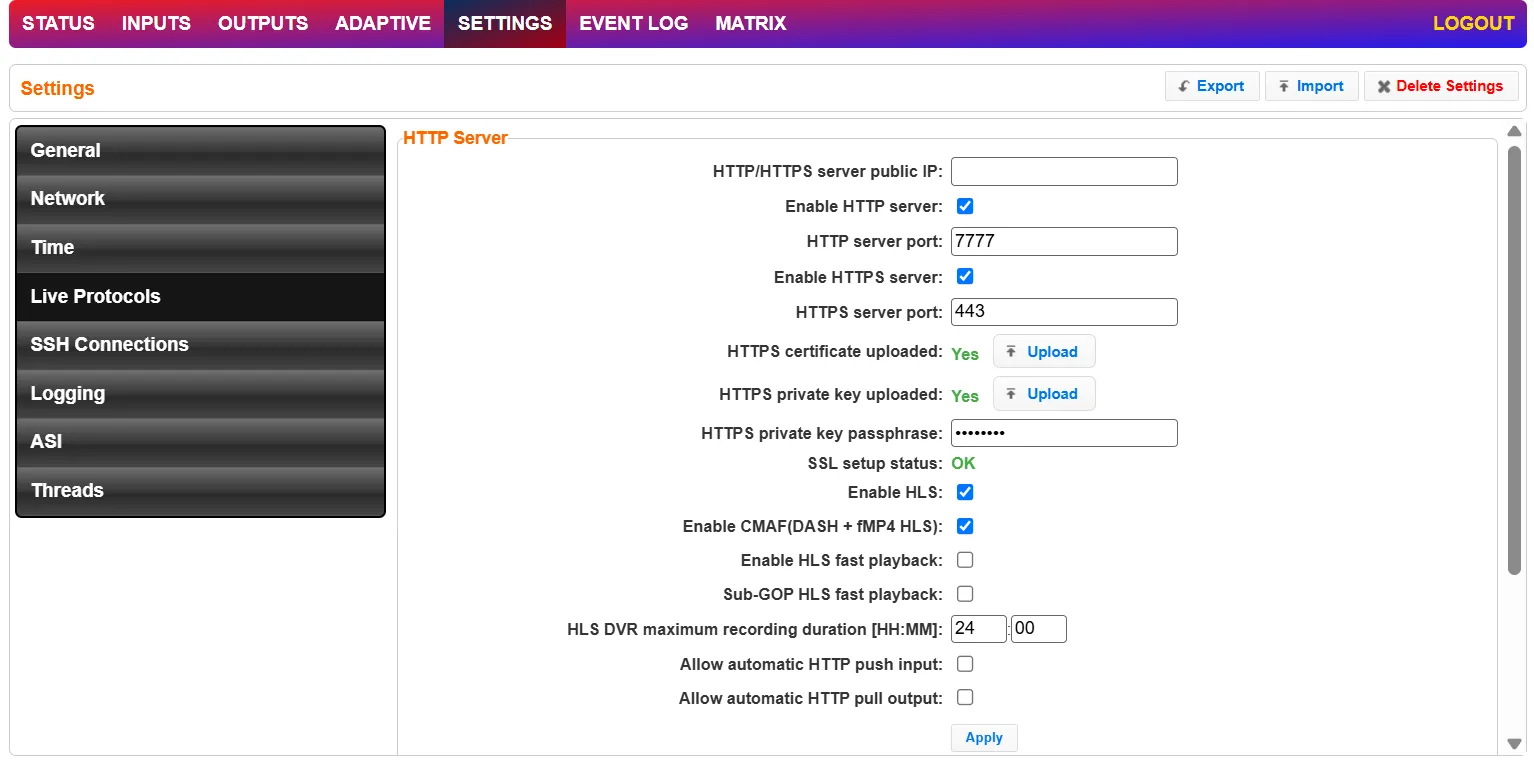
Field | Description |
|---|---|
HTTP Server | |
HTTP/HTTPS Server Public IP | Override the Zixi IP (e.g., download.Zixi.com) with a public IP. |
Enable HTTP Server | Enable a non-secure connection over HTTP. |
HTTP Server Port | Defines the HTTP Server Port. Default:7777 |
Enable HTTPS Server | Enable a secure connection over HTTPS. |
HTTPS Server Port | Defined the HTTPS server port. Default: 443 |
HTTPS certificate uploaded (for HTTPS enabled) | If no certificate has been uploaded, click Upload and navigate to the file location. |
HTTPS private key uploaded (for HTTPS enabled) | If no private key has been uploaded, click Upload and navigate to the file location. |
HTTPS private key passphrase (for HTTPS enabled) | Enter the Private key passphrase for your HTTPS account. |
SSL Setup Status | Displays the status of the SSL certificate upload process. Incomplete – the SSL setup process is incomplete. OK – the SSL setup process is complete. |
Enable HLS | Enable the streaming via the HLS protocol. |
Enable CMAF (DASH + fMP4 HLS) | Enable the streaming via the CMAF protocol. |
Enable HLS fast playback | Enables low-latency HLS and DASH. When this setting is enabled, all input streams on the ZEC will be published to the origin server as HLS streams, so only enable this feature if it will actually be used. |
Sub GOP HLS Fast playback | Select this option to enable publishing of HLS chunk before the response is complete. This means that ZEC will start sending the HTTP response as chunks of data when they are ready, before the complete response is available. |
HLS DVR Maximum Recording Duration [HH:MM] | Defines the maximum recording duration for HLS DVR. Default: 24 hours. |
Allow Automatic HTTP Push input | Automatically creates an HTTP Push input without the need to define it in the Input screen. |
Allow Automatic HTTP Pull output | Automatically creates an HTTP Pull output without the need to define it in the Output screen. This works in tandem with the ZEC Remote HTTP Pull Output setting, which enables sending a Zixi-protected stream to ZEC, and then ZEC automatically outputs the stream as HTTP Pull and SDK (which includes a zixi_http_pull_out_config option). By enabling this option, the HTTP Pull streams will be automatically created as they arrive into ZEC and displayed in the Output screen. |
RTMP Server | |
Enable RTMP Server | Enables ZEC to handle incoming RTMP streams. |
RTMP Server Port | The port through which the RTMP stream will be transmitted. Default: 1935 |
Allow Automatic RTMP Input | Automatically creates an RTMP input without the need to define it in the Input screen. |
Allow Automatic RTMP Output | Automatically creates an RTMP output without the need to define it in the Output screen. This works in tandem with ZEC Remote RTMP Output setting, which enables sending a Zixi-protected stream to ZEC and then ZEC automatically outputs the stream as RTMP) and SDK (which includes a zixi_rtmp_out_config option). By enabling this option, the RTMP streams will be automatically created as they arrive into ZEC and displayed in the Output screen. |
Advanced Mode
The fields discussed below are optional and available only in Advanced Mode.
To enter Advanced Mode add the URL parameter ?advanced=1 to the ZEC URL in your browser and press Enter/Return to reload the page:

Note the Advanced Mode settings are generally intended for advanced users and special cases. If you do not understand the settings, you should probably accept the default values.
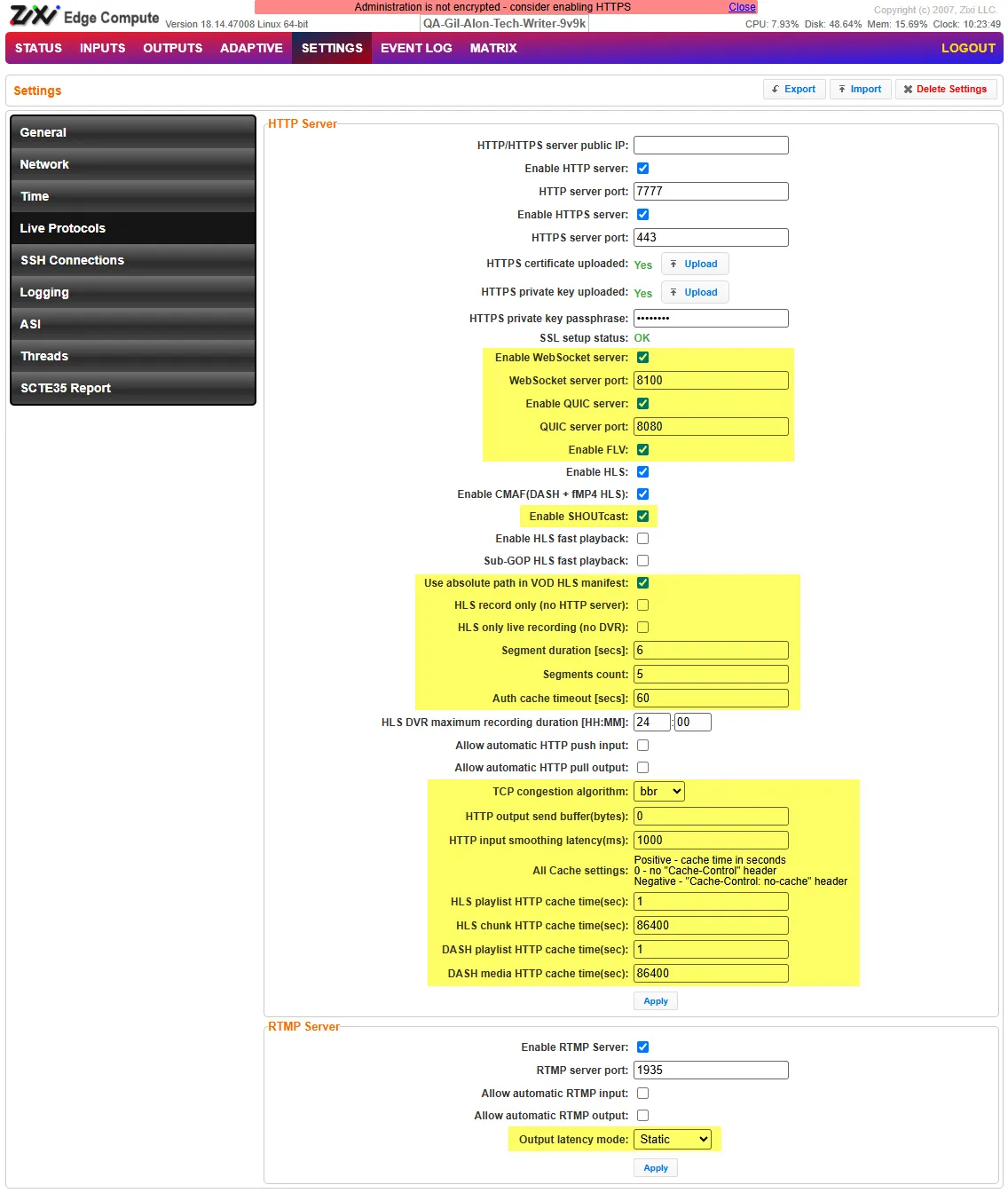
HTTP Server:
- Enable WebSocket server – Select this checkbox to enable the WebSocket server. The WebSocket server uses the WebSocket protocol to stream content. The WebSocket protocol provides full-duplex communication channels over a single TCP connection.
- WebSocket server port – If you have enabled WebSocket, enter a dedicated port for WebSocket. (Default: 8100)
- Enable QUIC server – Select this checkbox to enable the QUIC server. QUIC (Quick UDP Internet Connection) is an encrypted transport layer network protocol, designed to make HTTP traffic more secure, efficient, and faster. QUIC has taken all the best qualities of TCP connections and TLS encryption and implemented it on UDP.
- QUIC server port – If you have enabled QUIC, enter a dedicated port for QUIC. (Default: 8080)
- Enable FLV – Enable the streaming via the FLV protocol.
- Enable SHOUTcast – Enable the streaming via the SHOUTcast protocol.
- Use absolute path in VOD HLS manifest – When the HLS playlist (manifest) is requested from the server, all segments are full URLs: For example, http://<server>/<hls stream name>/<segment>.m3u8 instead of just <hls stream name>/<segment>.m3u8
- HLS record only (no HTTP server) – In this option, files are recorded directly to the disk and not held in memory. This saves memory but does not allow HTTP playback.
- HLS only live recording (no DVR) – This option records only live playlists. For example only 5 most updated segments in the playlist or how many that are defined. These are the most updated segments in the playlist, not an ever growing list of segments.
- Segment duration [secs] – Defines the target duration, in seconds, of each HLS media segment. Shorter segments can reduce playback latency, but may increase overhead and player requests. Longer segments can improve stability and efficiency, but may increase latency.
- Segments count – Defines the number of media segments included in the HLS playlist. This determines the playback window available to clients. A higher value provides a longer playback buffer, while a lower value reduces the available window and may reduce latency.
- Auth cache timeout [secs] – Defines how long authorization results are cached for HTTP/HLS requests. During this time, repeated requests from the same client can be served without performing a new authorization check.
- TCP congestion algorithm – Select the TCP congestion control algorithm used for HTTP/HLS delivery. This controls how TCP adjusts the sending rate in response to network conditions such as congestion, packet loss, or available bandwidth. Options are:
- Reno - Select this traditional, loss-based algorithm for standard networks with lower bandwidth and latency.
- Cubic - Select this algorithm for high-bandwidth, high-latency networks. It uses a cubic function to quickly recover from packet loss and maximize bandwidth utilization.
- BBR (Bottleneck Bandwidth and Round-trip propagation time) - Select this modern, model-based algorithm for optimal live video delivery. It actively measures bandwidth and round-trip time to maximize throughput and minimize latency without relying on packet loss.
- HTTP output send buffer(bytes) – Defines the size of the send buffer used for HTTP output traffic. Increasing the buffer may help smooth delivery over unstable networks. A value of 0 uses the system or application default.
- HTTP input smoothing latency(ms) – Defines the amount of latency, in milliseconds, used to smooth incoming HTTP input traffic. Higher values can help absorb jitter and timing variations, while lower values reduce latency.
- HLS playlist HTTP cache time(sec) – Defines the HTTP cache duration for HLS playlist files. Playlist files are updated frequently, so this value is usually kept low to ensure players receive the latest segment list.
- HLS chunk HTTP cache time(sec) – Defines the HTTP cache duration for HLS media segment files. Since media segments do not change after they are created, they can typically be cached for a longer period.
- DASH playlist HTTP cache time(sec) – Defines the HTTP cache duration for DASH manifest/playlist files. These files are updated as the stream progresses, so this value is usually kept low to ensure players receive the latest media information.
- DASH media HTTP cache time(sec) – Defines the HTTP cache duration for DASH media files. Since media files do not change after they are created, they can typically be cached for a longer period.
RTMP Server
- Output latency mode – Select how to treat the latency of inputs coming in:
- Static - waits for the duration of the input's latency (push/pull).
- Increasing - starts in 0 and grows up to the input's latency if the source needs longer latency to dejitter or recover from errors.
- Dynamic - data from the input will be sent out immediately as it arrives. Latency is between 0 and the input's latency. There is no dejittering and it is still error free. Recommended for outputs that don't need to be jitter-free.