Installation
Please ensure your machine meets the Requirements prior to installation.
Broadcaster Installation Process
Launch and Configure EC2 Instance
Launch an EC2 instance with the recommended specifications.
Attach the instance to your VPC and subnet.
Allocate a static IPv4 address.
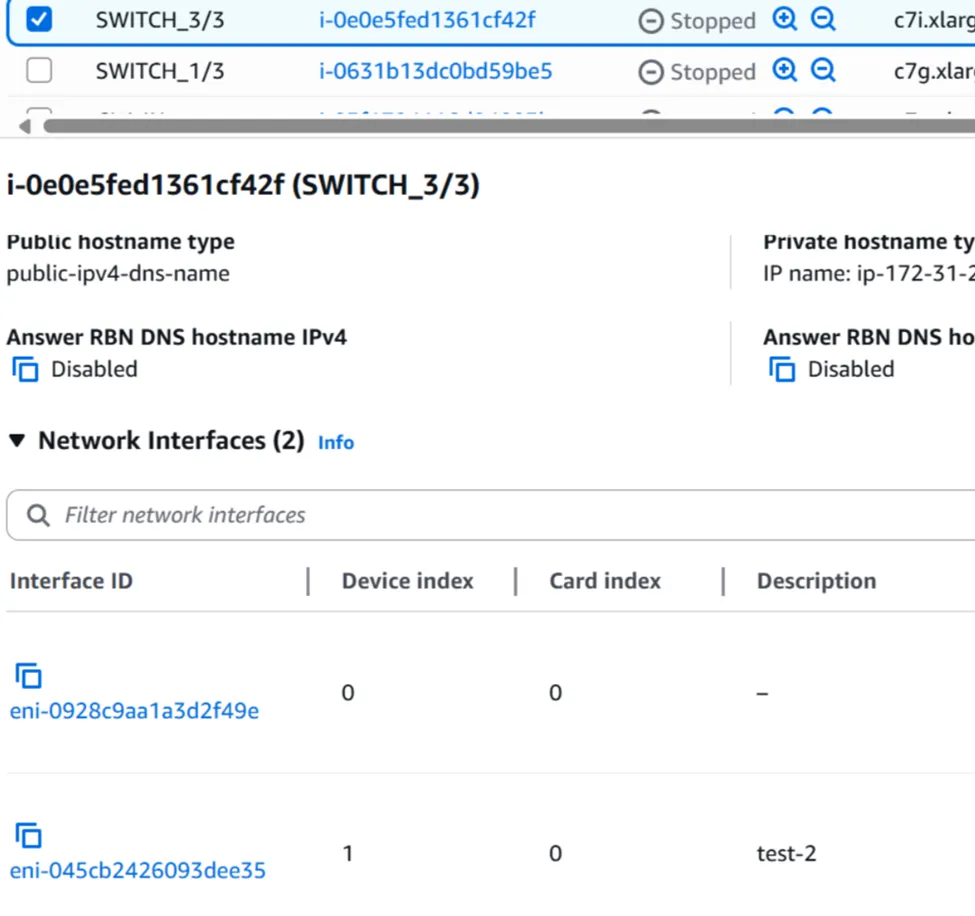
Attach a second NIC from the same subnet. This is critical for DPDK to run successfully.
- NIC 1 (Index 0): Control and management traffic
- NIC 2 (Index 1): Dedicated DPDK traffic
Initial System Verification
SSH into the EC2 Instance.
Install the Broadcaster.
Log in to the Broadcaster.
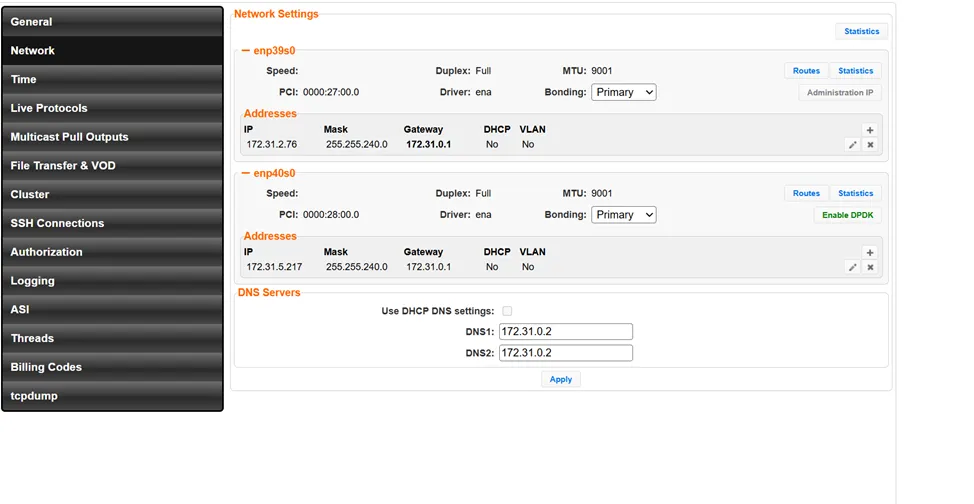
Navigate to Settings -> Network.
Verify you see 2 NICS listed with static IPV4 addresses. Gateway can be empty.
Driver shows as ena for both interfaces.
Install DPDK Components
On a clean Zixi Broadcaster deployment, you should see an "Install DPDK" button.
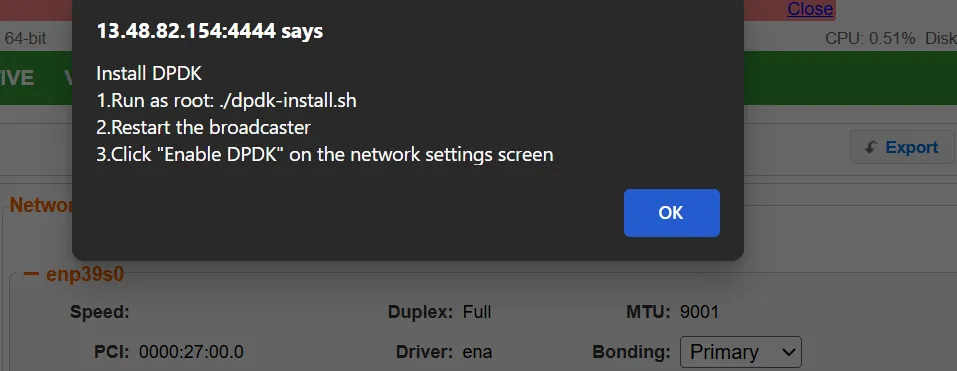
Click "Install DPDK".
You will get the following pop-up:
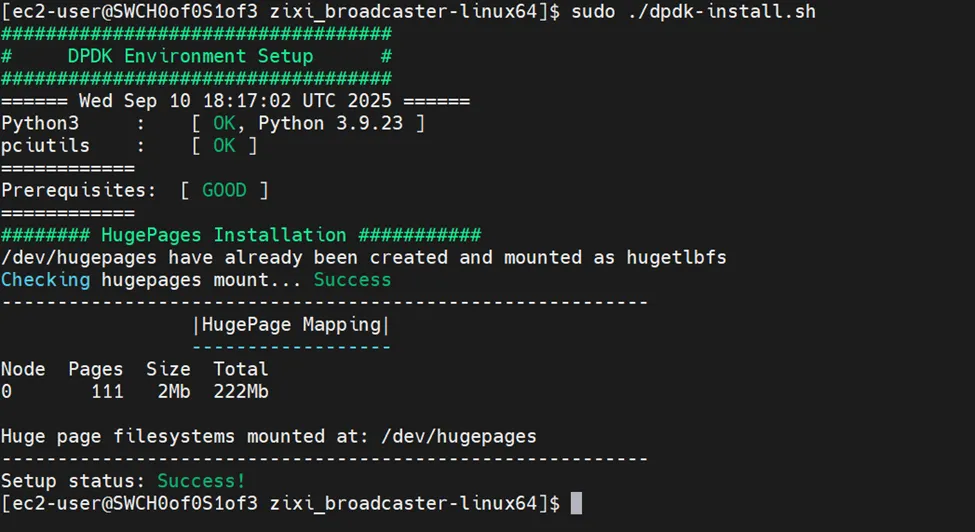
In your SSH Terminal window, navigate to the Zixi install directory and run
The script will:
- Download and compile DPDK libraries
- Configure huge pages
- Set up CPU affinity
- Install necessary kernel modules
- Configure system parameters
Green text indicates a successful installation - see screenshot below.
Enable DPDK in Zixi Broadcaster
Restart the broadcaster from the Main Dashboard.
Reload the Network -> Settings page.
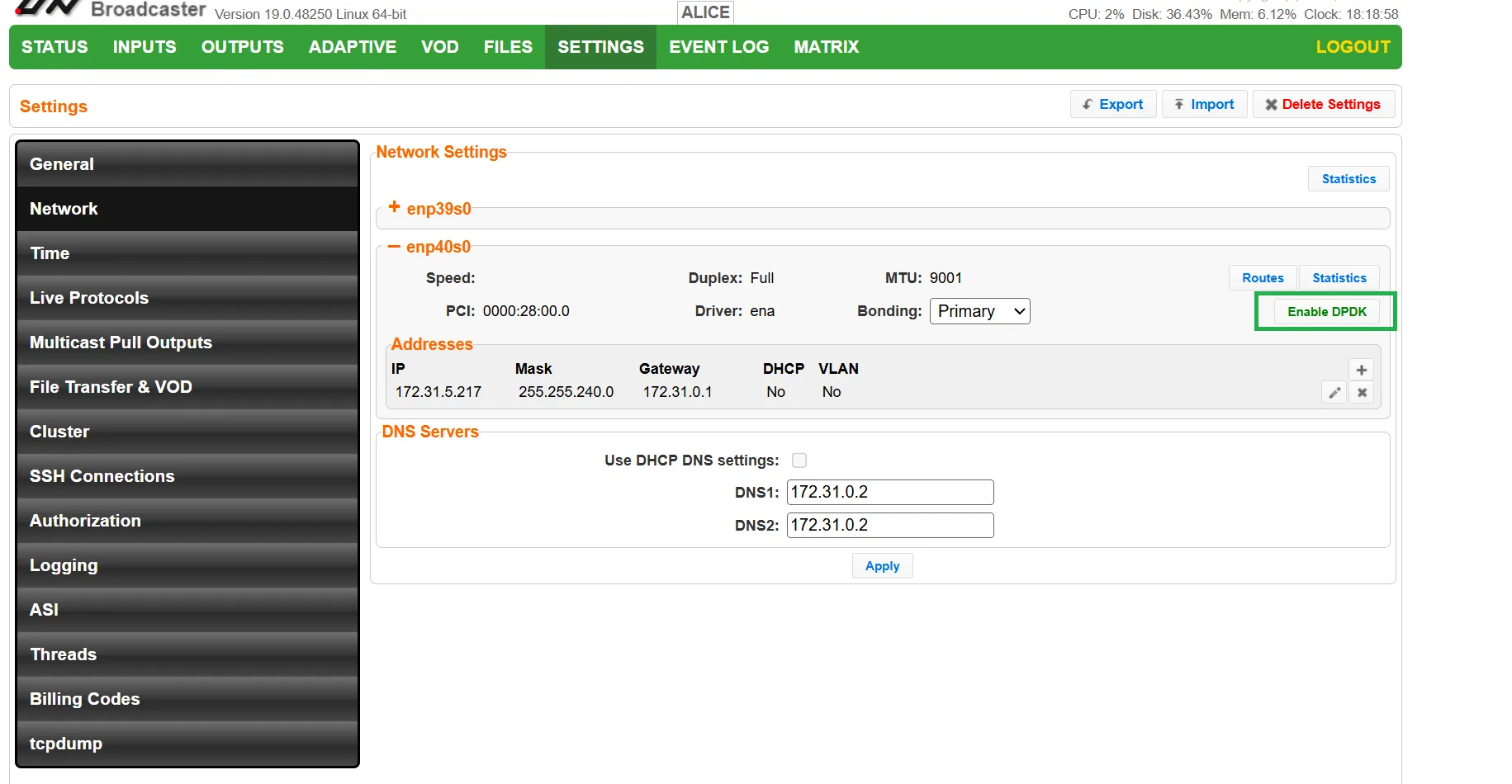
Click "Enable DPDK" on the Network Settings screen.
Configure Server Ports for DPDK
Navigate to Settings → General.
In the Server Ports section, for each port:
- Select the IP for DPDK from the IP dropdown list.

- This will be the IP of your second NIC.
Restart the Broadcaster from the Main Dashboard.
Verify DPDK Successful Installation
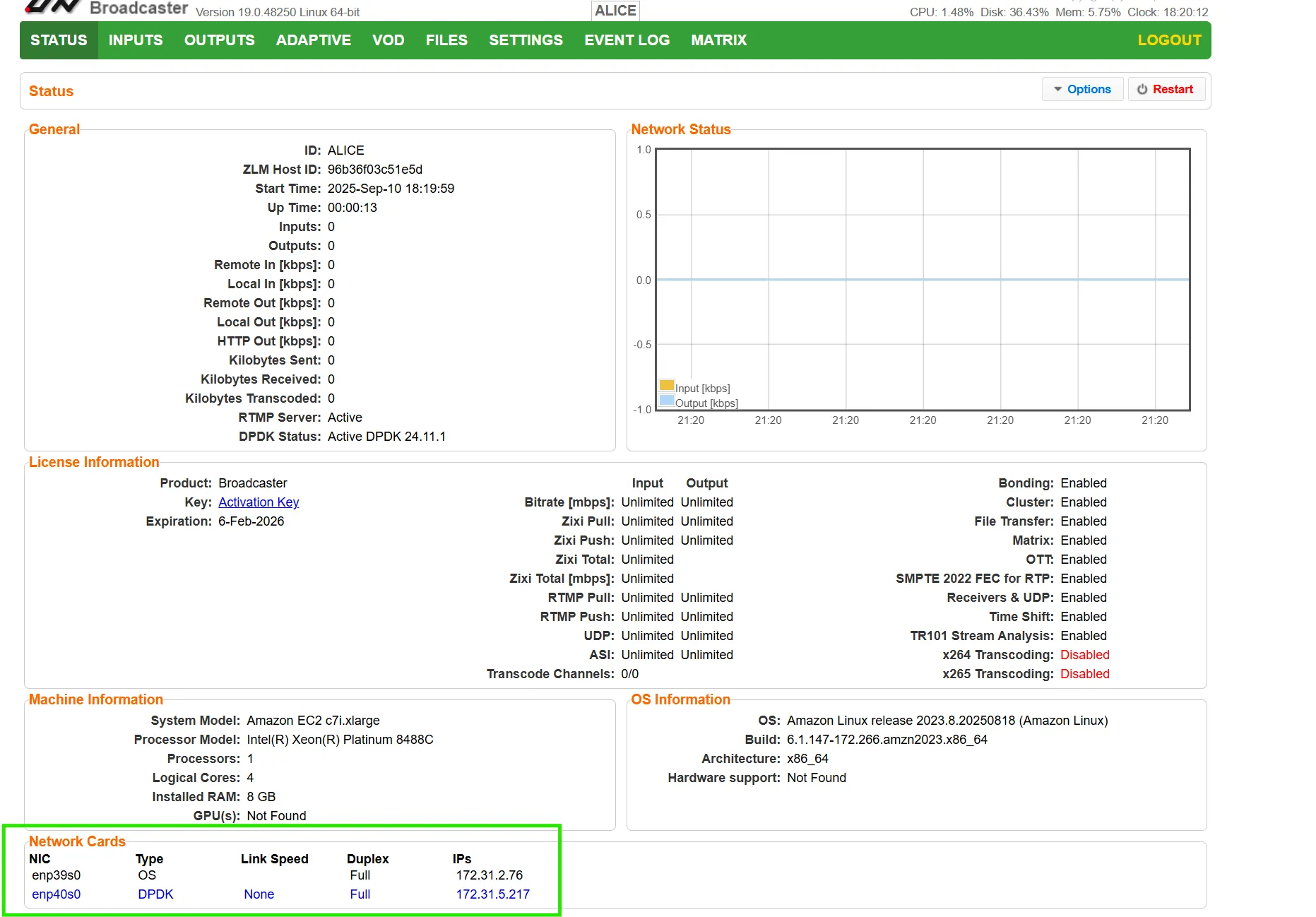
On the Main Status Dashboard in the Broadcaster, the 2nd NIC should be blue, which indicates DPDK is running.
In "Statistics" for the DPDK Nic (2nd NIC), the data should be increasing, indicating the stream traffic is flowing. If it is empty, there is an issue.
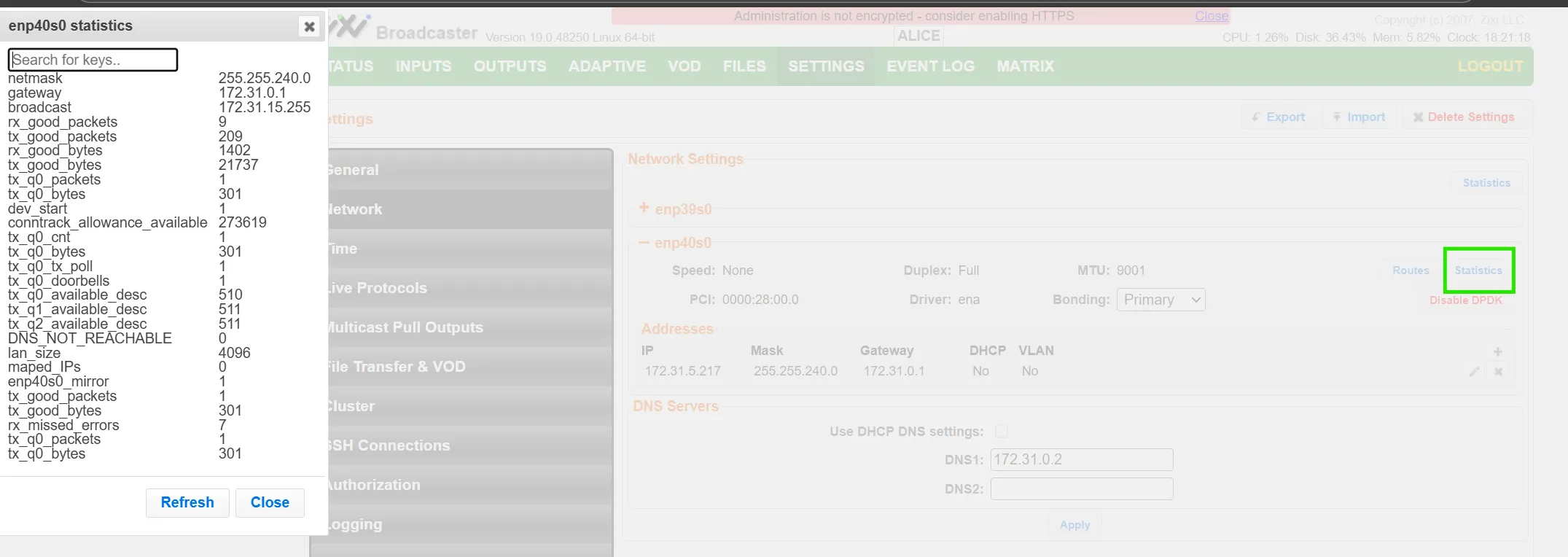
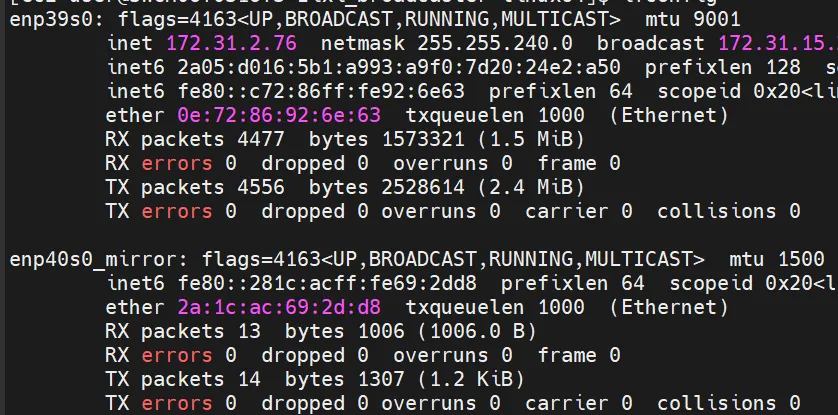
In the SSH terminal, you will see the same <NIC name> with _mirror suffix
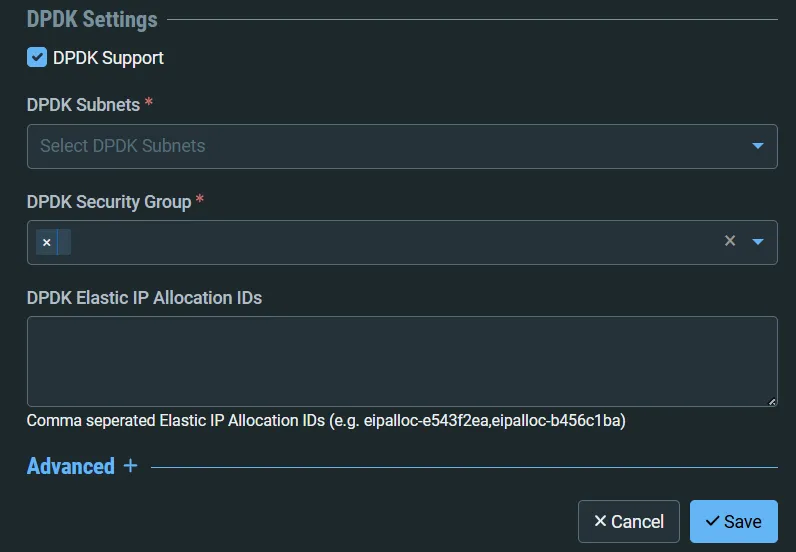
ZEN Master Installation Process
When enabled, ZEN Master will apply a second NIC to the launched instance.
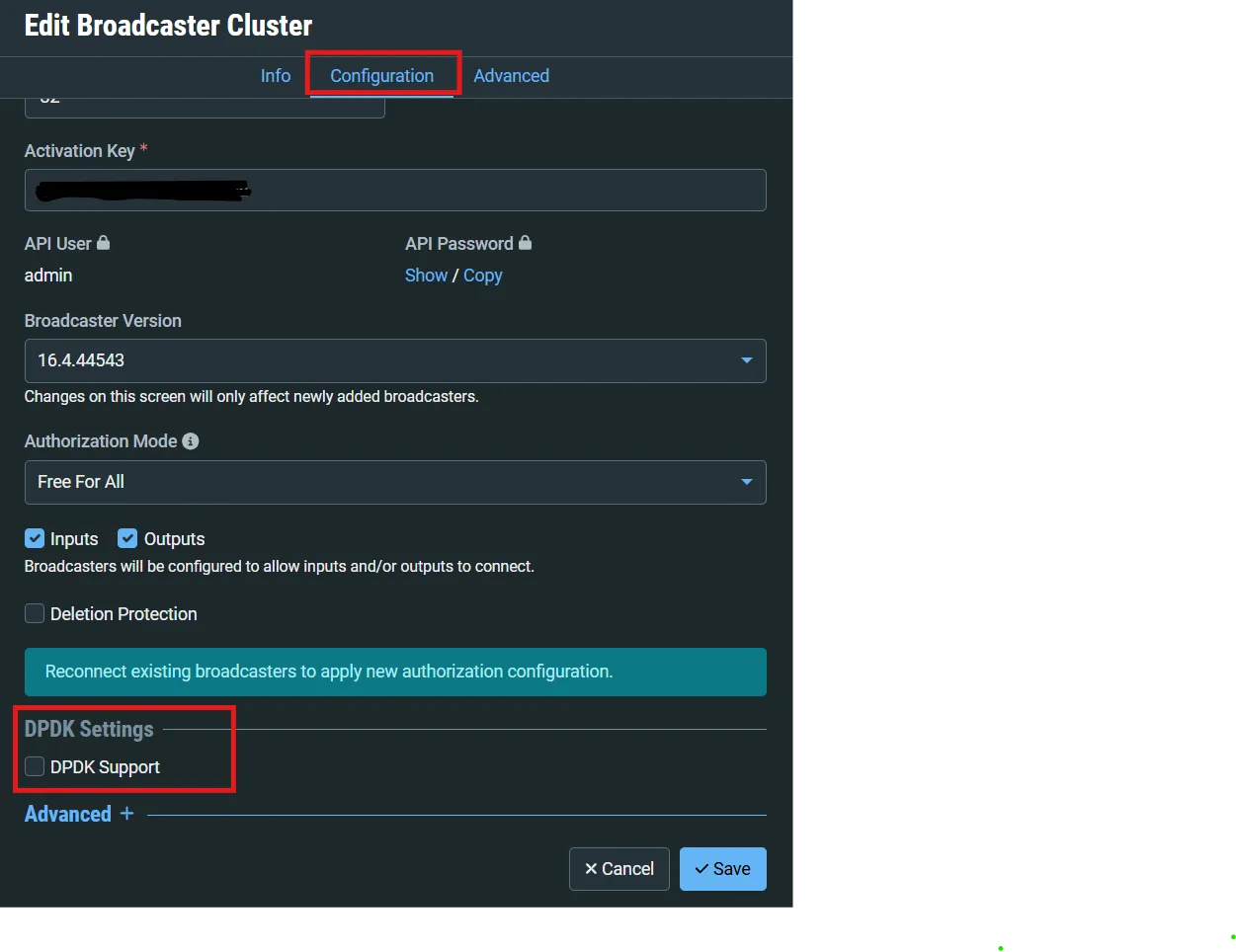
Select DPDK from the cluster Configuration options to enable
Provide the pre-configured AWS subnet and Security Group for the additional DPDK network interface, ensuring they are available to the instance in the selected region.