Viewing Existing Sources
The Sources screen displays all existing sources, and information about the status and configuration of each source. It is possible to add more columns to the list. If you want to view resources that were marked as Priority, add the Priority column and sort by it.
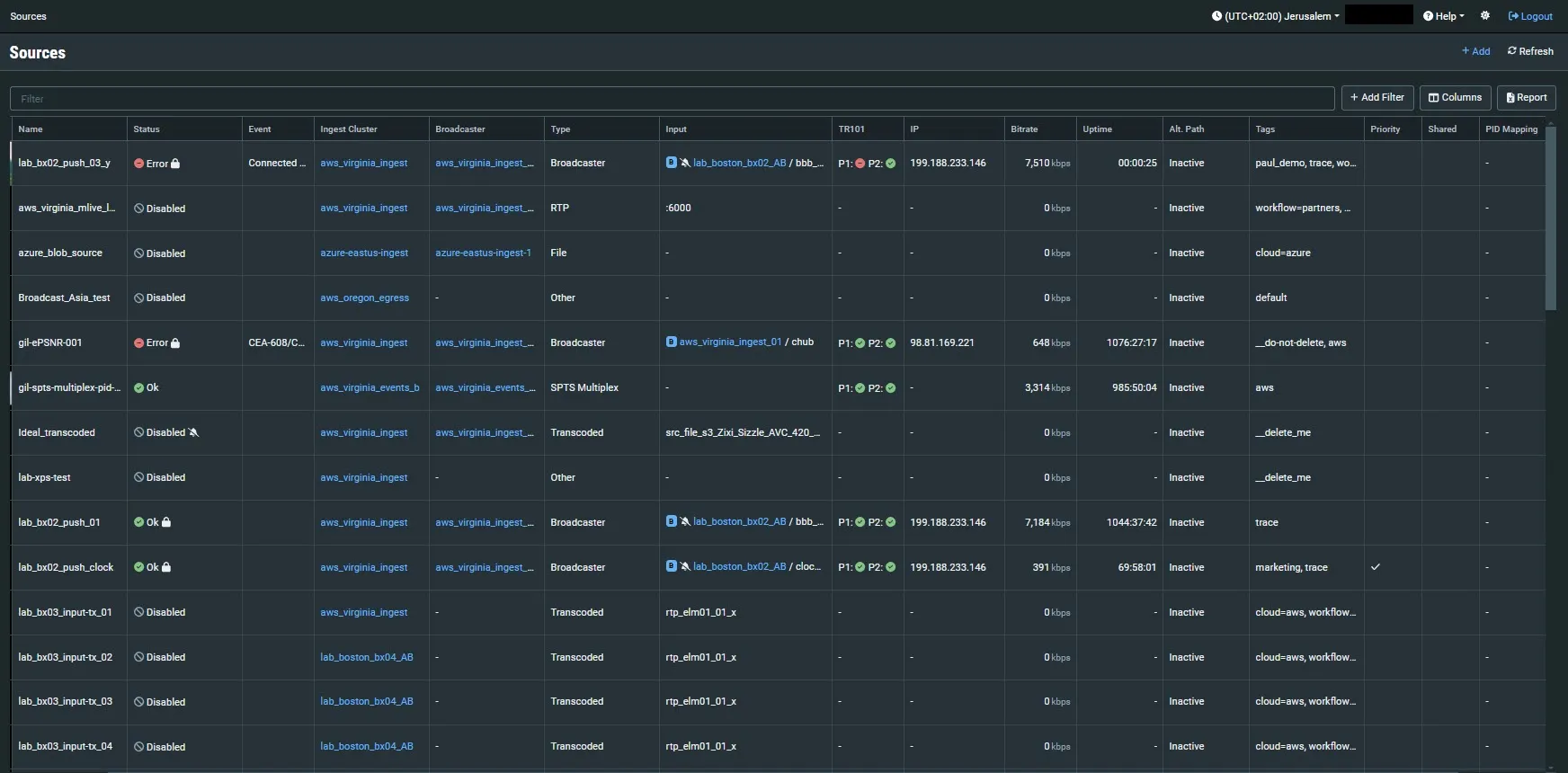
The main display includes the following data and actions for each source:
Parameter | Description |
|---|---|
Name | Name of the Source. |
Status | The connection status of the source. |
Event | The Events section shows all the events that have been generated by the system that relate to the selected Source (e.g. connections, errors, and disconnections). |
Ingest Cluster | The Ingest cluster in ZEN Master that receives this stream. Click on the link to view details about the Ingest Cluster. |
Broadcaster | Shows a list of the Broadcasters that are related to this source and data about the Broadcasters. |
Type | The type of the Source in ZEN Master e.g., Broadcaster, ZEC, Monitor Only, RIST, File etc. |
Input | The details of the source’s input. |
TR101 | An indicator of the TR101 analysis. There are two indicators, P1 for high priority warnings and P2 for low priority warnings. Green – no current errors Red – there are current errors |
IP | The IP of the remote device as seen by ZEN Master. |
Bitrate | The stream's current bitrate, when streaming. |
Uptime | The time period that the source has been online. |
Alt. Path | Specifies if an Alternative Path has been configured or not. The Alternative Path is configured through the Broadcaster Cluster or the Channel configuration screens and attached to a target by following the instructions in Attaching a Target to an Alternative Path. |
Priority | Objects can be labeled as Priority so that they can be quickly found in the list of objects. Priority Sources are indicated with a 'v'. |
Tags | The Tag/s that is associated with this Remote Access Profile. |
Shared | Indicates that the Source has been shared. |
PID Mapping | The PID Mapping Profile used for the PID mapping in the Source. |
Billing Code | Billing codes are used to identify and differentiate traffic. |
When a Source is selected, the current data about the Source is displayed in the Info pane. The Info pane displays statistical data about the current state of the Source. Each Source type displays different statistics, see Source Info Pane for more details.