SCTE-35 Modification Profiles
Overview
SCTE-35 is the industry standard for embedding metadata markers into video transport streams. These markers signal precise start and end times for events like ad breaks, content replacement, and blackouts. By identifying these windows, downstream systems can dynamically insert localized or targeted ads tailored to specific regions and viewer demographics.
Zixi supports SCTE-35 manipulation across Sources and Targets, allowing you to insert new messages and modify or remove existing messages. SCTE-35 Modification Profiles provide an easy way to define changes and apply them across multiple Targets. Each SCTE-35 message is evaluated against your defined rule sets. If a message matches a rule, it triggers a specific action to Keep, Remove, or Modify that message.
SCTE-35 Modification Profiles is a paid add-on for ZEN Master. If you are interested in exploring whether it would be useful to you, contact your Zixi representative.
Notes:
- SCTE-25 Modification Profiles can only be applied to Targets (for now). For details, see Adding TargetsAdding Targets.
- You can use the ZEN Master API to list existing SCTE-35 Modification Profiles, but you have to use the UI to create a profile.
- SCTE-25 Modification Profiles require the Zixi ESAM Agent to be installed on the Broadcaster
Creating SCTE-35 Modification Profiles
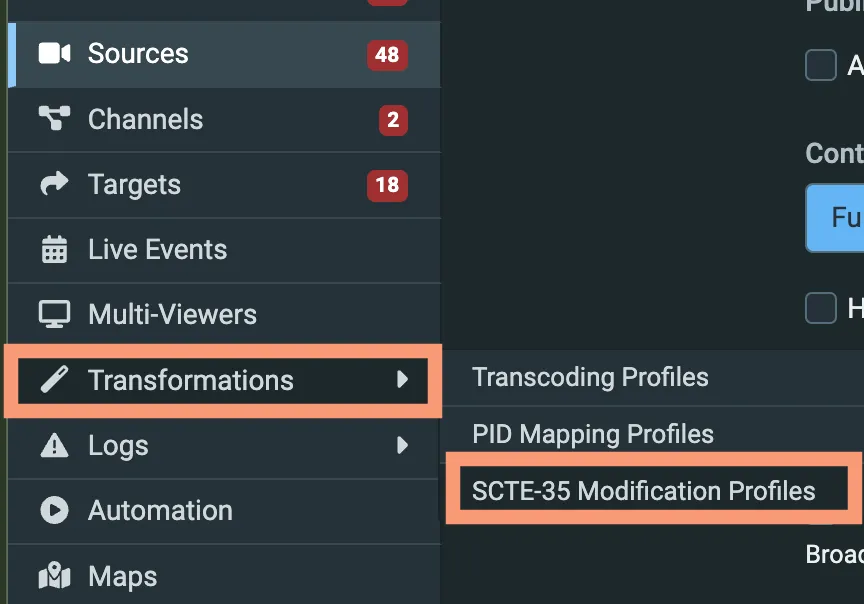
In the ZEN Master navigation menu, go to Transformations>SCTE-35 Modification Profiles.
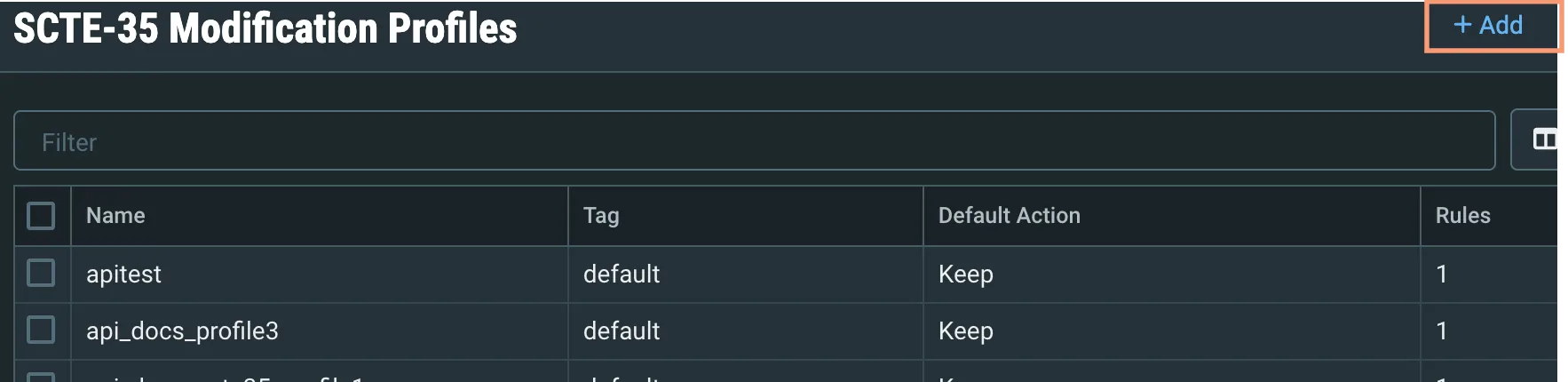
In the SCTE-35 Modification Profiles section, click the Add button:
On the Create New SCTE-35 Modification Profile screen, note that all fields are required.
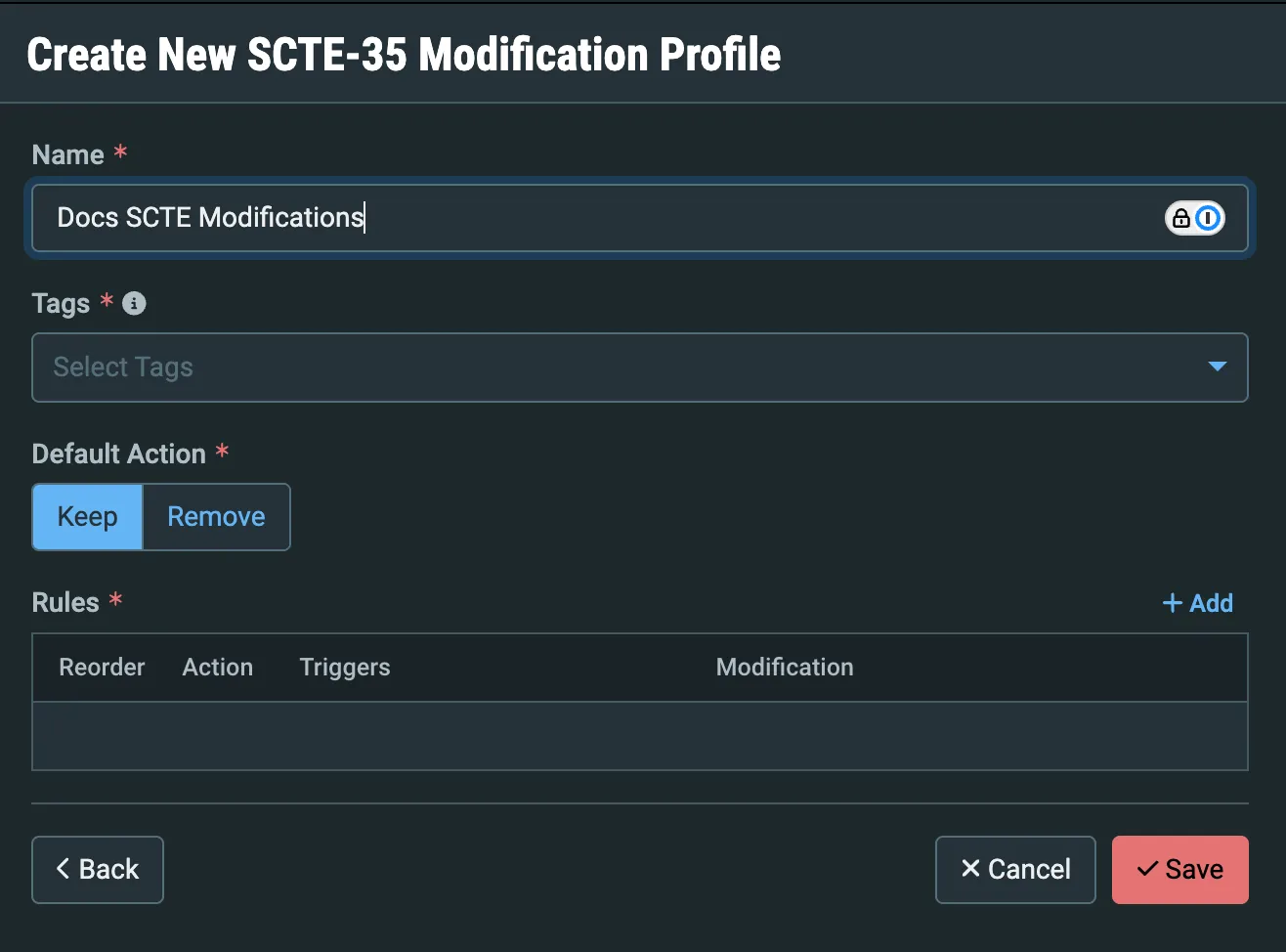
Enter a unique Name for the profile.
Select one or more Tags for the profile.
Select a Default Action (Keep or Remove) which will be invoked when a SCTE-35 message in the screen does not match any of the Rules defined in the profile.
Click +Add to add one or more Rules to the profile:
Note: If there are multiple triggers, the SCTE-35 message should match ALL criteria in order to action the rule. If not, the default action (Keep or Remove) will be applied.

The Create New Rule dialog will open:
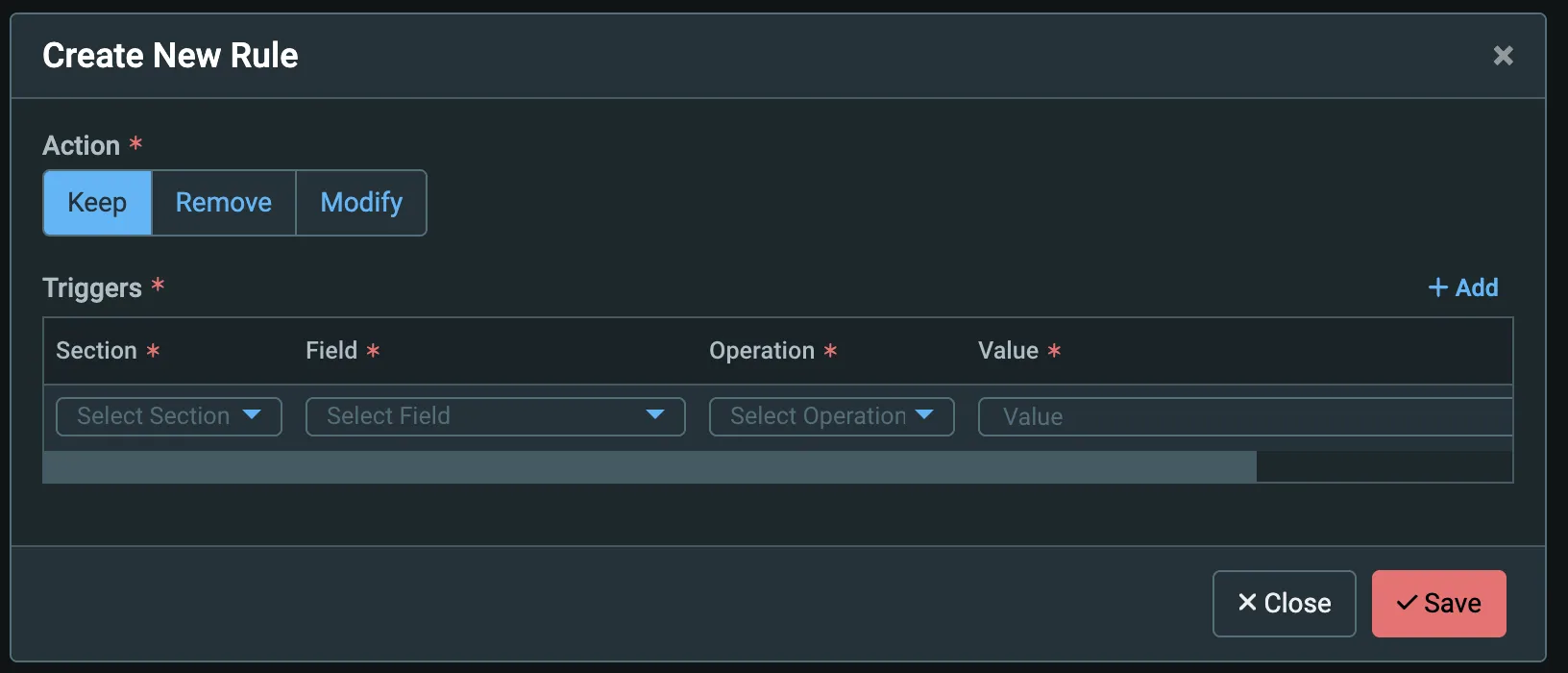
Select the Action that should be triggered when a SCTE-35 message is found that matches the rule(s). The possible actions are:
- Keep the SCTE-35 message as is
- Remove the SCTE-35 message from the stream
Note that Remove behaves differently if the Section is Descriptor, removing only the Descriptor, not the entire message.
- Modify the SCTE-35 message by changing the message to the Modifications defined in the rule
Note that when you select Modify as the Action, you need to specify the Trigger used to identify a matching SCTE-35 message, and also the Modifications that should be made to the message:
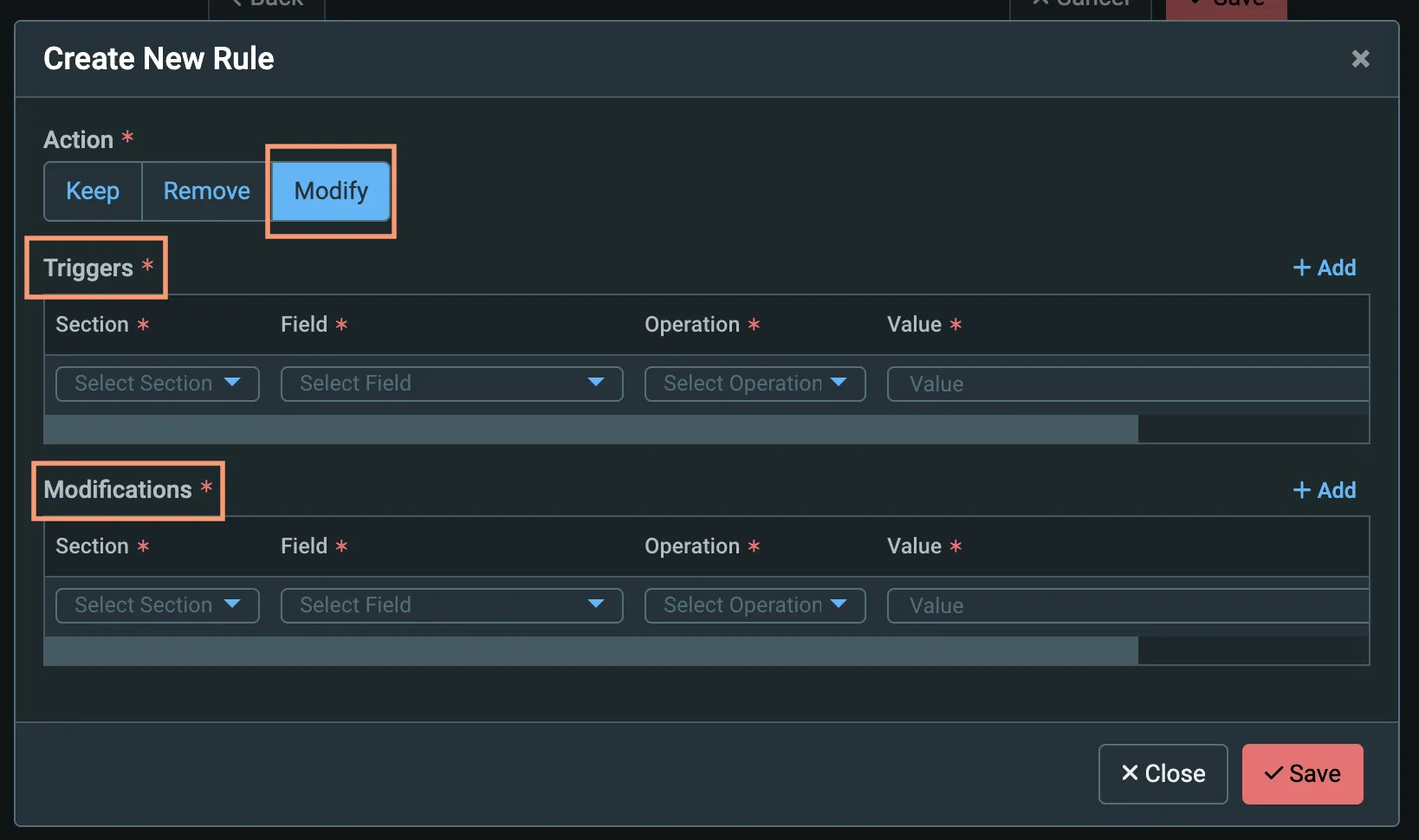
The options available for each part of the Trigger and the Modification to be performed are interdependent, and will vary according to the options already selected. So, select them in order from left to right, with Triggers first, then Modifications.
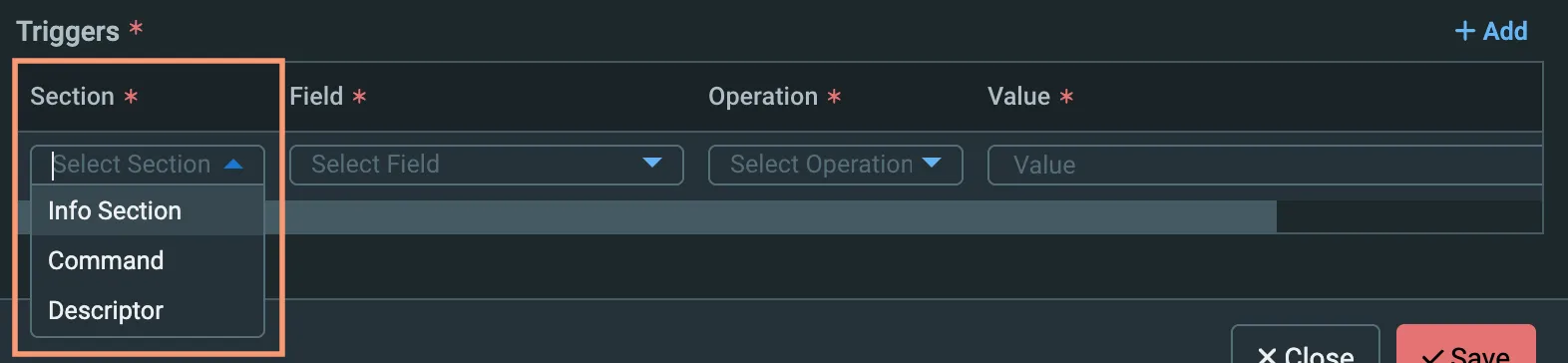
Select the Section for the trigger from the three available options, which are parts of the SCTE-35 message:
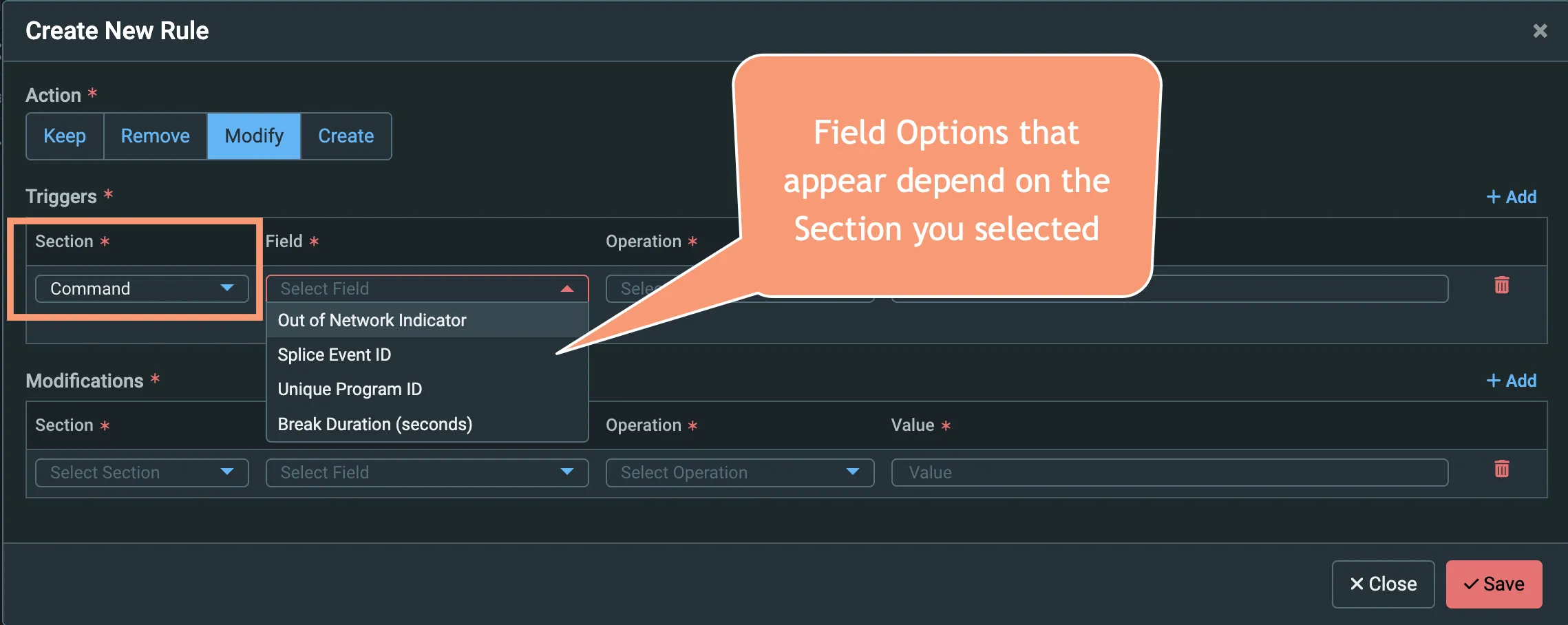
Select the Field for the trigger - note that the available options will depend on which Section you selected:
Select the Operation for the trigger - as with other parts of the trigger, the options depend on the Section and Field already selected. In most cases, the only option will be Equals to check for a matching value:
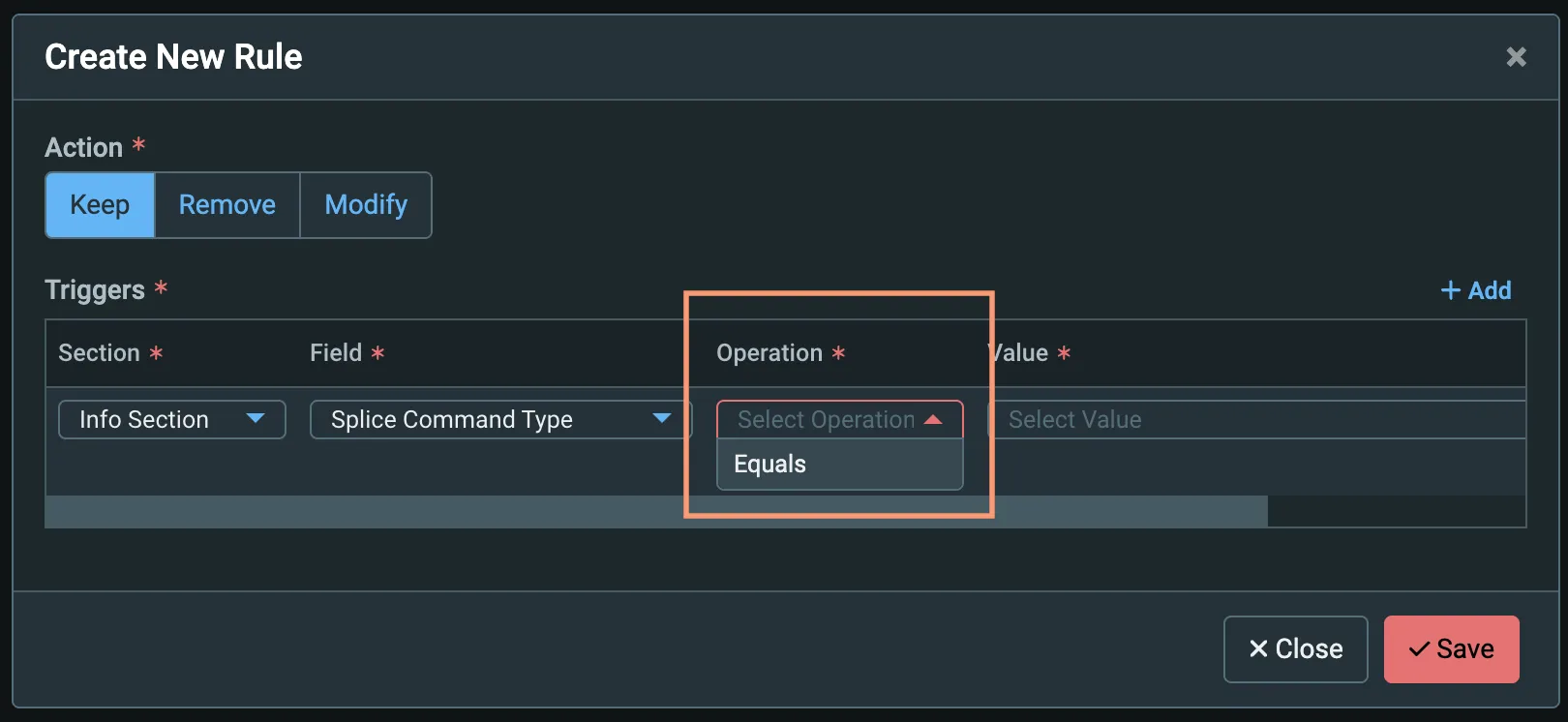
Finally, indicate the Value that you are looking for a match on. This is generally something you will need to type in based on the systems you work with and knowledge of the SCTE messages in the stream.
For rules where the Action is Modify, you need to define the Section, Field, Operation, and Value for the Modification. Essentially, you are defining the message you want to replace the existing SCTE-35 message with.
To add additional rules, click + Add above the Triggers in the Create New Rule dialogand repeat the steps above.
When you are finished, click Save to save the rules and close the Create New Rule dialog.
Click Save again on the Create New SCTE-35 Modification Profile screen to save the profile.
Testing Rules Using the SCTE-35 Modification Rule Simulator
Once created, SCTE-35 modification rules can be tested directly within the ZEN Master interface. We strongly recommend using the simulator to test known SCTE-35 messages to ensure the expected results.
Using the SCTE-35 Modification Rule Simulator
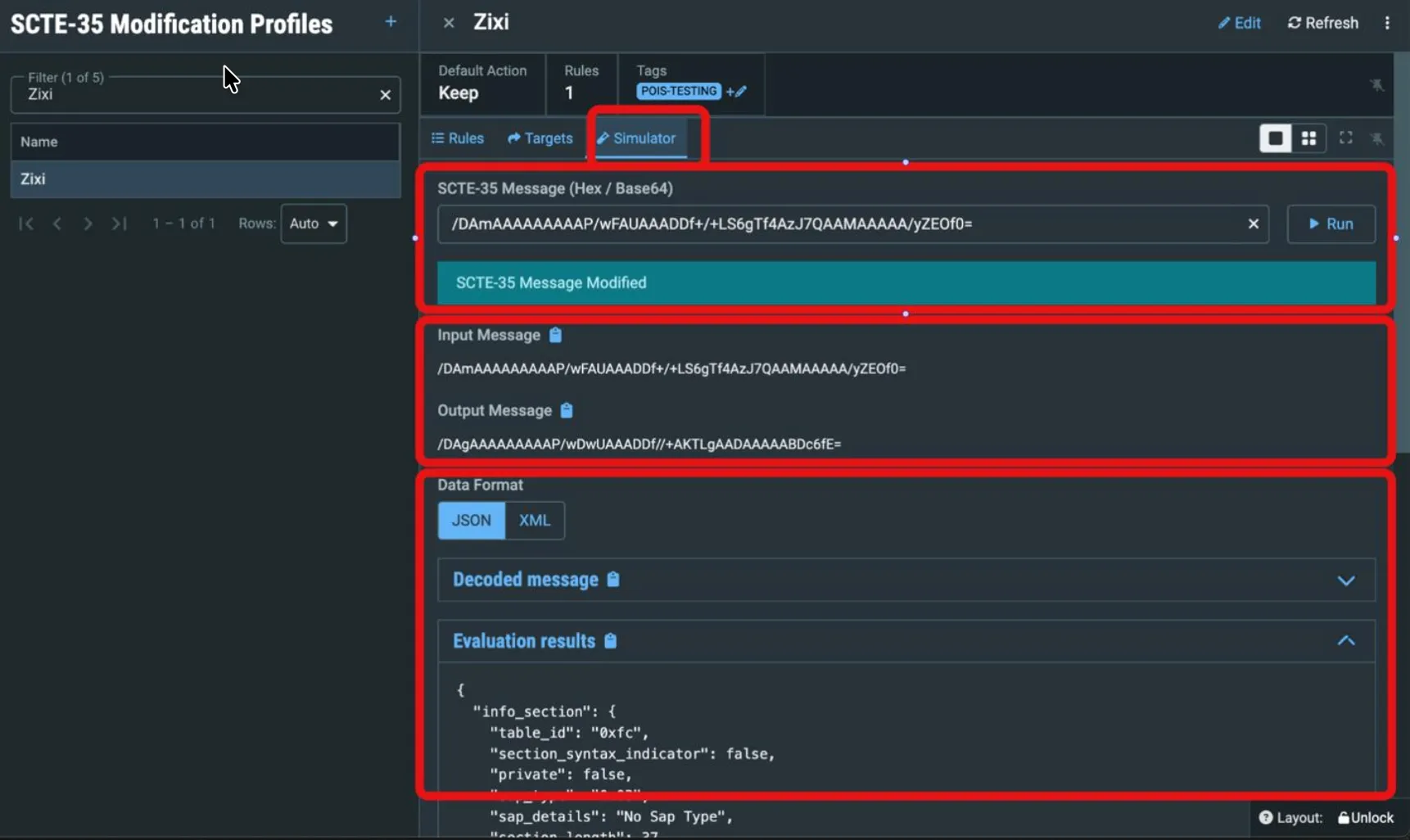
Click the Simulator tab on your Profile:
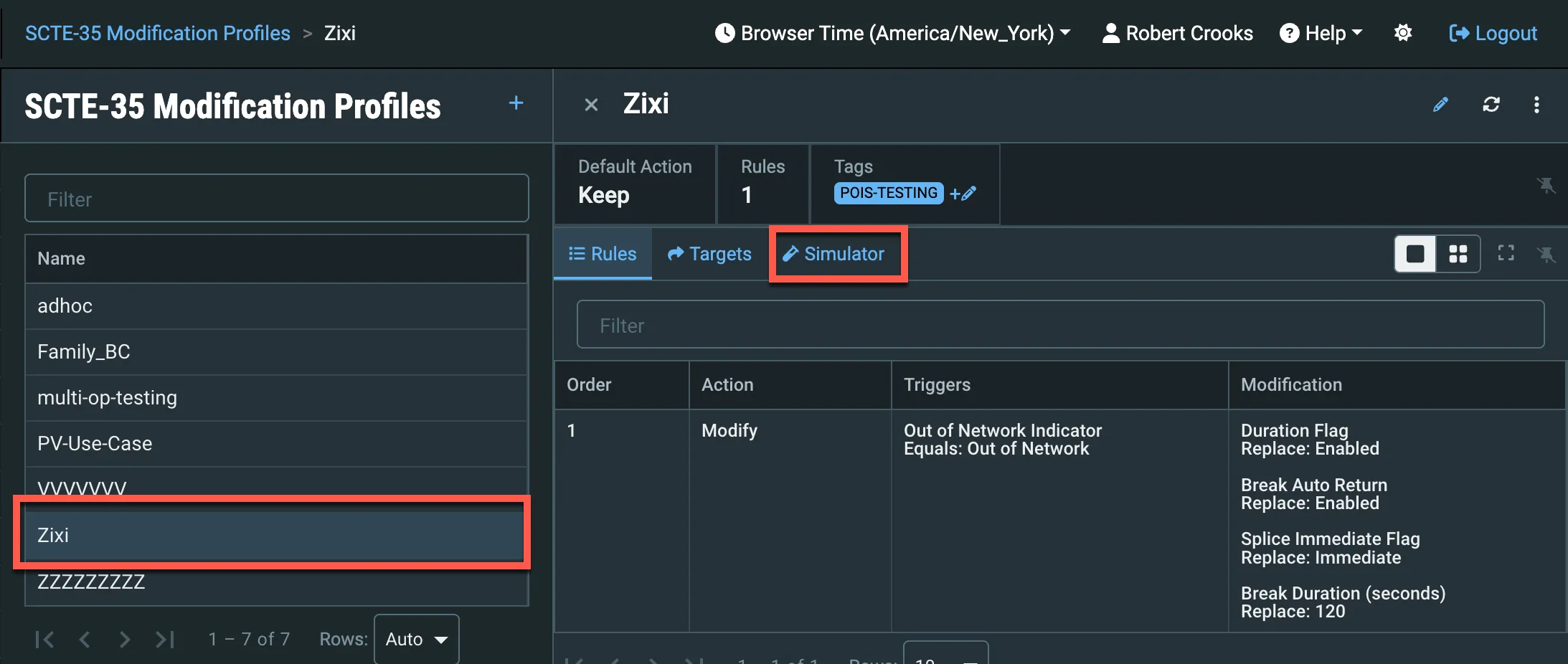
After choosing the Simulator tab, you can enter an example message in the input field and Run it against your defined Rules.
If you want to use a message from an existing Source, go to the Source details. Here, you can select a SCTE-35 message and copy it.
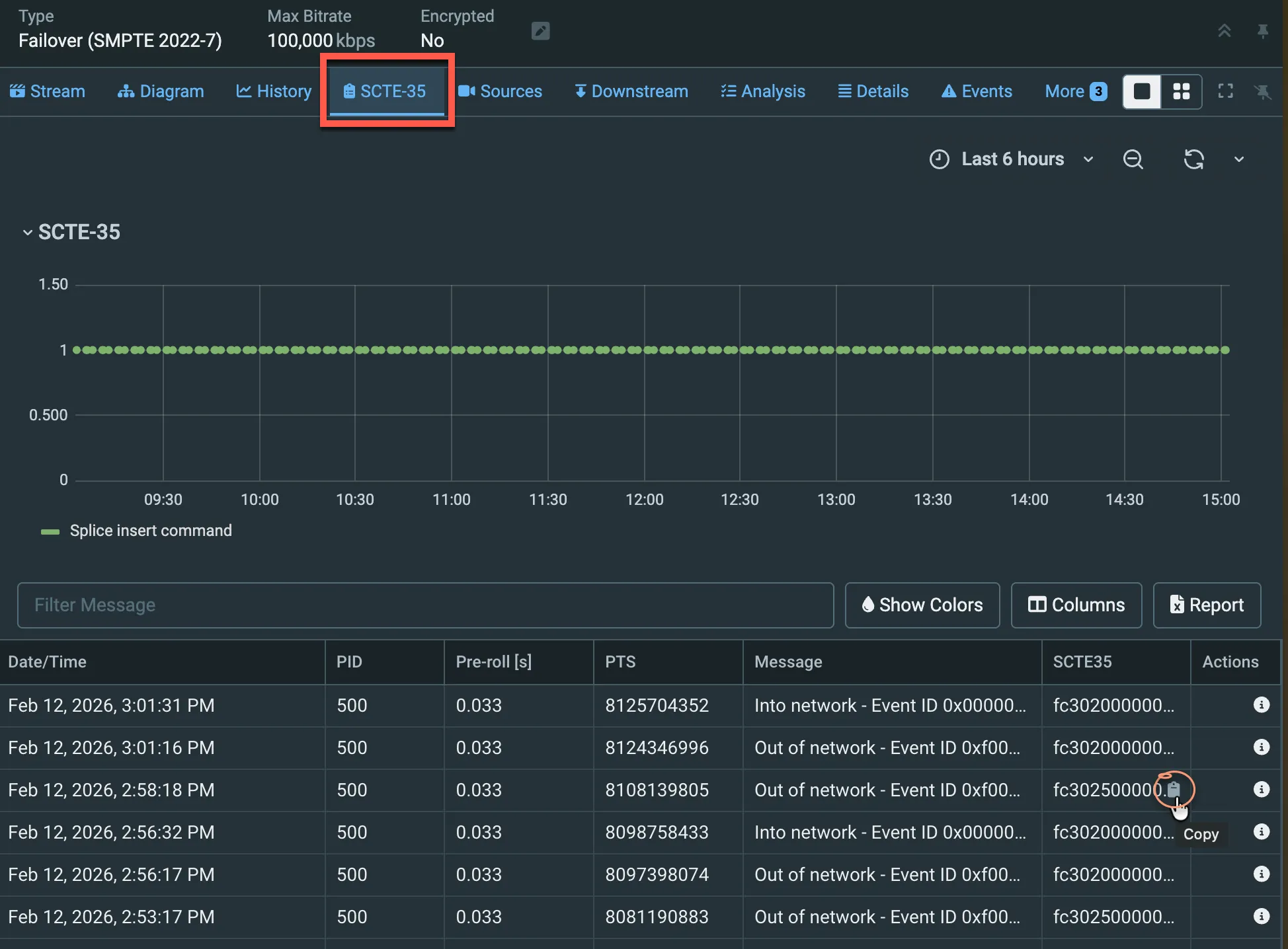
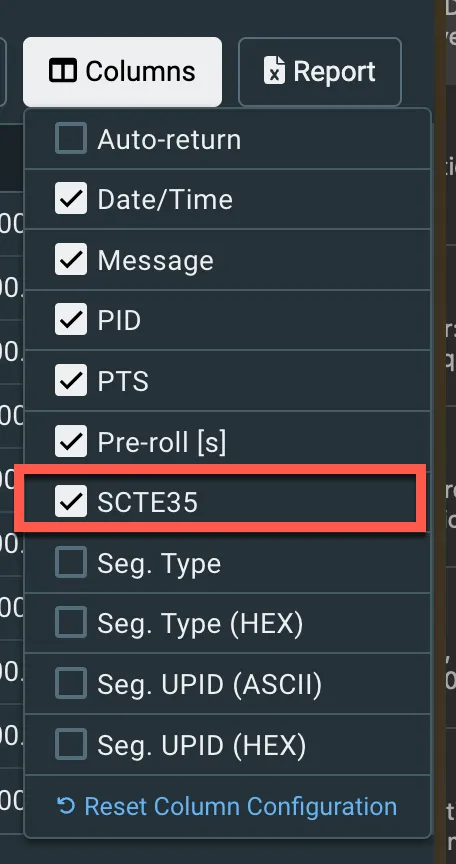
The SCTE35 column does not appear by default, but you can reveal it by selecting it in the Columns selector:
The rules and associated priorities of actions will be matched in turn and applied against the example input.
The decoded message and modification result are made available in JSON or XML format.