Adding an AWS MediaConnect Source
This Source is configured on an AWS MediaConnect that serves as the Ingest Object. The stream originates from an AWS Elemental Link device, which serves as the Origin. The Origin is not managed by ZEN Master. However, since ZEN Master is connected to AWS MediaConnect and AWS MediaConnect is connected to the AWS Elemental Link, by enabling/disabling the Source you are also starting/stoping the stream through ZEN Master.
At the time of the Source configuration the spcific AWS MediaConnect component doesn't have to be necessarily running. The AWS MediaConnect component can be started at a later time and it may, in turn, start the stream, which is coming from the connected AWS Elemental Link.
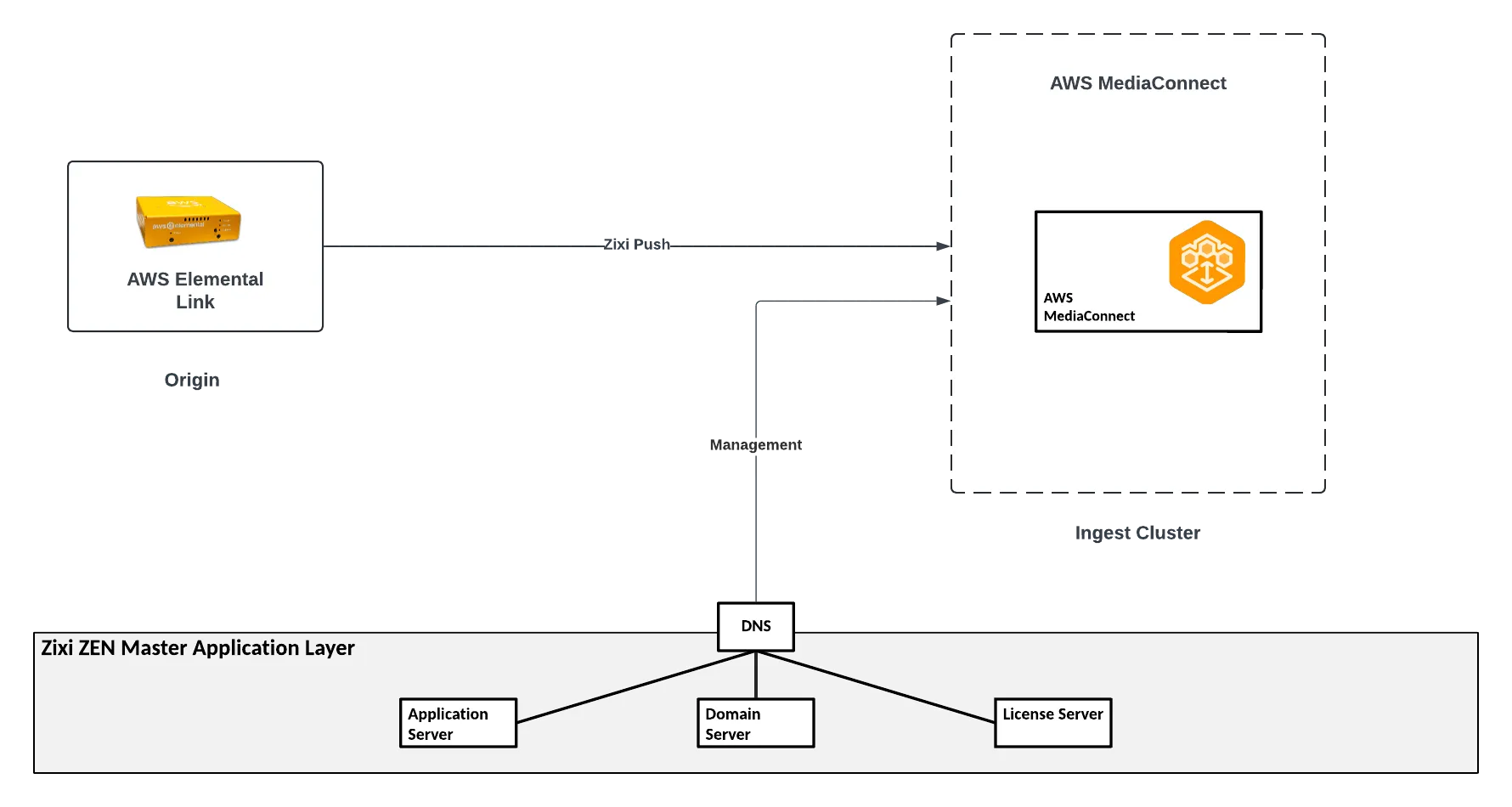
The following procedure describes how to add an AWS Elemental Link MediaConnect Source. In addition, an explanation of each of the configuration parameters is given in the table below.
To create an AWS Elemental Link MediaConnect Source:
In the main navigation, click Sources.
Click + Add. The Create New Source window is displayed.
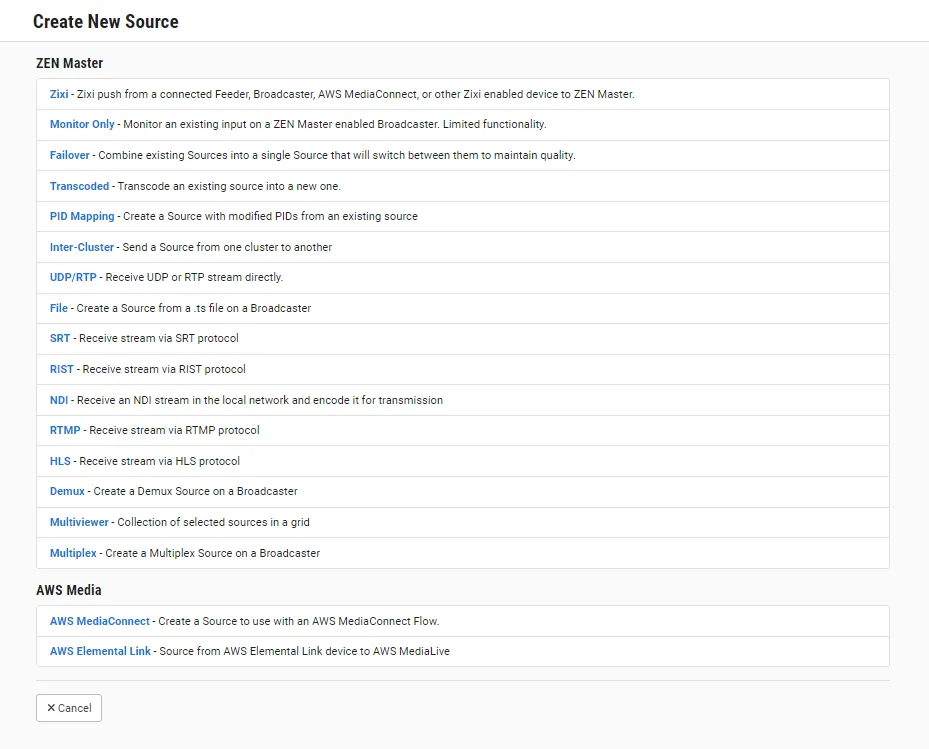
Under AWS Media, click on AWS MediaConnect.
The Create New AWS Media Source window opens.
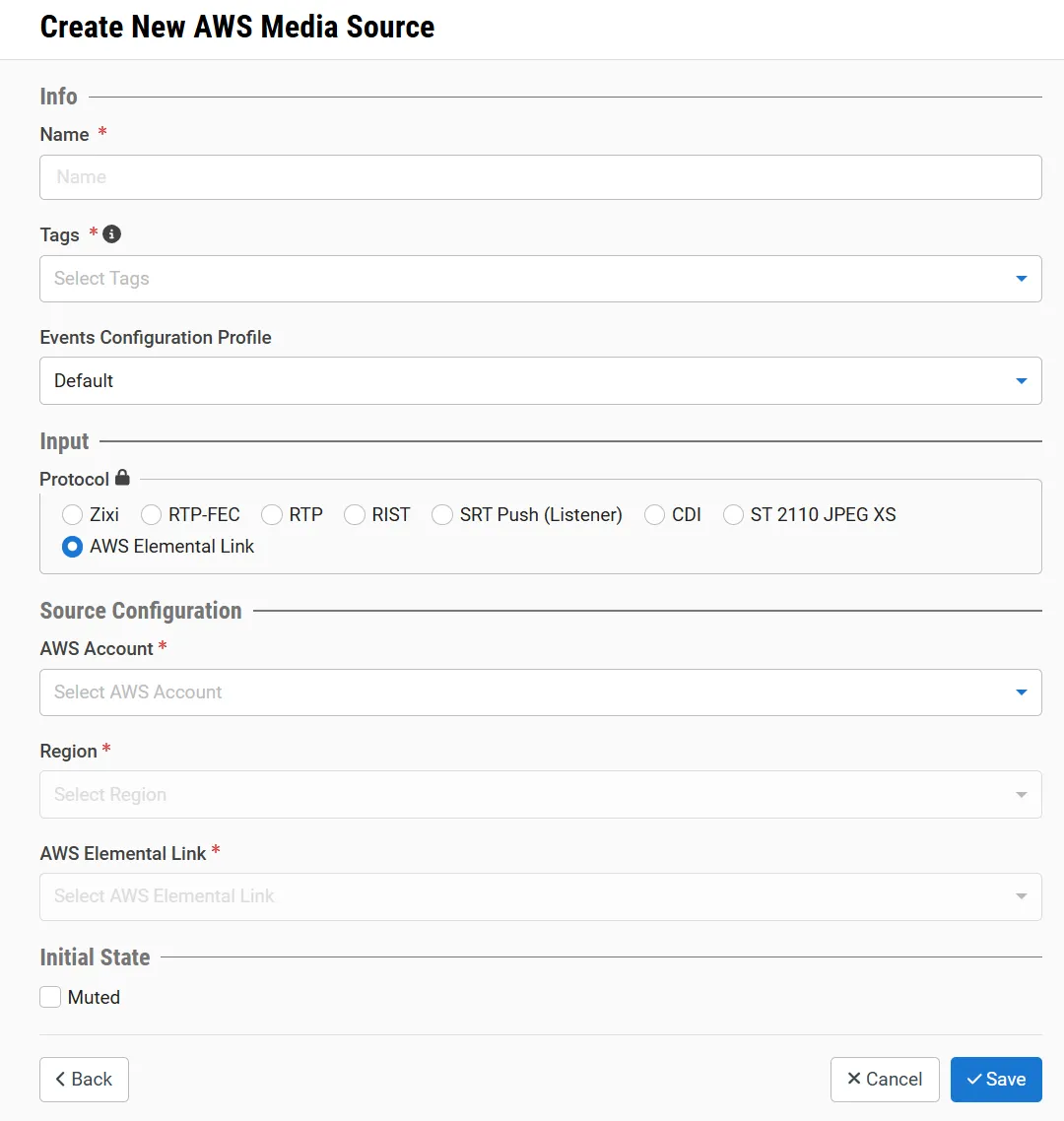
In the Info section, in the Name field, type a logical name for the Source.
In the Tags field, select one or more of the predefined Tags from the drop-down list. Tags are used for access control. By selecting a Tag, you are relating this Source to that Tag. Tags are associated with certain roles (through the Users & Roles screen), and roles, in turn, are associated with users and user groups. If you would like to create a new Tag, see Creating a Tag.
In the Events Configuration Profile field, select from the dropdown list the profile that you would like to apply to this Source. By default, the Default profile is applied. Events Profiles consist of a series of rules that determine precisely how various types of Events are logged and what results they trigger.
In the Input section, under Protocol, select the AWS Elemental Link radio button.
Under the Source Configuration section, in the AWS Account field, select from the drop-down the AWS account that matches the AWS account of the AWS MediaConnect Channel that serves as the Ingest Object.
In the Region field, select from the drop-down list the AWS region that matches the AWS MediaConnect Channel that serves as the Ingest Object.
In the AWS Elemental Link field, select the AWS Elemental Link device that serves as the Origin. The origin AWS Elemental Link has to be registered to the AWS Account.
In the Initial State section, select the Muted checkbox if you would like to disable error/recovery notifications for this Source upon initial configuration. You can Unmute the Source at any time.
Click Save.
Parameters Table
Parameter | Description |
|---|---|
Info | |
Name | Specify a name for the AWS Media Source in ZEN Master. |
Tags | Select one or more of the predefined Tags from the drop-down list. Tags are used for access control. By selecting an Tag, you are relating this Source to that Tag. Tags are associated with certain roles (through the Users & Roles screen), and roles, in turn, are associated with users and user groups. If you would like to create a new Tag, see Creating a Tag. |
Events Configuration Profile | Select from the dropdown list the profile that you would like to apply to this Source. By default, the Default profile is applied. Note: Events Profiles consist of a series of rules that determine precisely how various types of Events are logged and what results they trigger. |
Input | |
AWS Elemental Link radio button | In the Input section, under Protocol, select the AWS Elemental Link radio button. |
Source Configuration | |
AWS Account | Under the Source Configuration section, in the AWS Account field, select from the drop-down the AWS account that matches the AWS account of the AWS MediaConnect Channel that serves as the Ingest Object. |
Region | In the Region field, select from the drop-down list the AWS region that matches the AWS MediaConnect Channel that serves as the Ingest Object. |
| |
Initial State | |
Muted | Select this checkbox if you would like to disable error/recovery notifications for this Source upon initial configuration. |